
Swatches
Swatches are small but powerful visual tools that showcase the available colors, patterns, or materials of a product. Instead of plain text, they offer an interactive and visually appealing way for customers to explore product options.
The Adorn theme supports swatches in the variant picker, product cards, and filters. These swatches can display colors, custom images, or variant images. Adorn is also fully compatible with Shopify's native swatch functionality, making it easy to implement and manage.
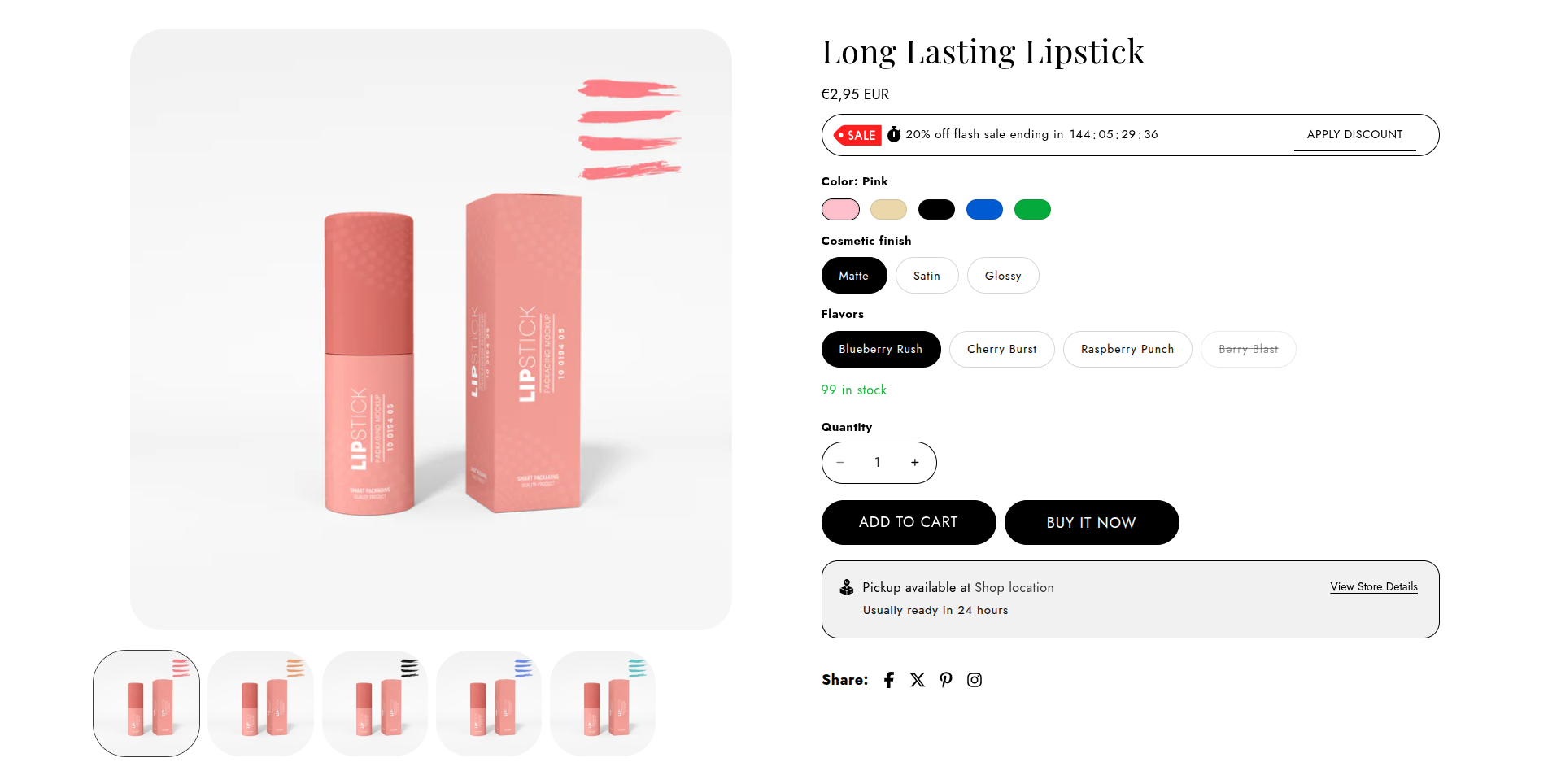
How to set up swatches on produst page
- From the Shopify admin area, go to Online store > Themes > Customize.
- Select Products from the dropdown at the top and choose the desired product template (e.g. Default product).
- Configure a Product information block within a Product pages section, Select Variant picker block
- Select your preferred style for displaying variants
-
- Dropdown: Shows options in a dropdown menu.
- Pills: Displays options as pill-shaped buttons.
- Swatch: Shows color or pattern swatches for options.
- None: Disables the variant picker style, displaying options without special formatting.
How to set up swatches shap
You can configure the global swatch shape for product swatches across your store by following the steps below:
- Go to Online Store >>Themes >> Customize >> Theme Settings >> Color Swatches Selectors
- Select the desired shape for your swatches from the following options:
- Circle – A circular swatch (default shape if none is selected).
- Square – A perfect square swatch.
- Pill – A rounded, pill-shaped swatch.
- None – Disables swatch styling.
- If no swatch shape is selected, Circle will be used by default.
Show Color Swatches on Product card
- Go to Online Store >>Themes >> Customize >> Theme Settings >> Color Swatches
- Enable Show Color Swatches to display variant color swatches on product cards.
- Note: This setting only applies to product cards across collection and search pages.
Shopify swatches
Shopify's native swatches are supported and provide a seamless way to link variant options to color metafields. These swatches can be displayed in variant pickers and on product cards, offering an engaging and visually appealing way for customers to explore product options.
For a detailed guide on how to set up category metafields, refer to Shopify's official documentation here.
To display the color swatch, need to select the *Swatch Type* as *Square* in the variant settings.
FAQs
Why isn’t the color swatch showing?
Color swatches may not appear for several reasons:
- Ensure the color category metafield is properly configured for your products in the Shopify admin. Swatches rely on the metafield data to display.
- Verify that the variant names match the color options exactly, including capitalization and spaces. Any mismatch can prevent the swatches from displaying
For a detailed guide on how to set up category metafields, refer to Shopify's official documentation here.
Can I change the color swatch style?
Yes, you can customize the style of the color swatches.
- Go to Customize in the Shopify theme editor.
- Select the Product block.
- Locate the Variant Picker section.
- Choose your preferred style for displaying the swatches.