
Image With Text
The Image with Text section in your Adorn theme is a versatile, image-based feature that allows you combine text, multiple images, and a call-to-action button for a dynamic and eye-catching promotion. Perfect for highlighting new products, collections, or brand information, you can arrange text and images on either side to best suit your design and draw attention to key content.
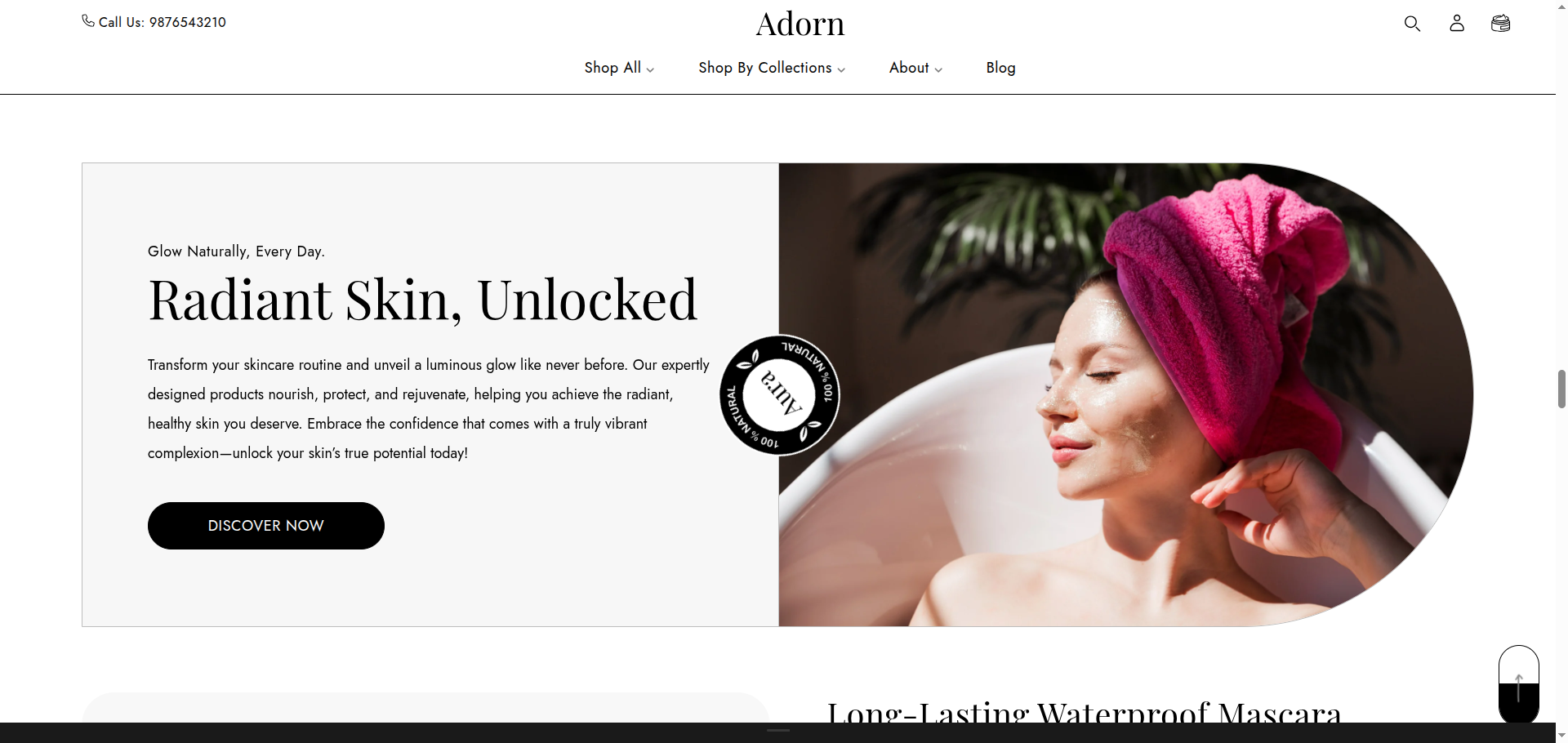
Adding the Image With Text
- Open the Customizer and go to the page where you want to add the Image With Text section.
- On the left-hand side, you'll find a list of available sections. Click the "Add section" button.
- From the available options, choose "Image With Text" to add it to your page.
How to edit an Image With Text section
To edit the image with text section in your Shopify theme, Adorn, follow these steps
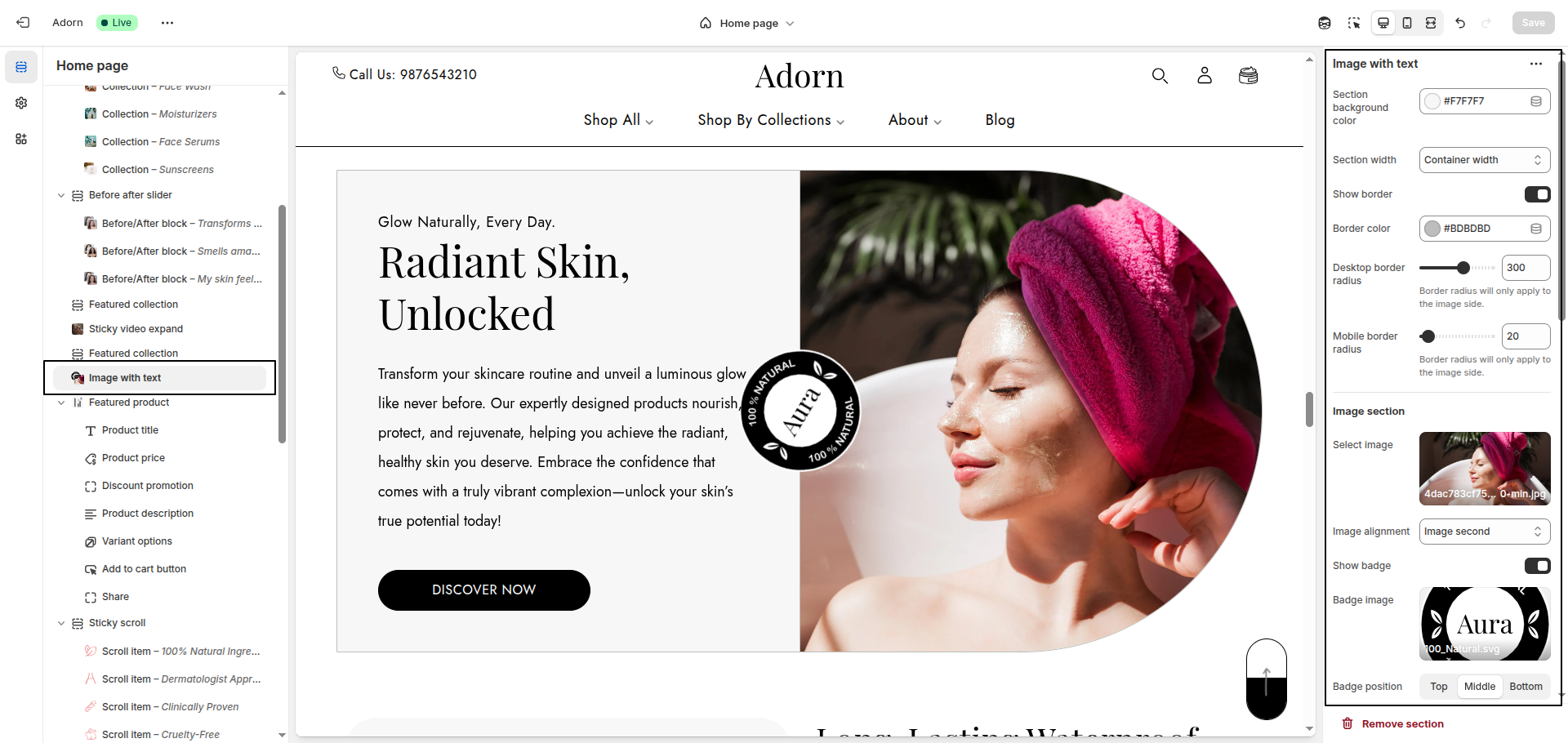
1. Set Color Scheme
- Set the background color for the section.
2. Set Section Width
- Choose Container Width to restrict the section to a fixed width.
3. Show Border
- Toggle Show Border to enable or disable borders around the section.
- Set the Border Color.
4. Set Border Radius
- Desktop Border Radius: Specify the border radius for the image side on desktop.
- Mobile Border Radius: Specify the border radius for the image side on mobile.
5. Add an Image
- Add an Image (Connect dynamic source) that you prefer for your Image with text section.
6. Desktop image placement
Choose the Image Alignment option to position the image
- Image First: Displays the image on the left side of the text.
- Image Second: Displays the image on the right side of the text.
7. Badge Settings
- Toggle Show Badge to display a badge over the image.
- Upload a Badge Image to use as the badge.
- Choose the badge's position: Top , Middle and Bottom
- Enable the Rotate Badge option for a rotated badge effect.
8. Text section
Add heading/ subheading/ text/ button to Image with text section.
- SubHeading: Enter a short introductory phrase for the section.
- Heading: Add a bold, eye-catching heading.
- Text: Provide a detailed description of the product or offering.
- Button: Add the Button label and link.