
Faq Section
The FAQ (Frequently Asked Questions) section in our themes allows merchants to display a list of common questions and their answers directly on the store. It is designed to help customers quickly find information about products, services, or policies, improving their overall shopping experience.By addressing frequent queries in one place, the FAQ section reduces the need for customers to contact support and ensures they have access to clear and reliable information. This makes it an effective tool for building trust, saving time, and enhancing store usability.
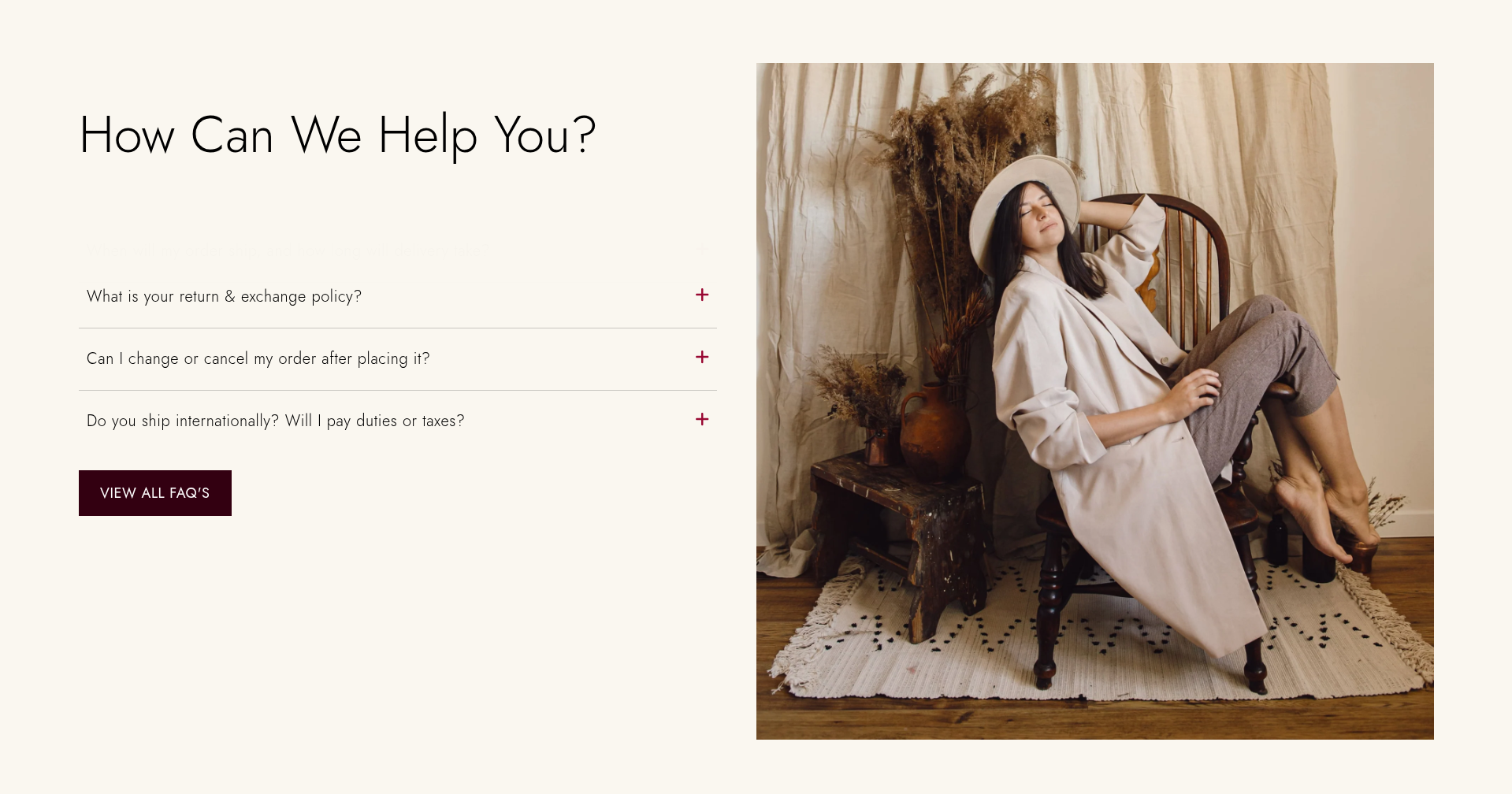
How To Add the Faq Section
- Login to your Customizer and navigate to the page you would like to display this section.
- You'll see a list of available sections on the left-hand side. Locate the Add section button and click on it.
- From the list of available sections, find and select Faq Section.
How To Edit the Faq Section
Here are the steps to configure the options mentioned for the Faq Section in your Adorn Shopify theme:
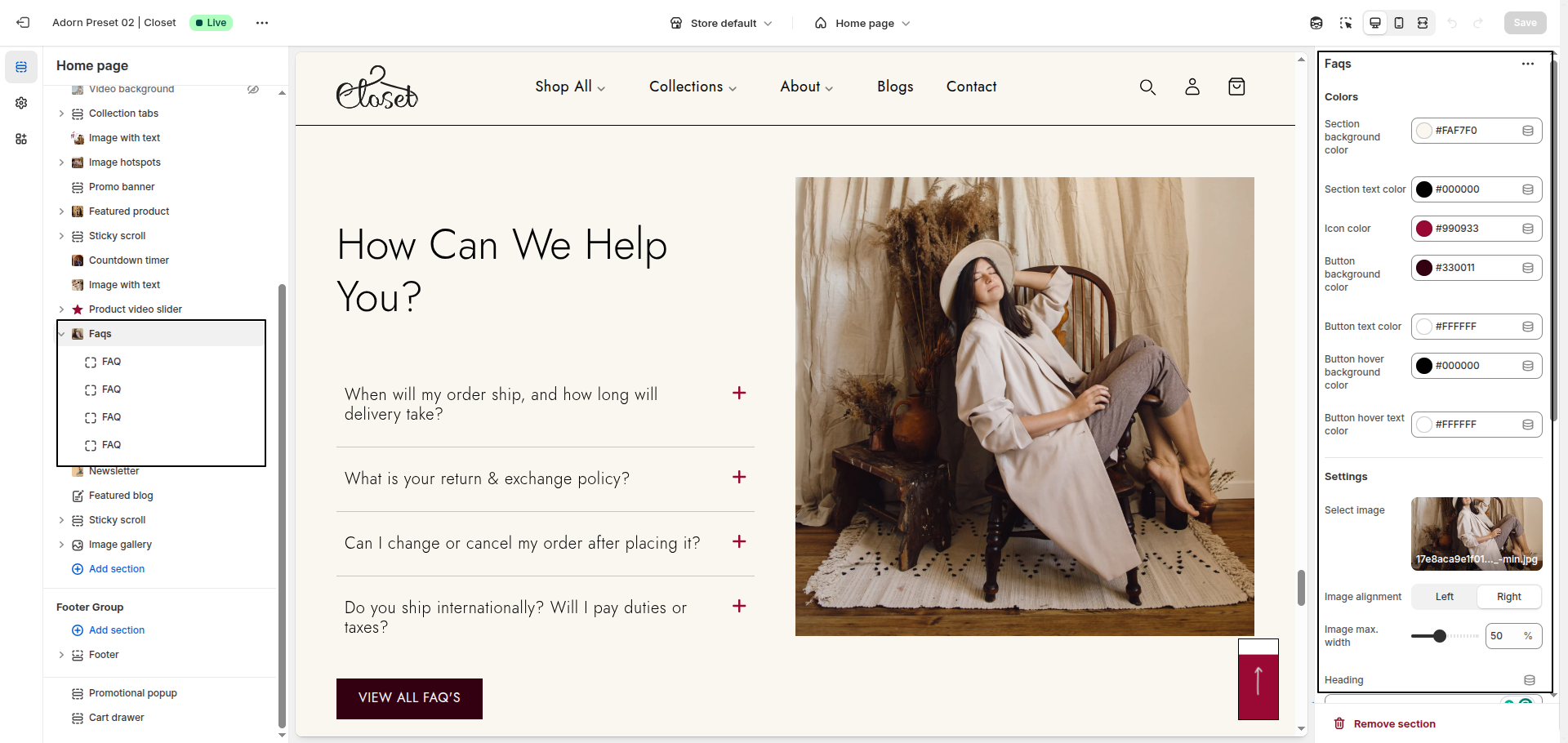
1. Configure Section Color
- Section Background Color: Allows you to set the background color of the FAQ section.
- Section Text Color: Defines the color of the text inside the FAQ section.
- Icon Color: Sets the color of the icons used in the FAQ section.
- Button Background Color: Allows you to set the background color of buttons in the FAQ section.
- Button Text Color: Defines the text color inside the buttons.
- Button Hover Background Color: Changes the background color of buttons when hovered.
- Button Hover Text Color: Changes the text color of buttons when hovered.
2. Configure Image Settings
- Select Image: Upload or choose an image to display in the section.
- Image Alignment: Choose the position of the image – either Left or Right.
- Image Max. Width: Set the maximum width of the image (e.g., 50%).
3. Configure Section Content Settings
- Heading: Add a title or heading for the section.
- Button Label: Enter the text that will appear on the button (e.g., “VIEW ALL FAQ'S”).
- Button Link: Add the link/URL where the button should redirect users.
5. Configure the Faq Block Settings
- Adding a New slide: To add a new slide, simply click on the Add Faq block button to add a new slide.
- Add a Question: In the Question field, enter the title you want to display.
- Add a Answer: In the Answer field, enter the answer you want to display.
- Removing a slide: Select an existing slide and click the Remove Block button to delete it.