
Collection Page
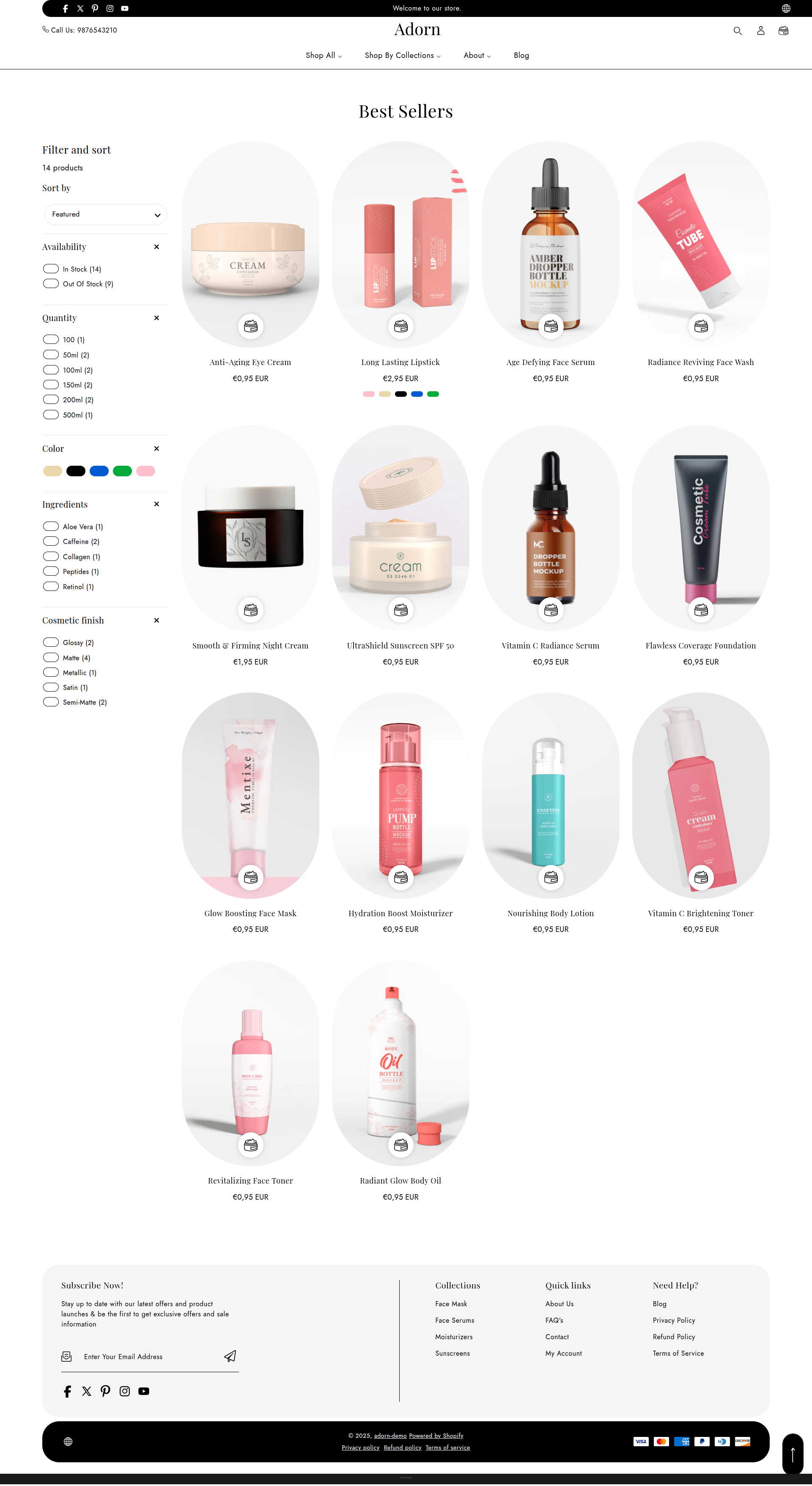
The Collection Page in Adorn elegantly showcases products grouped by category, allowing customers to easily browse and discover items within specific collections. This organized approach enhances the shopping experience, making product discovery seamless and intuitive.
How to create a collection
A Collection Page in Adorn comprises two key elements: the collection of products and the collection page template. The template can be customized to create unique layouts for different collections, enhancing the browsing experience.
To create product collections, go to Products > Collections > Create collection in the Shopify admin. Collections help customers find products by category or characteristic. For more details, refer to Shopify’s Collections documentation.
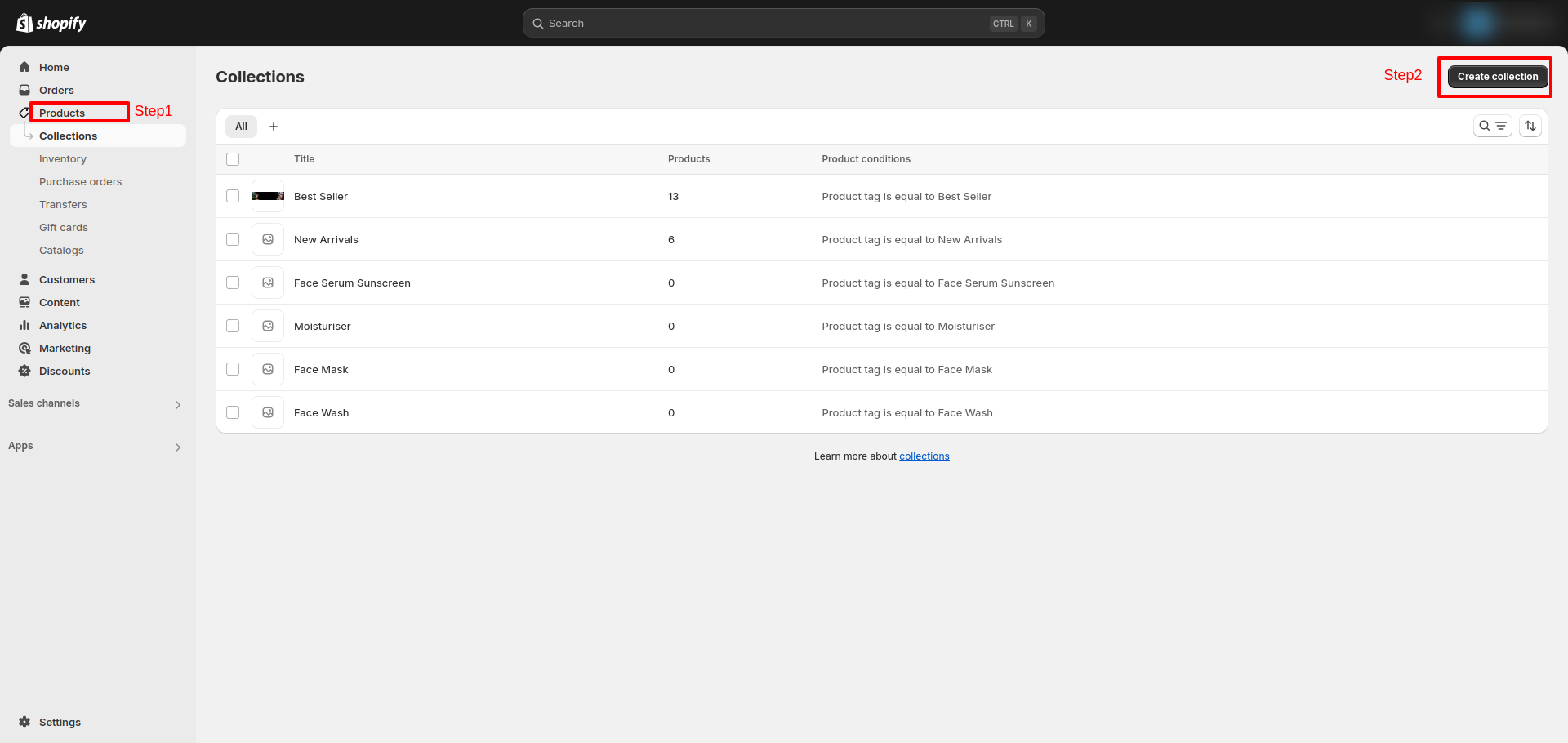
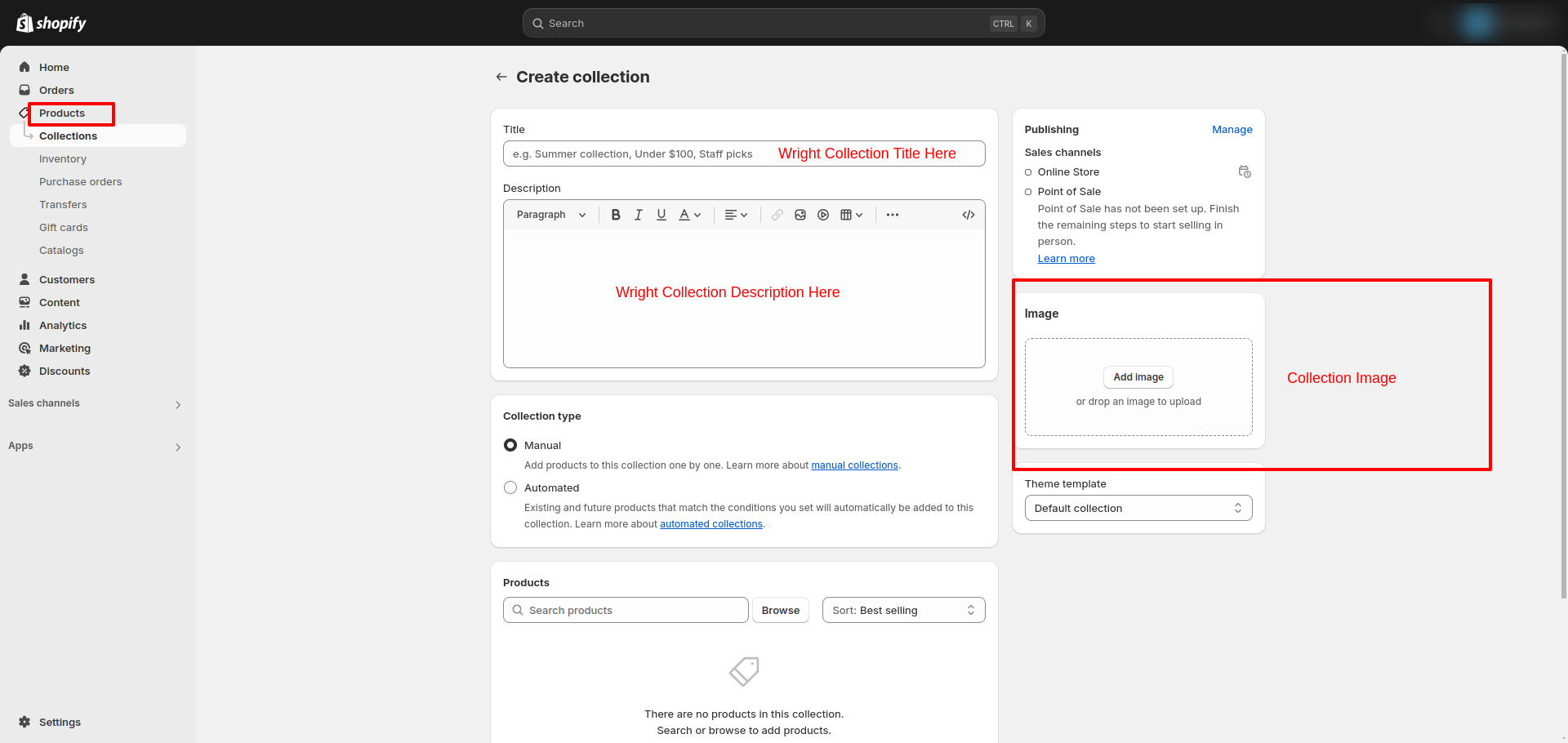
You can create two types of collection
1. Automated collection
It uses conditions to add matching products automatically to the collection. When you add a product to your online store,if it matches the collection's conditions,the product is added to that collection automatically.
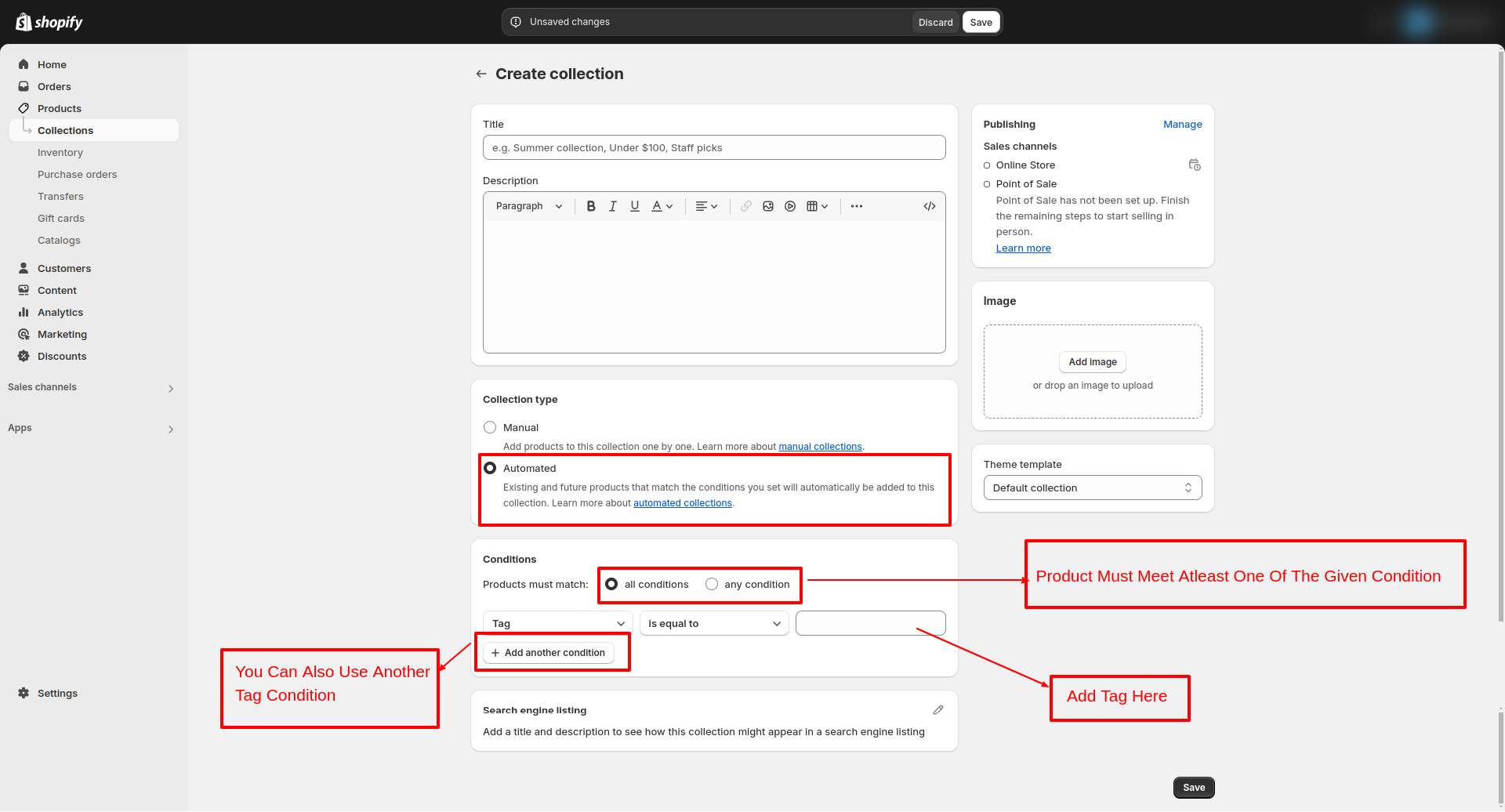
2. Manual collection
This type of collection includes specific products, which are added manually one by one.
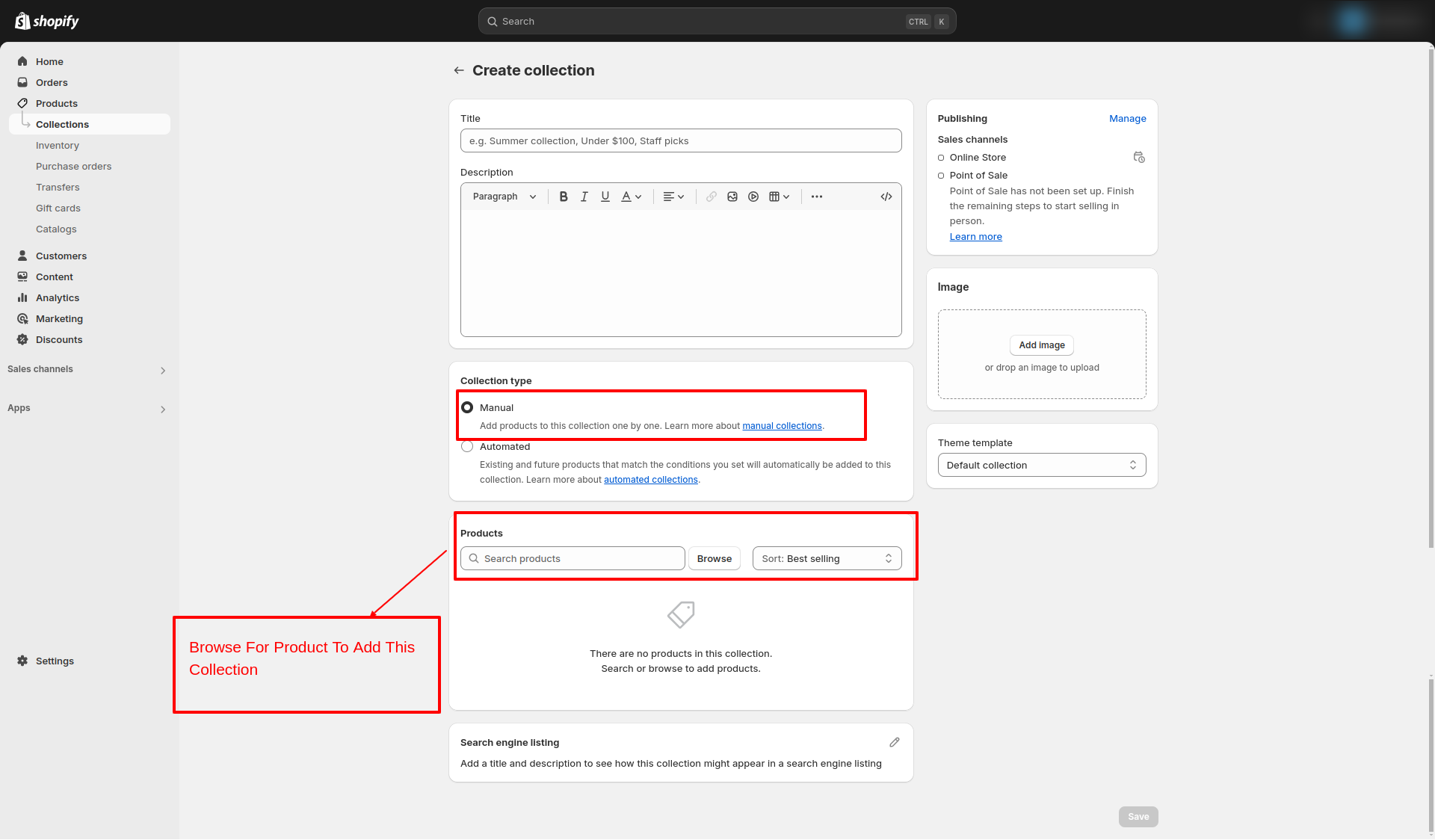
How To Edit Collection page
Here, you can customize the content displayed on your Collection Page to effectively organize and showcase your products. Before adjusting these settings, ensure the collection is available on your online store
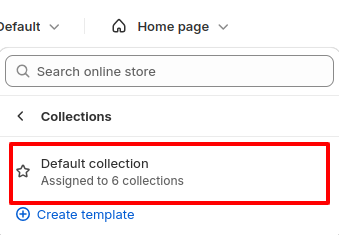
Go to Online Store >> Themes >> Customize >> choose 'Collections >> Default collection' in the drop-down page selector.
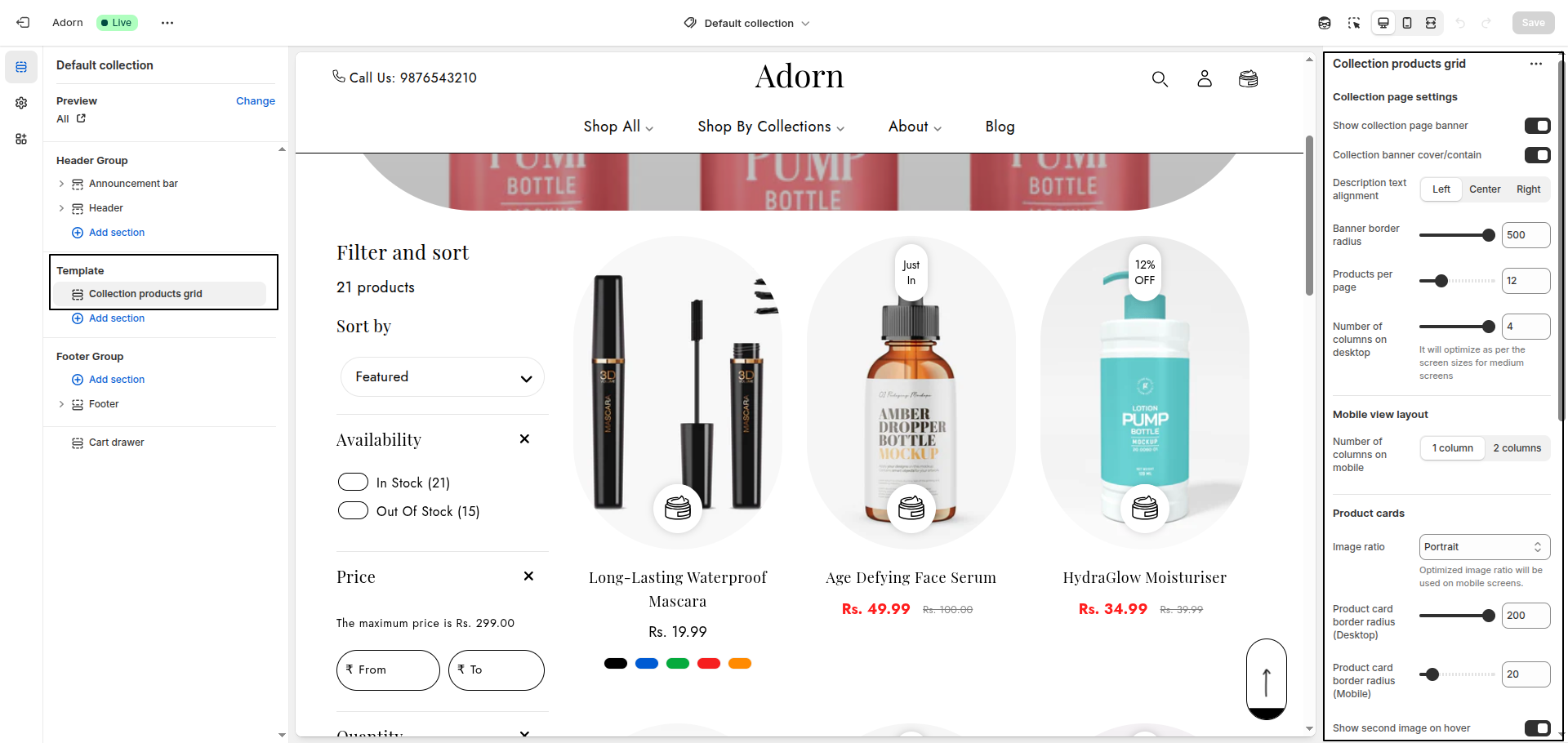
1. Banner Settings
- Show Collection Page Banner: Enable this option to display a banner at the top of the collection page. This can be used to highlight collection-specific images or messages.
- Banner Border Radius: Set the border radius for the banner (e.g., 100px A higher value gives the banner rounded edges for a softer look.).
- Banner Display: Choose Cover (fills the area, may crop) or Contain (fits fully, may leave space).
- Description Alignment: Set text alignment to Left, Center, or Right.
2. Product Display
- Products per Page: Set the number of products to display per page.
- Number of Columns on Desktop: Choose the layout with the desired number of columns.
- Mobile View Layout: Select the number of columns on mobile.
1 Column: Displays one product per row for better focus.
2 Columns: Displays two products per row for a compact look.
3. Configure Image Ratio
Under Image Ratio, select one of the following options:
- Adapt to image: Keeps the original image ratio.
- Portrait: Displays images in a portrait ratio.
- Square: Crops images into a square format.
4. Product Card Border Radius
- Choose Default for standard-styled cards. Note that standard-styled cards do not have borders when an image shape is active.
5. Additional Display Options
- Show second image on hover: Enable this option to display a secondary product image when customers hover over the product.
- Show vendor: Toggle this option to display the product vendor.
6. Quick Add Options
Select Quick Add style
- None: No quick add button..
- Standard: Adds a standard quick add button
7. Show Color Swatches
- Show color swatches: Toggle to show or hide product color swatches on product card, Adding color swatches using category metafields Follow this instruction for more detailed.
8. Pagination Style
- Choose between Pagination (traditional page navigation) or Infinite Scroll for continuous scrolling.
9. Enable Filters On Collection Page
- Enable sorting: Turn this on to allow customers to sort products.
- Enable filtering: Toggle this on to activate product filtering. Customize filters using the Search & Discovery app.
10. How to customize filters
- Go to Online store > Navigation
- Click Add and install the Shopify Search & Discovery app for your store.
- Go to Apps > Search & Discovery > Filters > Edit filters
- Add or remove filters to show/hide from the storefront filters > Save the settings.
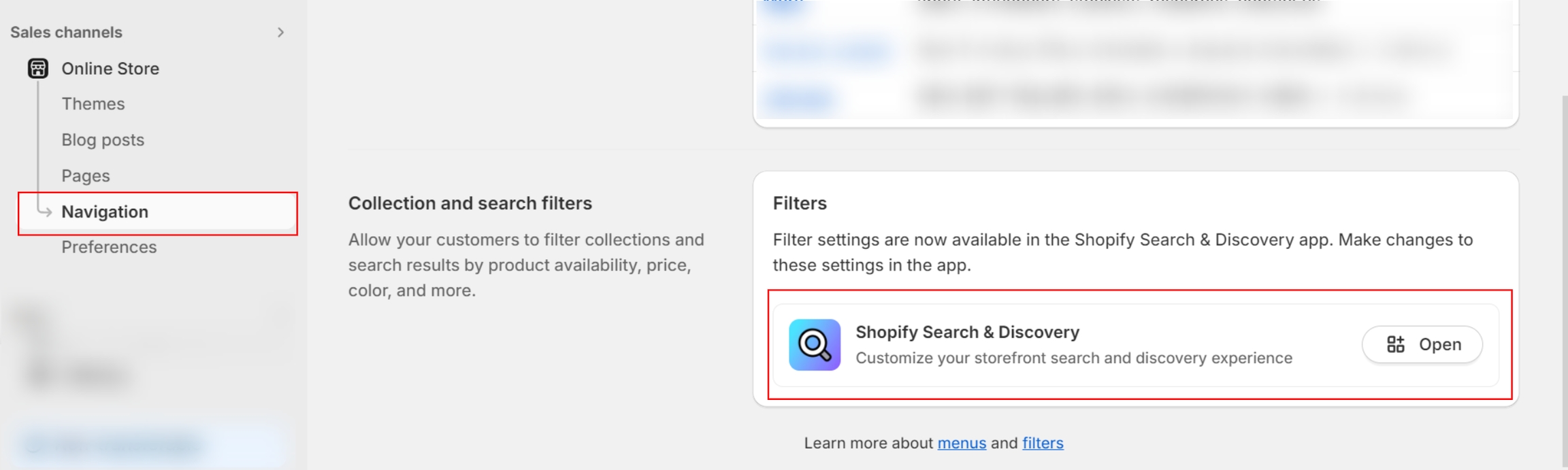
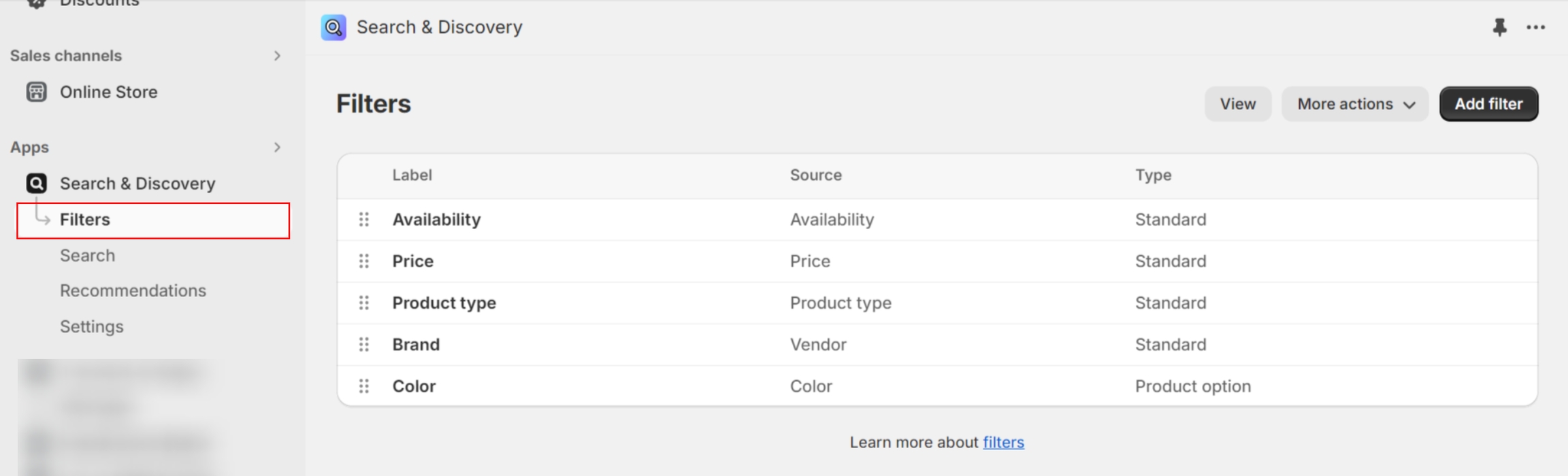
Refer to Shopify’s Filter documentation for more.
Also, refer to the Storefront Filters Customization Guide to fine-tune the filters.
11. Promo tile
Steps to Add and Configure Promo Tile Block
- Go to Online Store → Themes → Customize.
- Open the Collection page where you want to add the promo tile.
- Click on Add Block → Select Promo tile.
- Select / Upload Image → Choose or upload your promo image.
- Promo Title → Enter the text you want to display on the tile.
- Promo Link → Add the link where the tile should redirect.
- Promo Position → Set the display order of the tile within products.
- Number of Columns to Expand To → Define how many columns the tile should span.
- Border Radius (Desktop & Mobile) → Adjust the corner roundness.
- Aspect Ratio → Choose the image display ratio (e.g., Square, Portrait).
- Promo Title Color → Select the text color for the title.
The Promo title will appear in between products as a promotional banner.
FAQs
How can I control the catalog page at /collections/all?
The catalog page, located at your-store.com/collections/all, displays all visible products in your store alphabetically using the default collection template. To customize it:
- Go to your Shopify admin.
- Create a new automated collection containing all products.
- Assign it the handle all to override the default catalog page.
For further details, refer to Shopify's Catalog Page Guide.
How do I display review stars on collection pages?
To show review stars below products on the collection page:
- Use a product review app that links to Shopify’s standard rating metafield.
- Go to Online Store > Themes > Customize > Collections > Default collection.
- Enable the Show product rating option.
Install a review app like Shopify’s Judge me Reviews to display ratings seamlessly.
How do I add color swatches on collection pages?
If your product variants use the color swatch metafield, swatches will automatically display on collection pages
Learn more about setting up swatches here.
How do I control which filters are shown?
Filters are managed via the Shopify Search & Discovery app. Customize them by following Shopify’s Search & Discovery guide to streamline your filtering options.