
Video
The Video Section in the Adorn Shopify theme allows you to effortlessly add engaging video content to your store. It supports YouTube and Vimeo formats, enabling you to showcase product demonstrations, tutorials, or promotional videos that enhance customer understanding and drive conversions. Videos are displayed with standard playback controls, allowing customers to play, pause, and adjust sound as needed. Designed to avoid autoplay, this section ensures a distraction-free browsing experience while encouraging customer interaction. Perfect for bringing your products or brand to life, the Video Section adds an interactive and visually compelling element to your store.
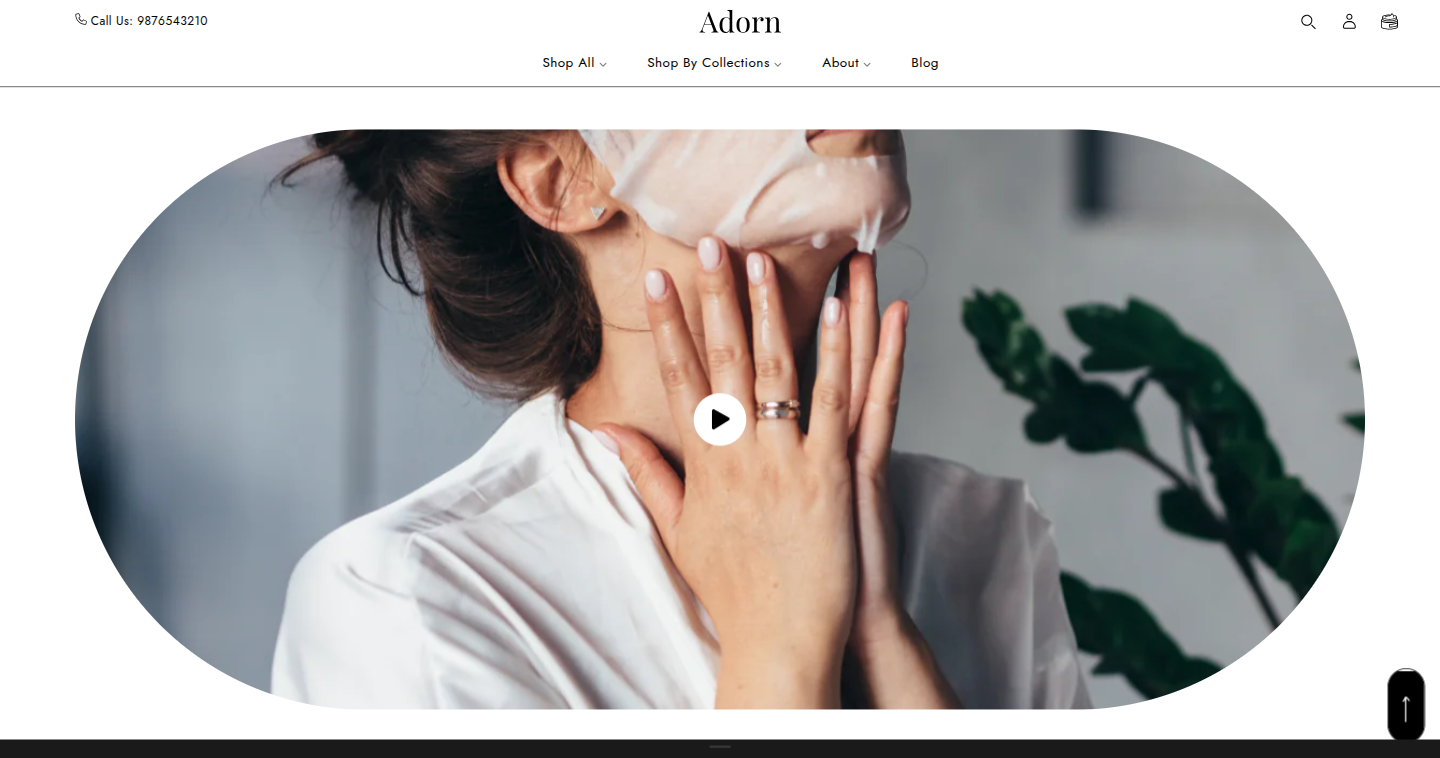
Adding the Video section
- Open the Customizer and go to the page where you want to add the Video section.
- On the left-hand side, you'll find a list of available sections. Click the "Add section" button.
- From the available options, choose "Video" to add it to your page.
How to edit the Video section
Here are the steps to set up the Video Hero section in your Adorn Shopify theme:
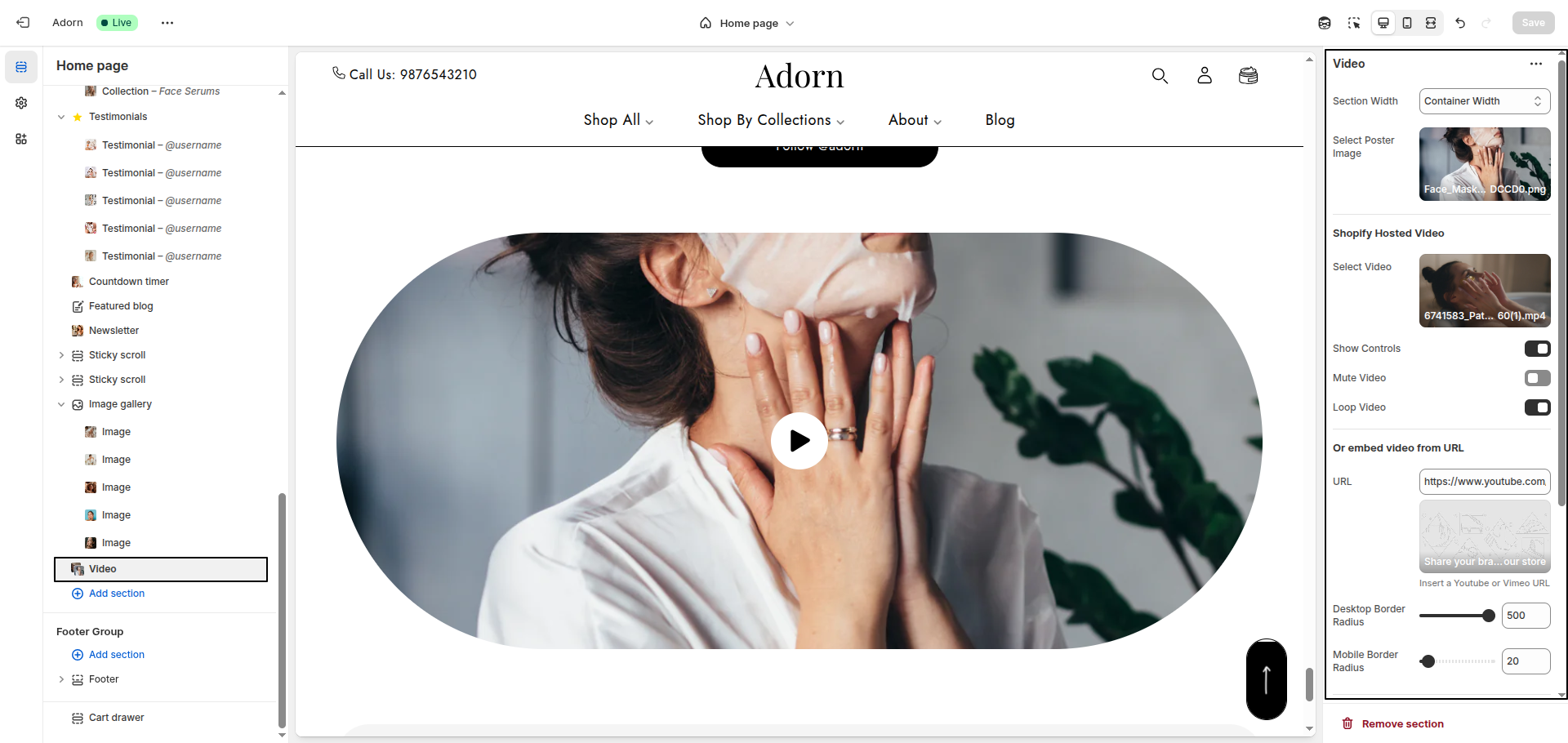
1. Set Section Width
- Container Width: Restricts the section to a fixed width.
- Full Width: Stretches the section across the entire screen width.
2. Select Poster Image
- Click Upload images to upload a new image or Explore Free Images to use a free image for the video placeholder. (Recommended dimensions: 1920x700px)
3. Choose Video Source
- Shopify Hosted Video: Upload and host your video directly on Shopify by clicking Select Video.
- Embed Video from URL: Use a YouTube or Vimeo link. Paste the video URL into the URL field.
4. Configure Video Controls
Toggle the options as needed:
- Show Controls: Displays video playback controls to users.
- Mute Video: Ensures the video starts without sound.
- Loop Video: Enables the video to play on a loop.
5. Set Border Radius
- Desktop Border Radius: Specify the border radius for the image side on desktop.
- Mobile Border Radius: Specify the border radius for the image side on mobile.
FAQs
Why isn’t my video playing in the video section?
Video autoplay may not work due to mobile or browser restrictions. Mobile devices often disable autoplay to save battery or data, and some browsers block autoplay for videos with sound.
Here are some common reasons your video might not play:
- Your phone is in Battery Saver Mode.
- You’re on a weak or unstable data connection.
- The video includes sound.
- The video file size is too large.
- The page contains multiple videos or loads slowly.
- The video isn’t encoded in the correct format.
Pro Tip:
Always include a cover image for your video. This will be displayed whenever the video cannot autoplay.
For the best chance of autoplay:
- Upload your video in MP4 format via Shopify’s Content > Files section.
- Keep the file size under 3MB and ensure it’s encoded in the h.264 format for better compatibility.
Still not working?
Try replacing your video URL with this placeholder: https://cdn.shopify.com/s/files/1/0848/3828/files/Placeholder_video_on_Vimeo_540p.mp4 If the placeholder plays but your video doesn’t, the encoding format might be the issue. Use an h.264 MP4 encoder to fix it.
Why doesn’t my video have sound?
Background videos in the video section autoplay silently for a smoother user experience. Browsers typically block autoplay with sound.
If you need sound, use a default video section instead. This will give users control over playback and sound.