
Cart
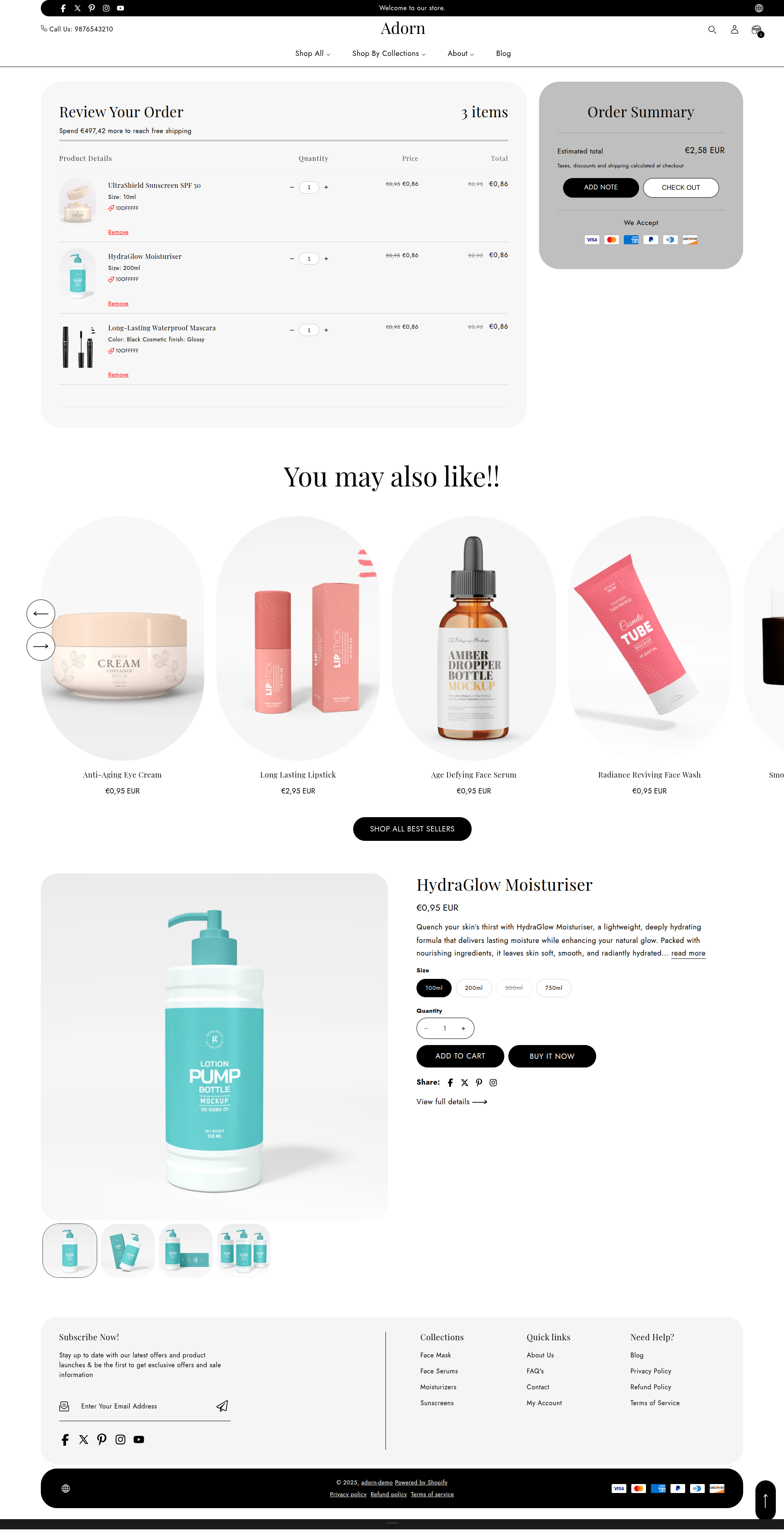
In the Adorn the Cart is where your customers accumulate and review their selected products before proceeding to the checkout.
How to set up the cart
Here are the steps to configure these cart and collection settings in your Adorn Shopify theme:
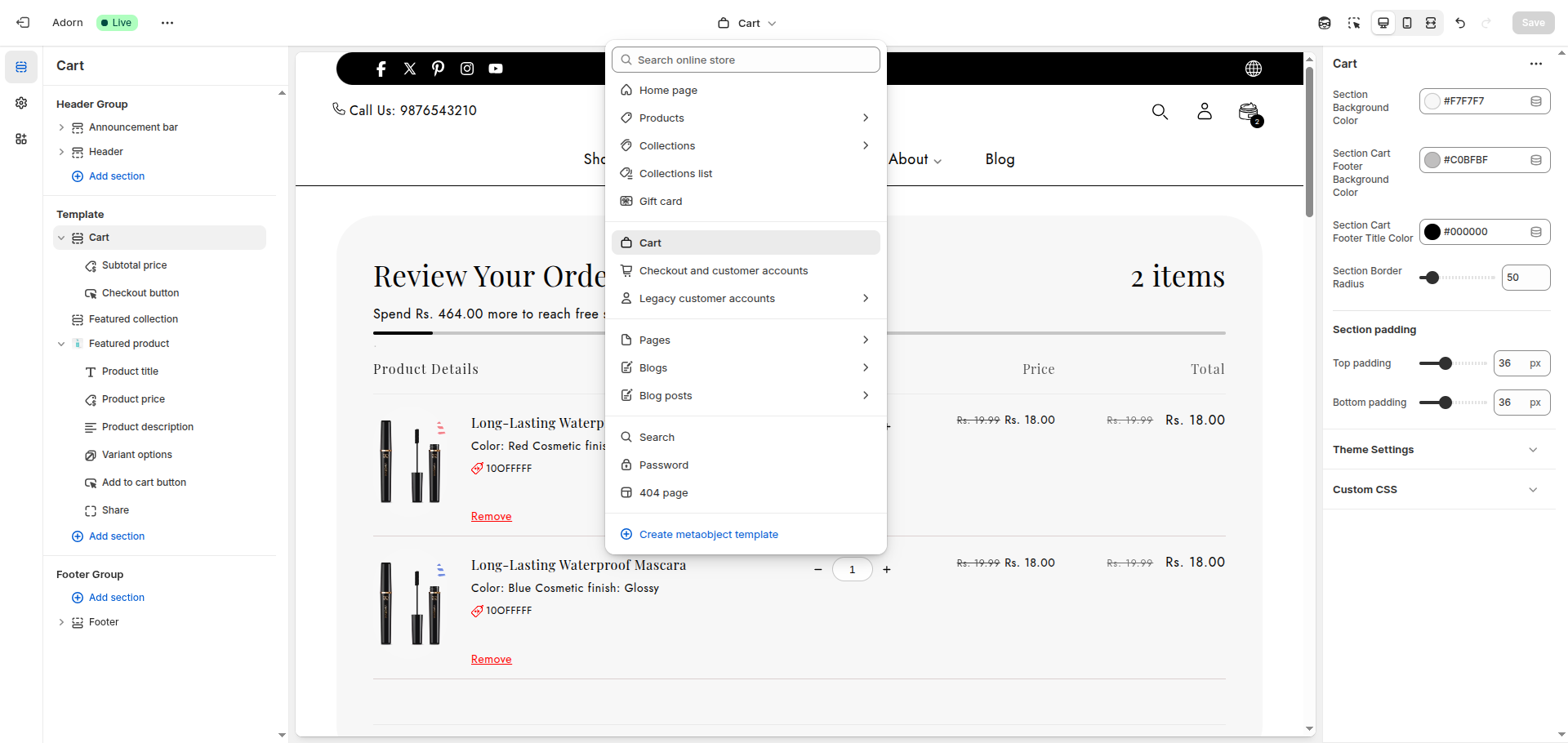
- Go to Online Store > Themes: In your Shopify admin, navigate to Online Store and click on Themes.
- Customize the Adorn Theme: Find your Adorn theme and click on Customize.
- Navigate to Cart Settings: In the theme editor sidebar, look for Cart or Cart Settings. Click to open the cart options.
- Set Cart Type: Select Drawer and Page in the Cart type setting dropdown to assign the preferred cart experience once an item is added to the cart.
- Change Cart icon:This setting allows you to choose the visual style of the cart
icon displayed in your store’s header.
Use Open Jar for a clean, modern, or minimalistic design.
Use Shopping Cart if you prefer a more conventional or familiar icon.
Use Shopping bag if you prefer a shopping bag icon. - Adjust Border Radius: Adjust the border radius to your desired value. You may have an option to set a percentage or pixel value.
- Enable Cart Note: Toggle Enable Cart Note if you want customers to add special notes or instructions with their orders in the cart drawer.
- Set Drawer Entrance Direction: Choose one of the following options,
-
- From Right: This will slide the drawer in from the right-hand side of the screen.
- From Bottom: This will slide the drawer up from the bottom of the screen.
- Choose one of the following options: Select how product images should appear in the cart.
-
- Adapt to Image: Automatically adjusts the image aspect ratio based on the original product image.
- Square: Forces all cart item images to appear in a 1:1 square format for a uniform look.
- Portrait: Displays images in a taller, portrait-style ratio for a more vertical layout.
Configure Cart Drawer Settings
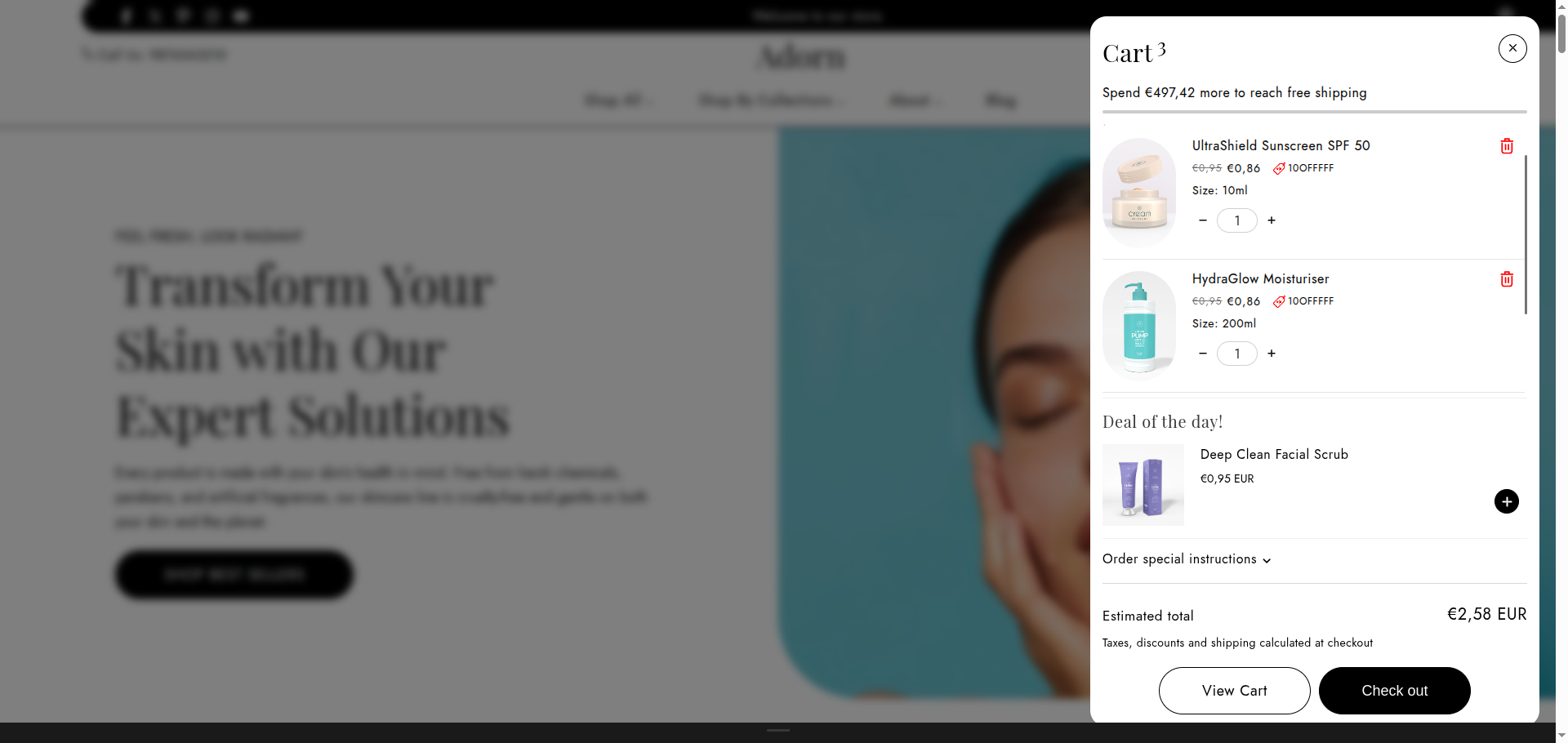
In the Cart Drawer settings, you may find additional options for customizing how the cart drawer behaves and appears. Make any adjustments here.
1. Shipping Bar Settings
- Enable Shipping Bar:Toggle the option to Show Shipping Bar to enabled.
- Set Free Shipping Threshold: Set the threshold to 500 or your desired amount for free shipping to be triggered.
2. Upsell Settings
The Upsell feature allows you to offer products to customers when they are in the cart.
- Enable Upsell:Toggle the option to Show Upsell to enabled.
- Set Cart Upsell Heading: Enter Deal of the day! or your preferred text to display on the upsell section.
- Select Upsell Product: Search for and select the product you want to offer as the upsell.
Cart page
The cart page allows customers to review and manage the items they’ve added to their shopping cart before proceeding to checkout. Like other pages in your store, this page can be customized with a wide range of sections available in Adorn.
How to Edit cart Page
- Open the Theme customizer, and select Cart from the dropdown at the top.
- Click the Cart page section on the left hand side.
- Set Section Background Color: Set the background color. You can either enter the color code manually or use the color picker to find the shade.
- Set Cart Footer Colors: set the cart footer background color and text color.
- Adjust Border Radius: Adjust the border radius to your desired value. You may have an option to set a percentage or pixel value.
FAQs
Can I customize the cart icon?
Currently, the cart icon can't be changed, but exciting updates are on the horizon—keep an eye out for future enhancements!
How do I enable the free shipping bar?
To activate the free shipping bar, go to Customize, locate Cart Drawer Settings, and toggle on the Show Shipping Bar option. It’s that simple
For further assistance read this documentation here.
How do I enable the incart upsett?
To activate the incart Upsell, go to Customize, locate Cart Drawer Settings, and toggle on the Enable Upsell option. It’s that simple
For further assistance read this documentation here.