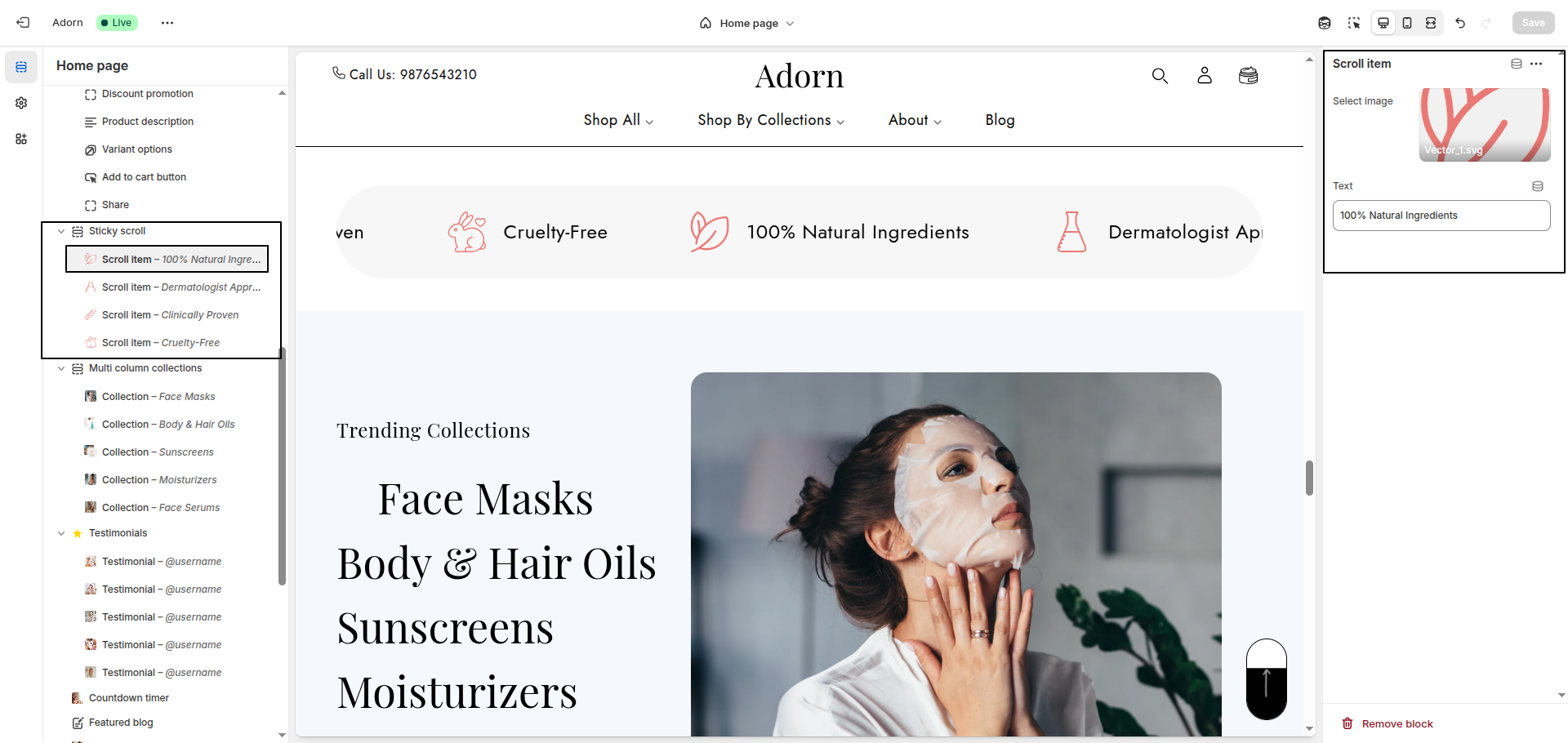
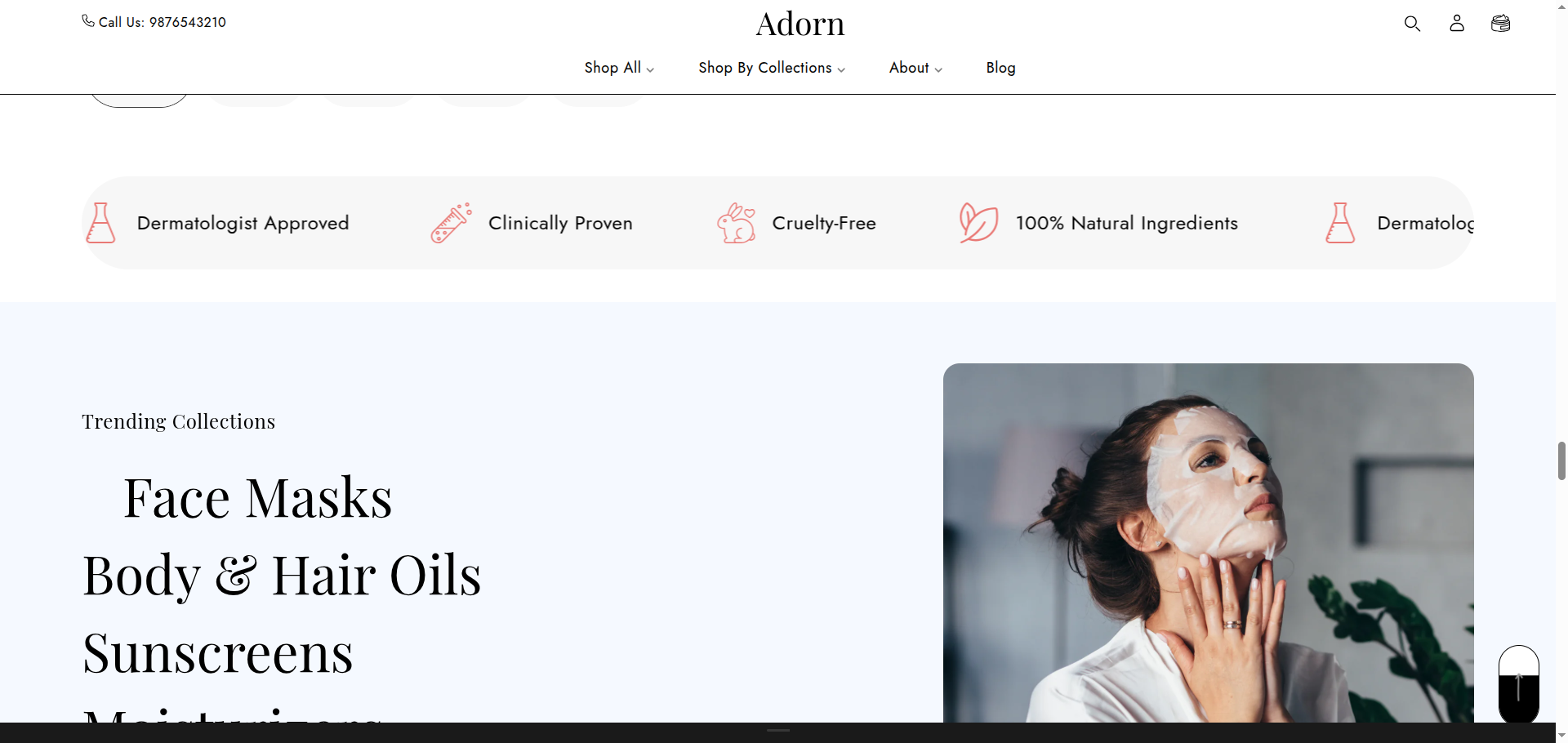
Sticky Scroll
The Sticky Scroll section in Adorn dynamically showcases calls to action, promotions, and important updates, capturing visitors' attention with its lively movement. This engaging feature highlights key offers—whether it's a sale, new product, or special event—while displaying breaking news and exciting updates through a mix of text, icons, images, and buttons. Ensure your vital promotions never go unnoticed with this interactive element on your store's homepage.
Adding the Sticky Scroll section
- Open the Customizer and go to the page where you want to add the "Sticky Scroll" section.
- On the left-hand side, you'll find a list of available sections. Click the "Add section" button.
- From the available options, choose "Sticky Scroll"to add it to your page.
How to edit the Sticky Scroll section
1. Set Color Scheme
- Set the background color of the section.
- Choose the color for the text in this section.
2. Set Section Width
- Select Container Width to restrict the section content to a fixed width within the page.
3. Set Scroll Direction
- Here you can set the direction of the scrolling list.
4. Items Gap
- Specify the spacing between scroll items in pixels (e.g., 100 for a wide gap).
5. Set Scroll Speed For Both Desktop and Mobile
- Define the speed of the scrolling items in pixels per second (e.g., 40 for a moderate scroll speed).
6. Text Size
- Adjust the size of the text in pixels (e.g., 24 for a medium text size).
7. Section Border Radius
- Enter the desired border radius value to round the corners of the section (e.g., 20 for slightly rounded corners).
Configure a scroll Block Settings
1. Add and remove New Block
- Adding a New Block: To add a new block, simply click on the Add scroll item button to add a new block.
- Removing a Block: Select an existing block and click the Remove Block button to delete it.
2. Scroll Block Content
- Select Image: Click "Upload images" to add your own image, or choose "Select image" or "Explore free images" to pick one from the library.
- Text: Provide additional text if needed.