
Multiple Collections
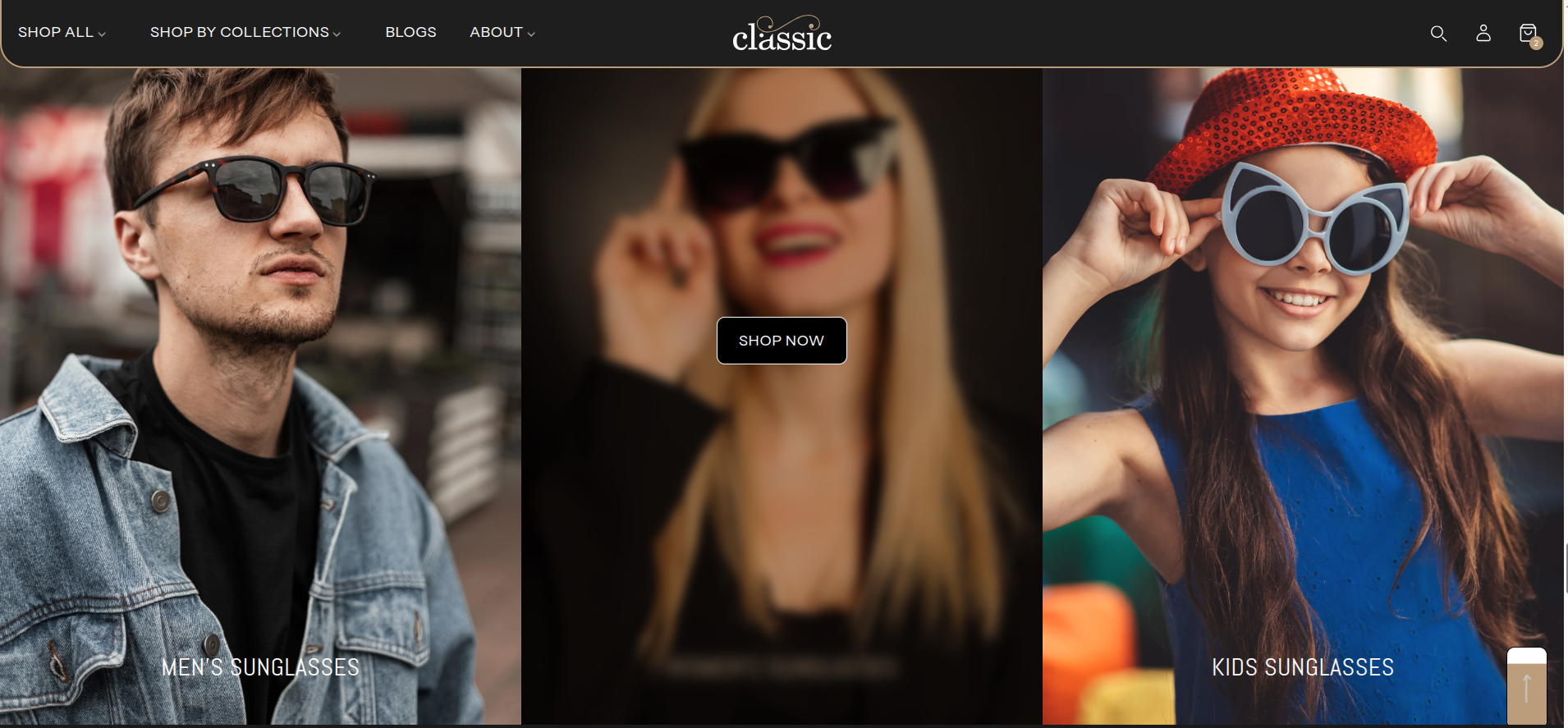
The Multiple Collections section adds a lively and visually captivating element to your store. It lets you feature multiple collections with customizable color schemes and distinct background designs. As shoppers hover over each collection, they’re greeted by an engaging image that captures attention and inspires curiosity. This design ensures that every collection stands out, offering a user-friendly experience that transitions customers from visual intrigue to product discovery with ease.
How To Add the Multiple Collections section
- Login to your Customizer and navigate to the page you would like to display this section.
- You'll see a list of available sections on the left-hand side. Locate the Add section button and click on it.
- From the list of available sections, find and select Multiple Collections.
How To Edit the Multiple Collections section
Here are the steps to configure the options mentioned for the Multiple Collections section in your Adorn Shopify theme:
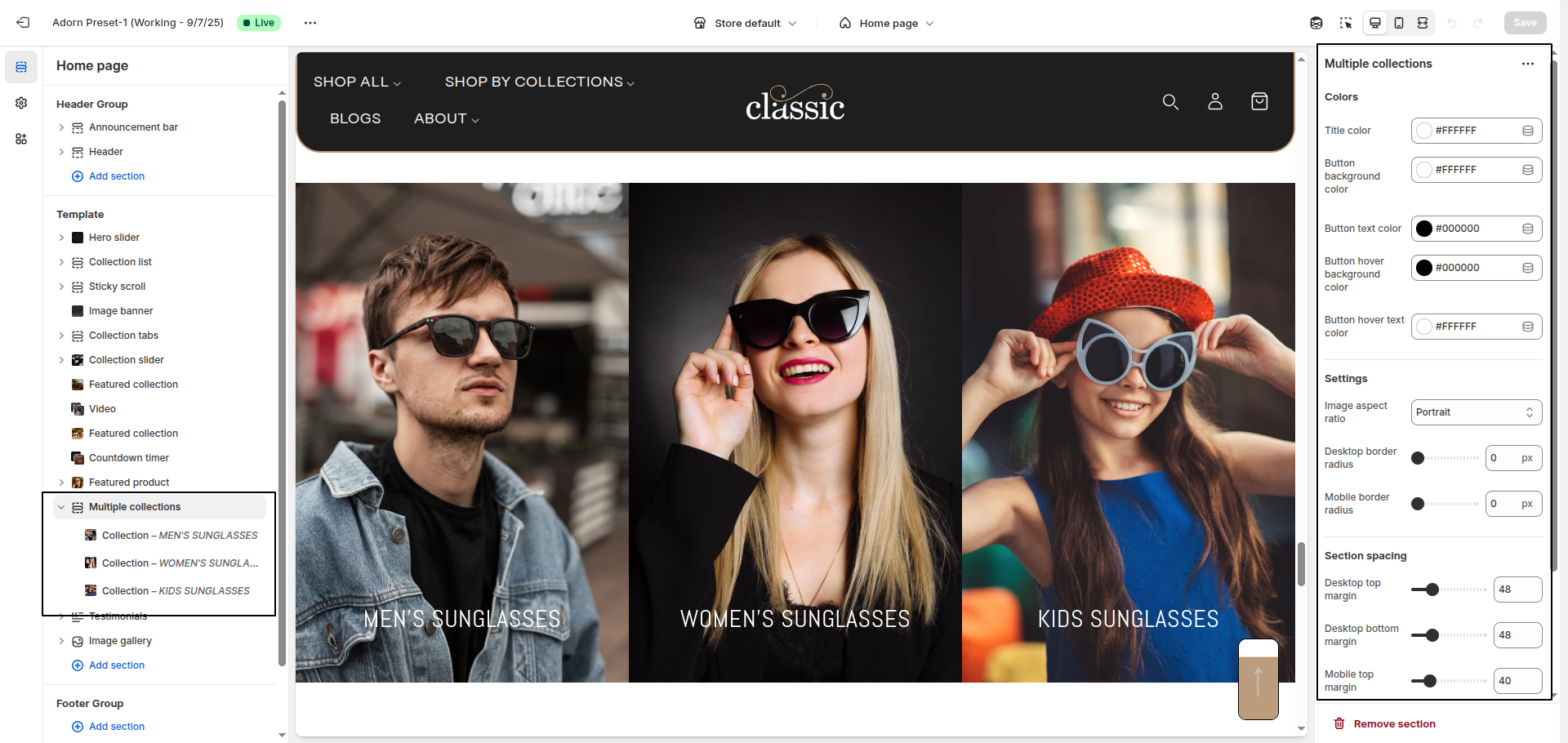
1. Configure Section Color
- Title Color: Sets the color of the section or block title text.
- Button Background Color: Defines the background color of buttons.
- Button Text Color: Sets the text color inside buttons.
- Button Hover Background Color: Changes the background color of buttons when hovered./li>
- Button Hover Text Color: Changes the text color of buttons when hovered.
2. Image Aspect Ratio
Controls the shape and proportion of the image. Options include
- Portrait – Displays the image in a vertical orientation.
- Adapt to Image – Uses the original dimensions of the uploaded image.
- Square – Displays the image in an equal height-to-width ratio.
3. Images Border Radius:
- Desktop Border Radius: Sets the corner roundness for images on desktop view (in pixels).
- Mobile Border Radius: Sets the corner roundness for images on mobile view (in pixels).
5. Configure the Collection Block Settings
- Adding a New slide: To add a new slide, simply click on the Add collection block button to add a new slide.
- Select Hover background color: Enter the desired hex code or use the color picker to choose a background color.
- Select Image: Click Upload images to add from your computer, or select Explore free images to browse Shopify’s library.
- Add a Title: In the Title field, enter the title you want to display.
- Button Label: Enter the text to display on the button.
- Link: Add the URL or page link where the button should redirect when clicked.
- Removing a slide: Select an existing slide and click the Remove Block button to delete it.