
Sticky Video Expand
The Sticky Video Expand section in Adorn showcases a captivating video with overlay text and call-to-action buttons, creating an engaging focal point to grab visitors' attention and leave a lasting impression.
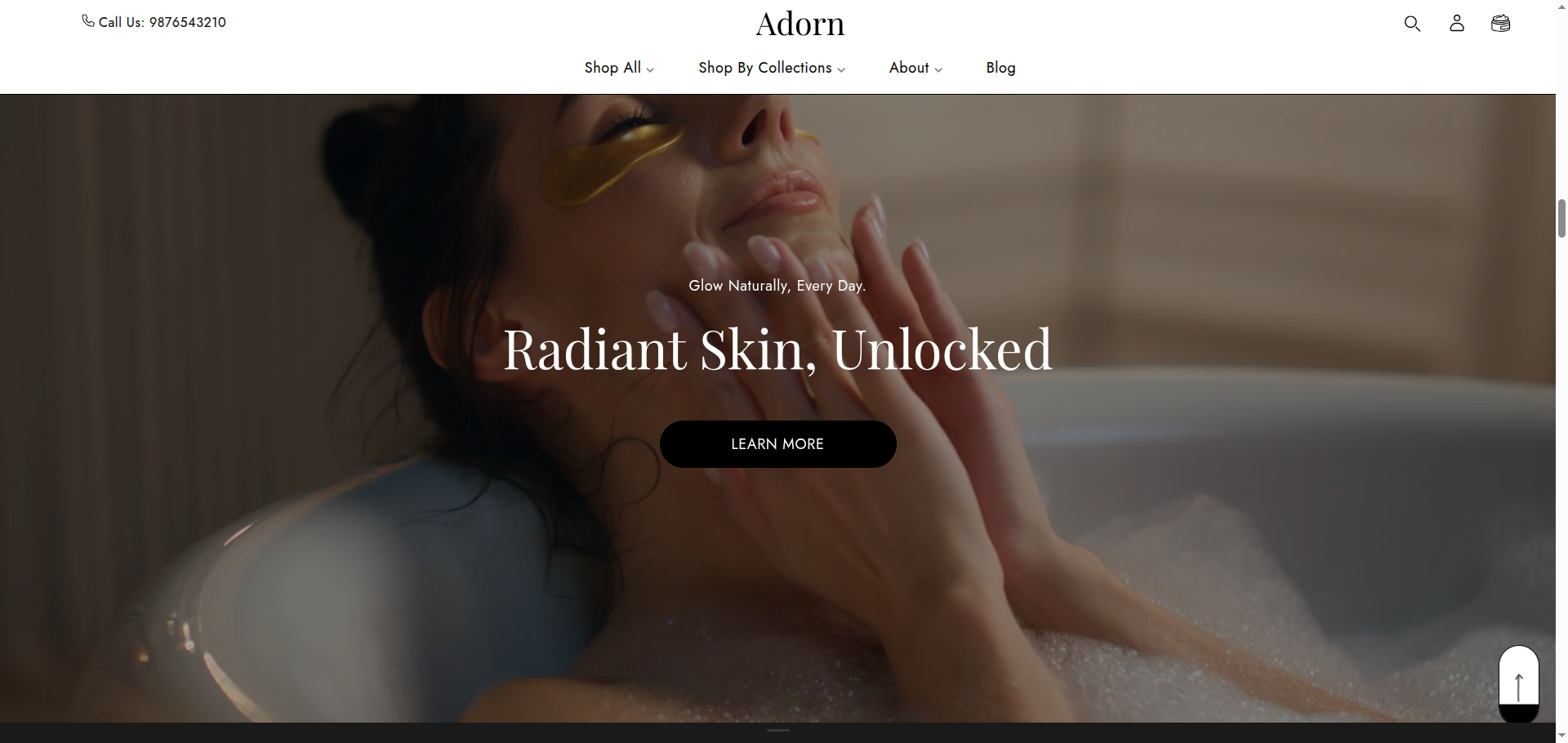
Adding the Sticky Video Expand section
- Open the Customizer and go to the page where you want to add the Sticky Video Expand section.
- On the left-hand side, you'll find a list of available sections. Click the "Add section" button.
- From the available options, choose "Sticky Video Expand" to add it to your page.
How to edit the Sticky Video Expand section
Here are the steps to set up the Video Hero section in your Adorn Shopify theme:
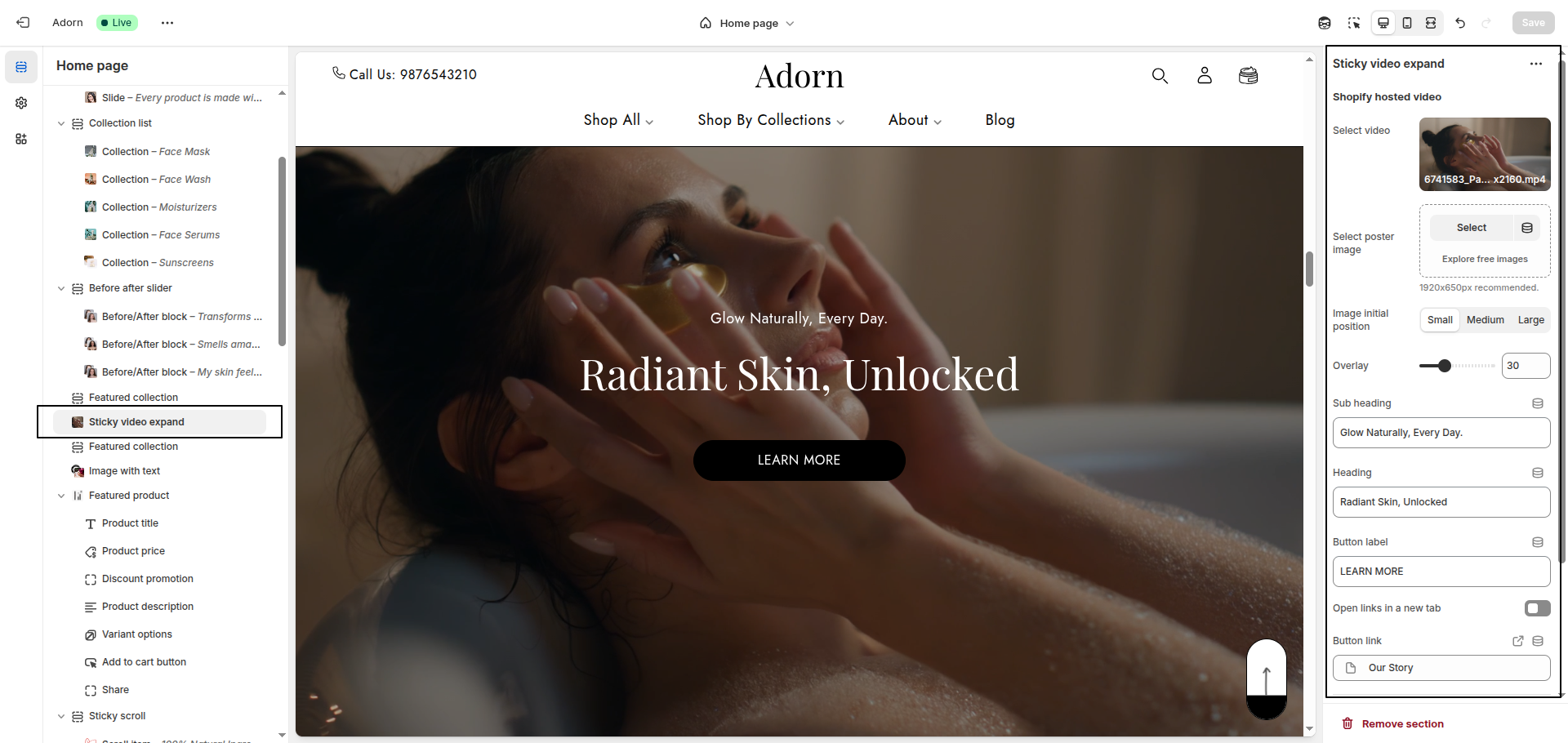
1. Upload Video and Poster Image
- Click Select Video and choose the video from your Shopify-hosted files .
- Click Upload images and select a poster image.(If you don’t want to add a video and only want to use a poster image so you can add image,Recommended dimensions: 1920x650px)
2. Set Image Initial Position
Choose the Image Initial Position:
- Small: The image starts at a smaller size and expands as the video plays.
- Medium: The image begins at a moderate size, balancing visibility and expansion.
- Large: The image starts at a larger size, with minimal expansion.
3. Configure Video Overlay
- Set the Video Overlay opacity to 30 for a subtle overlay effect.
4. Add Text Content
- Sub Heading: Add a short phrase.
- Heading: Include a bold and captivating headline.
- Button Label: Set the text for the button.
- Button Link: Add the destination URL or use # as a placeholder.
5. Set Colors
- Overlay Color: Choose a color for the overlay.
- Text Color: Set the color of the text.
FAQs
Why isn’t my video playing on mobile?
Whether a background video plays on mobile is determined by the device or browser, not the theme. Mobile devices often disable autoplay for videos to conserve battery life, save data, or improve loading speed.
Here are some common reasons your video might not play:
- Your phone is in Battery Saver Mode.
- You’re on a weak or unstable data connection.
- The video includes sound.
- The video file size is too large.
- The page contains multiple videos or loads slowly.
- The video isn’t encoded in the correct format.
Pro Tip:
Always include a cover image for your video. This will be displayed whenever the video cannot autoplay.
For the best chance of autoplay:
- Upload your video in MP4 format via Shopify’s Content > Files section.
- Keep the file size under 3MB and ensure it’s encoded in the h.264 format for better compatibility.
Still not working?
Try replacing your video URL with this placeholder: https://cdn.shopify.com/s/files/1/0848/3828/files/Placeholder_video_on_Vimeo_540p.mp4 If the placeholder plays but your video doesn’t, the encoding format is likely the issue. Use an h.264 MP4 encoder to fix this. A quick online search for "h.264 MP4 encoders" will help you find tools to do this.
Why doesn’t my video have sound?
Try replacing your video URL with this placeholder: https://cdn.shopify.com/s/files/1/0848/3828/files/Placeholder_video_on_Vimeo_540p.mp4 If the placeholder plays but your video doesn’t, the encoding format is likely the issue. Use an h.264 MP4 encoder to fix this. A quick online search for "h.264 MP4 encoders" will help you find tools to do this.
Why doesn’t my video have sound?
Background videos are designed to autoplay silently as part of your site’s visual design. Most browsers block autoplay videos with sound to prevent disrupting the user experience.
If you want sound, consider using a default video section instead. This provides users with control over when and how they play the video, enhancing their browsing experience.
How big should my video file be?
Aim for a file size of 3MB or less to ensure smooth playback and fast loading. Remember, your video can loop seamlessly to create the illusion of a longer playback without increasing file size.