
Image Gallery
The Image Gallery in Adorn lets you highlight product visuals, promotions, customer reviews, and social media content—all in one place. Showcasing high-quality images and videos helps customers explore your products, see promotions, and build trust through authentic customer content

How to add an Image gallery section to your Shopify store
- Open the Customizer and go to the page where you want to add the "Image gallery" section.
- On the left-hand side, you'll find a list of available sections. Click the "Add section" button.
- From the available options, choose "Image gallery"to add it to your page.
How to edit an Image gallery section
To edit the image gallery section in your Shopify theme, Adorn, follow these steps:
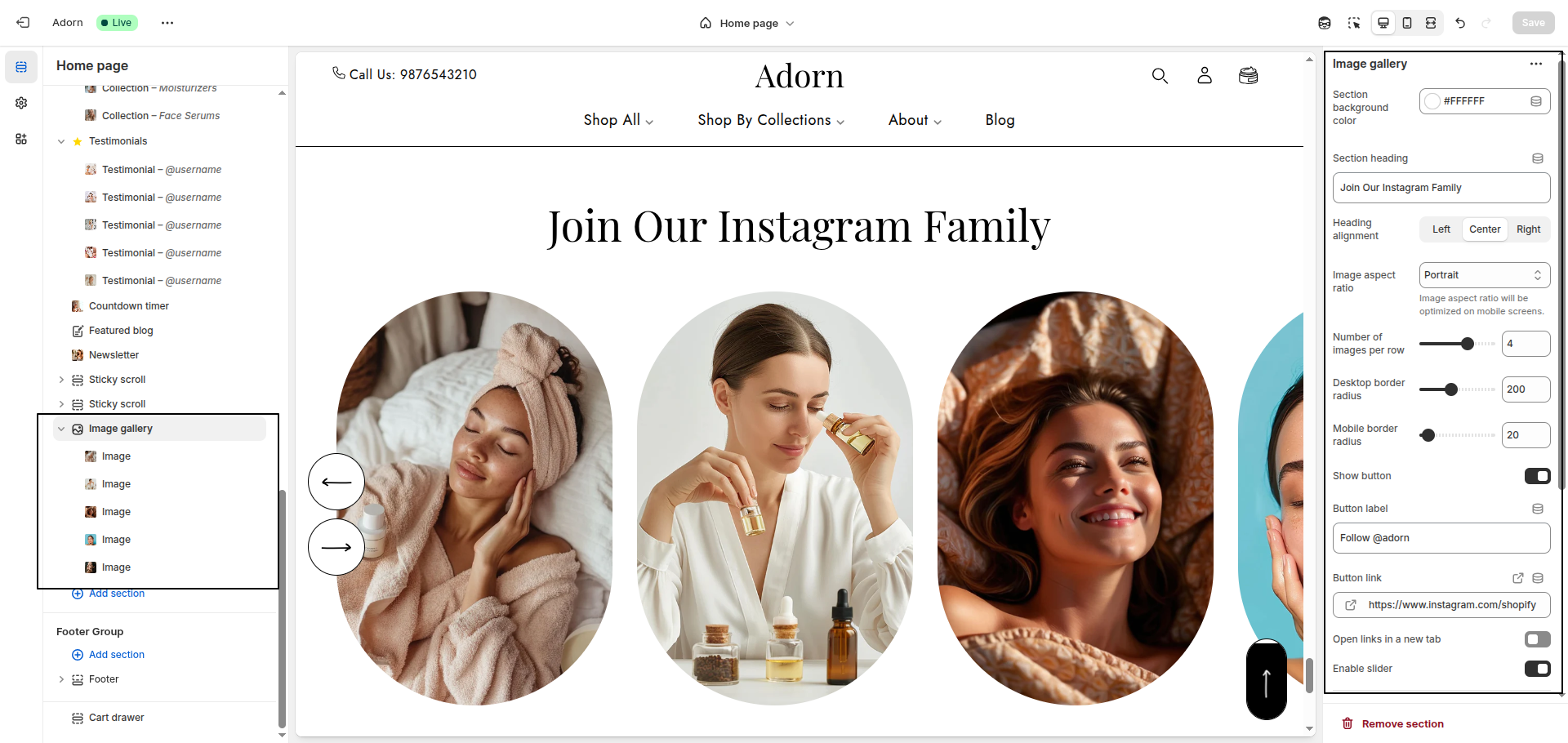
1. Set Section Background Color
- Use the Section Background Color setting to pick a color.
2. Set Heading section heading
- Add a bold, eye-catching heading
- Set Heading Alignment: Use the Heading Alignment option to choose between Left, Center, or Right alignment.
3. Set Image Aspect Ratio
Choose the display ratio for your images
- Adapt to image: Keeps the original dimensions.
- Portrait: Displays images in portrait orientation.
- Square: Crops images to a square format.
4. Number of Images per Row
- Set the desired number of images displayed in a single row.(Note: This setting applies only when the slider is disabled.)
5. Set Border Radius
- Desktop Border Radius: Specify the border radius for desktop displays.
- Mobile Border Radius: Specify the border radius for mobile displays.
6. Configure Button setting
- Show Button: Toggle to enable or disable a button below the images.
- Button Label: In the Button Label field, enter Follow Us or any desired text to appear on the button.
- Button Link: In the Button Link field, add the URL for the social media or destination page where you want customers to follow your brand.
Add or Edit Image Block
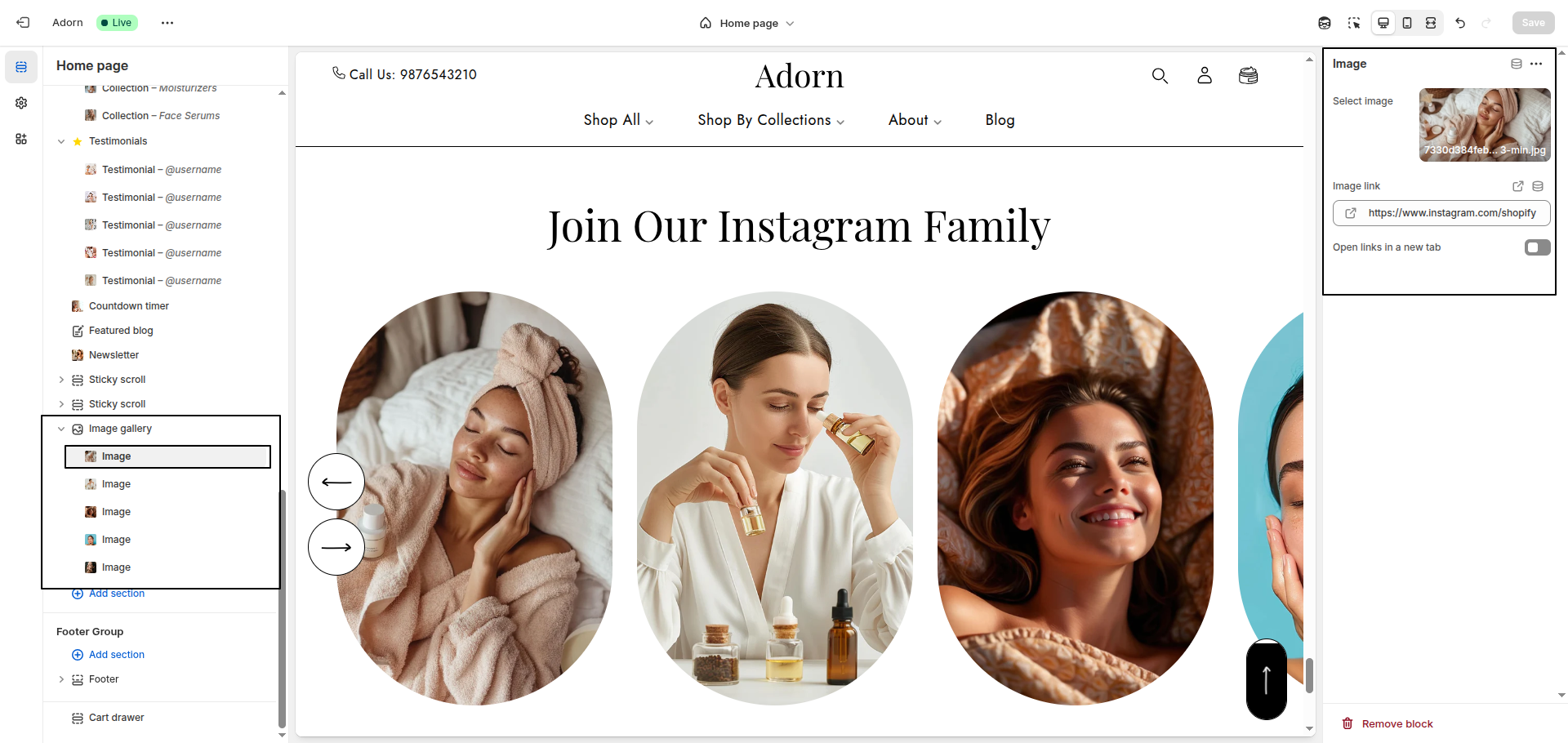
- Adding a New slide: To add a new slide, simply click on the Add image block button to add a new slide.
- Under Image, click Select Image to upload images, choose from existing ones, or explore free images.
- Use the Image Link field to add a URL to each image, allowing customers to click through to a relevant page.
- Removing a slide: Select an existing slide and click the Remove Block button to delete it.