
Product Page
In the Dynamic theme, the Product page plays a central role in converting visitors into customers. It's where shoppers explore product details, view images, and make confident buying decisions. Properly customizing this page ensures your products are presented clearly, visually, and in a way that encourages purchases.
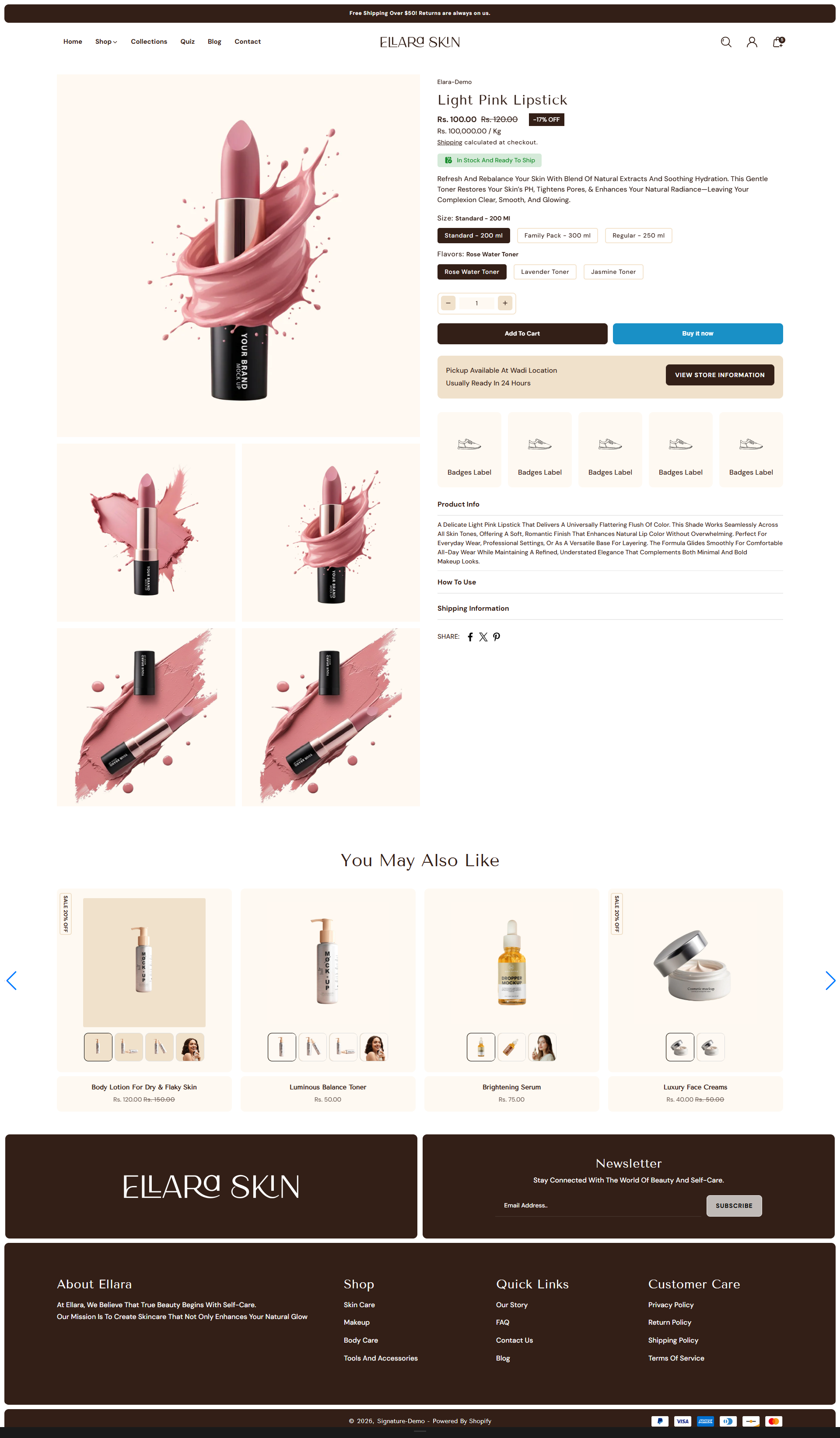
Customize Your Product Page
On the Product Page in the Dynamic theme, you can control how product information, images, and interactive elements are displayed. These settings help customers explore products easily and make confident purchase decisions. Ensure your products are published on the online store before making changes.
- From your Shopify admin, go to Online Store ? Themes.
- Click Customize on the Dynamic theme.
- In the Theme Editor, use the page selector dropdown and choose Products ? Default product.
- Customize product media layouts, content blocks, pricing details, badges, pickup options, and other conversion-focused features as needed.
- Click Save to apply your updates.
Customize Your Product Page
- Color Scheme: Select a scheme to control the background, text, and accent colors of the product page. Example: Scheme 1. This helps maintain a consistent look and feel across your store.
Product Information
In the Dynamic theme, Blog Content Blocks let you present articles, announcements, and stories in a clean, visually appealing layout. You can combine text, images, videos, and links to highlight important details and guide readers smoothly through your content. These flexible blocks make it easy to organize posts, improve readability, and create an engaging blogging experience for your audience.
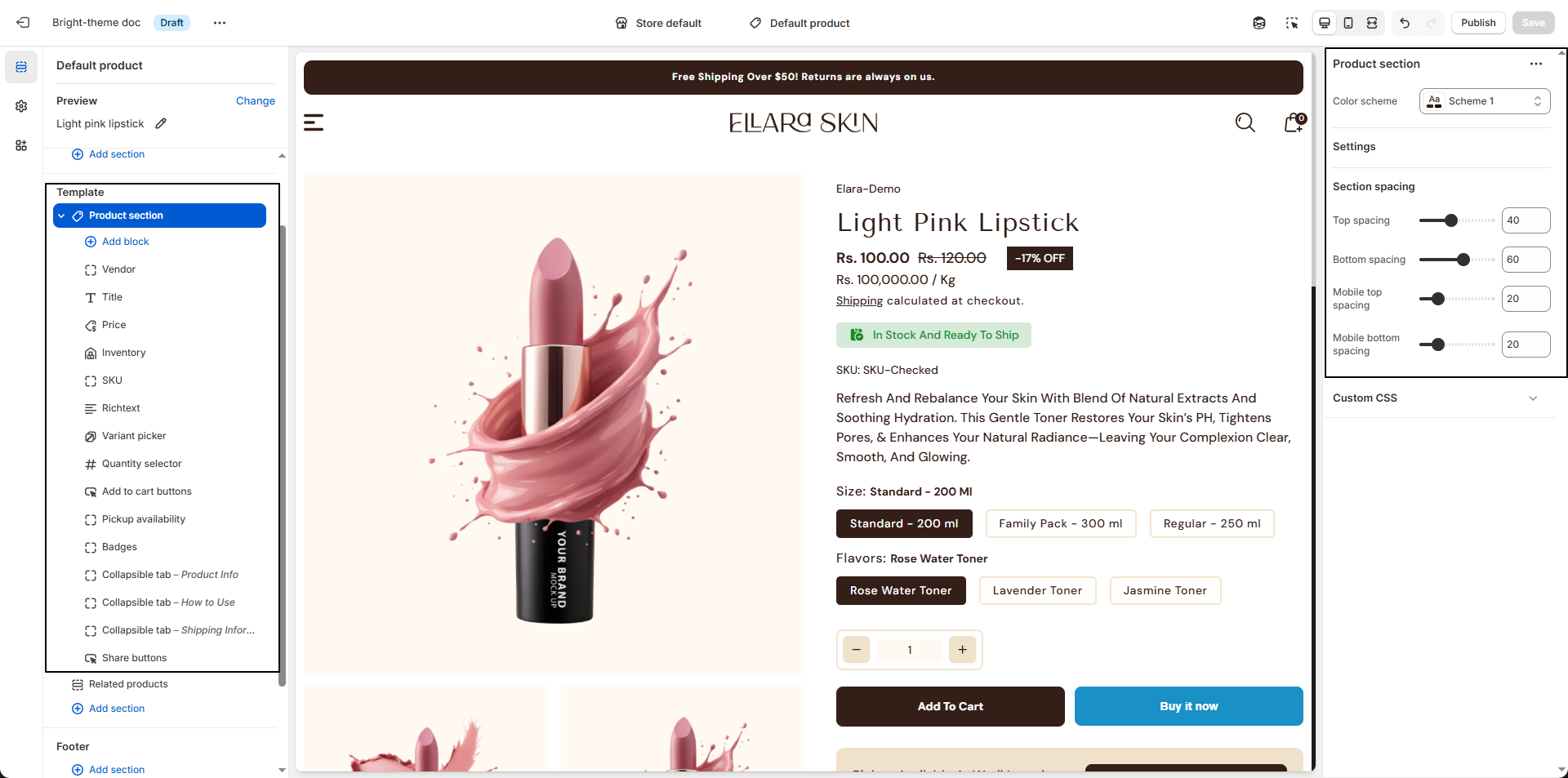
- Vendor: Display the product's brand or supplier name to build trust and brand recognition.
- Product Title: Show the product name clearly and prominently on the product page.
- Price: Display the product price, which updates automatically when customers select different variants.
-
Inventory Status: Show real-time stock information to create urgency and
encourage faster purchases.
- Show Inventory: Enable this option to display available stock details on the product page.
- Low Stock Threshold: Set a quantity (e.g., 10) at which the product is considered low in stock.
- In-Stock Color: Choose the color for items that are available (example: #178D2B).
- Custom In-Stock Text: Add a custom message such as “In Stock and ready to ship”.
- Low Stock Color: Define the color used when inventory reaches the low-stock threshold (example: #331F17).
- Out-of-Stock Color: Set the color for products that are unavailable (example: #FF0000).
- SKU: Display the product's SKU to help identify and manage inventory, especially useful for internal tracking.
- Rich Text: Use this block to add custom content such as product details, care instructions, or promotional messages. You can format text and insert links using the built-in rich text editor.
-
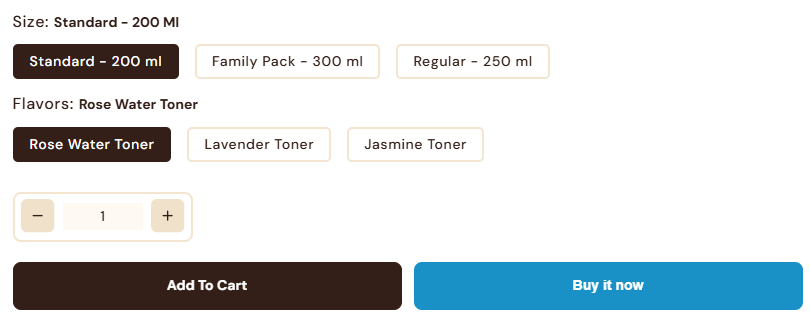
Variant Picker: Allow customers to choose between different product options
such as size, color, or material.
-
Options Type: Select how variants are displayed:
- Button: Shows variants as clickable buttons, ideal for quick selection and visual clarity.
- Dropdown: Displays variants in a compact dropdown list, suitable for products with many options.
-
Options Type: Select how variants are displayed:
- Description: Display the product description on the product page. You can control how many lines are shown to keep the layout clean and focused.
- Quantity Selector: Enable this block to allow customers to select the number of items they want to purchase before adding the product to the cart.
-
Add to Cart Button: Show the primary action button that lets customers add
products to their cart.
-
Show Dynamic Checkout Button: Turn this on to display express payment
options such as Apple Pay or Google Pay, helping customers complete purchases faster.
Refer to Shopify documentation: Dynamic checkout buttons
-
Show Dynamic Checkout Button: Turn this on to display express payment
options such as Apple Pay or Google Pay, helping customers complete purchases faster.
- Pickup Availability: Enable this option to show whether a product is available for local or in-store pickup, helping customers choose their preferred fulfillment method.
-
Badges: Use badges to highlight key product features such as quality,
guarantees, or special benefits.
- Add Badge Images: For each column (Column 1 to Column 5), click Upload images to add a custom badge image. You can also select from existing files or explore Shopify's free image library.
- Badge Label: Enter a short text label below each badge to describe its meaning (e.g., “Cruelty Free”, “Dermatologist Tested”).
- Badge Background Color: Choose a background color for the badge section to match your brand style.
- Badge Text Color: Select the text color used for badge labels to ensure readability and visual balance.
-
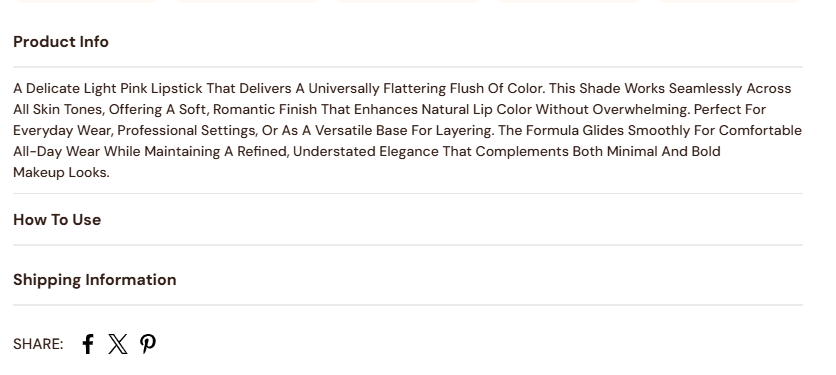
Collapsible Tab:
Use this block to organize additional product details into expandable accordion tabs. This
helps keep the product page clean while allowing customers to view more information when
needed.
- Title: Enter the heading for the tab (e.g., “Product Info”, “Shipping & Returns”, “Care Instructions”).
- Content: Add the detailed information that will appear when the tab is expanded. This can include text, lists, or formatted content.
- Show Description: Enable this option to automatically include the product description inside the tab.
- Keep Tab Open by Default: Toggle this on if you want the tab to remain expanded when the page loads.
-
Complementary Products:
The Complementary Products block allows you to showcase related or recommended items directly
on the product page, helping increase cross-sales and product discovery.
- Heading: Enter a custom heading for the section (e.g., “Have a look at these products”).
- Number of Products to Load: Set how many complementary products should be fetched in total.
- Products to Show (Desktop): Choose how many products are visible at once on desktop screens.
- Columns: Select the layout style, such as one column or two columns.
-
Image Aspect Ratio: Choose how product images are displayed:
- Square
- Portrait
- Landscape
- Adapt to Image
For more details about swatches, click here.
Refer to Shopify's Color option with swatches documentation for more.
Also, refer to the Adding color swatches using category metafields
This is an excellent way to increase your average order value by suggesting add-ons,
frequently
bought together items, or matching accessories.
Shopify's Search & Discovery app to let you assign these complementary products
easily.
FAQs
How can I hide the "Buy it Now" or dynamic checkout button?
The dynamic checkout button, also known as "Buy it Now," appears below the main Add to Cart button on product pages. It allows customers to instantly proceed to checkout with a single item.To disable this feature:
- Go to the Buy Block Settings in the product page.
- Toggle the dynamic checkout button off.
For more detailed instructions, refer to Shopify's guide on Adding and Removing Dynamic Checkout Buttons.
How can I display unique content for each product in the collapsible tab block?
You can personalize the collapsible tabs for each product by linking them to product text metafields. This allows you to showcase product-specific details such as care instructions, sizing information, materials, ingredients, or other unique attributes tailored to each item.