
Image With Text
The Image With Text section allows you to combine visually rich imagery with detailed storytelling to create an engaging layout. This section is perfect for showcasing product stories, brand heritage, or highlighting unique craftsmanship. By pairing an image with descriptive content, you can create a strong emotional connection with your customers while maintaining a clean and modern design.
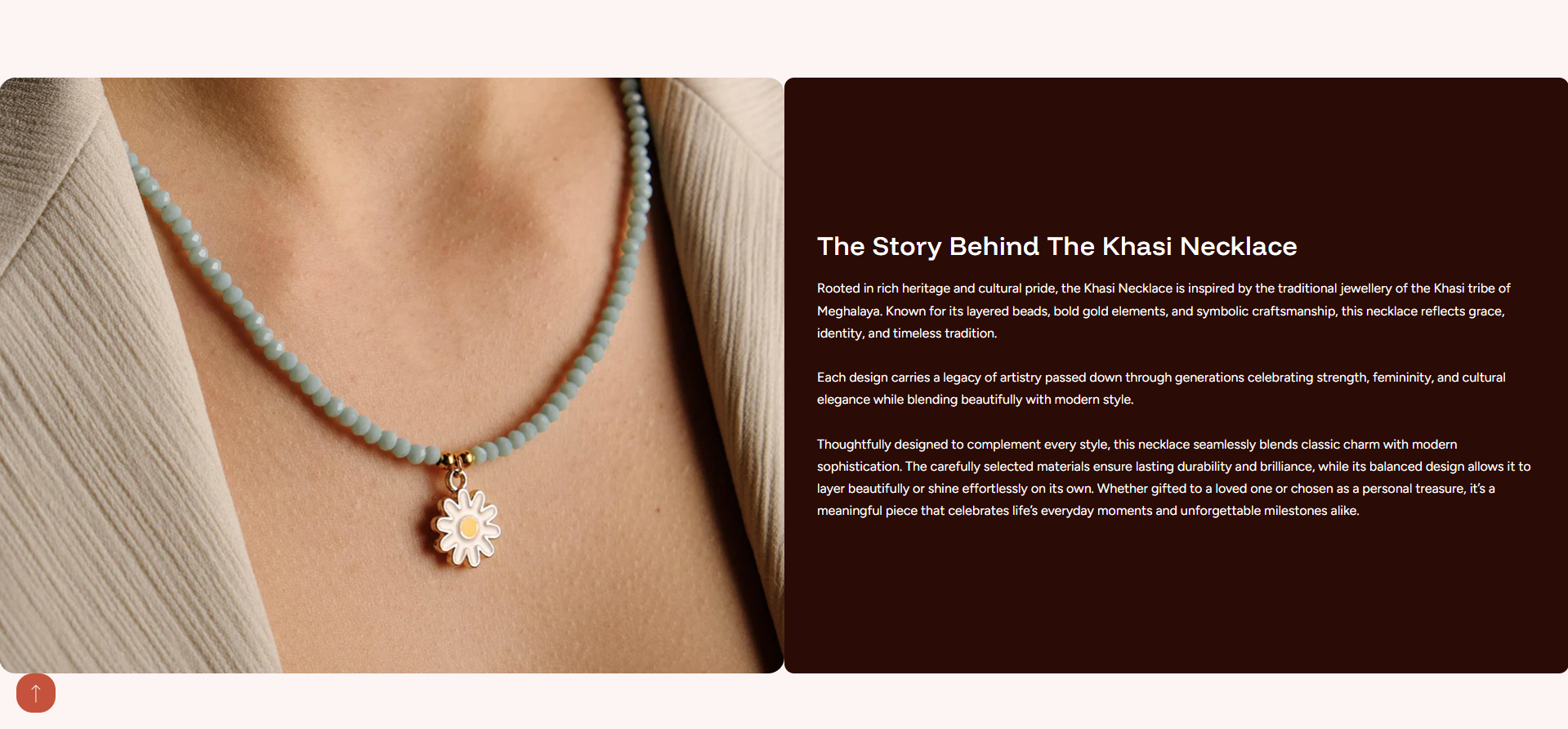
Adding the Image With Text Section
- From your Shopify admin, go to Online Store ? Themes.
- Click Customize on the Dynamic theme.
- In the Theme Editor, choose the page where you want to add the section.
- Click Add Section and select Image With Text.
- Click Save to apply your changes.
How to edit the Image With Text section
Follow these steps to customize the Image With Text section and match your store design.
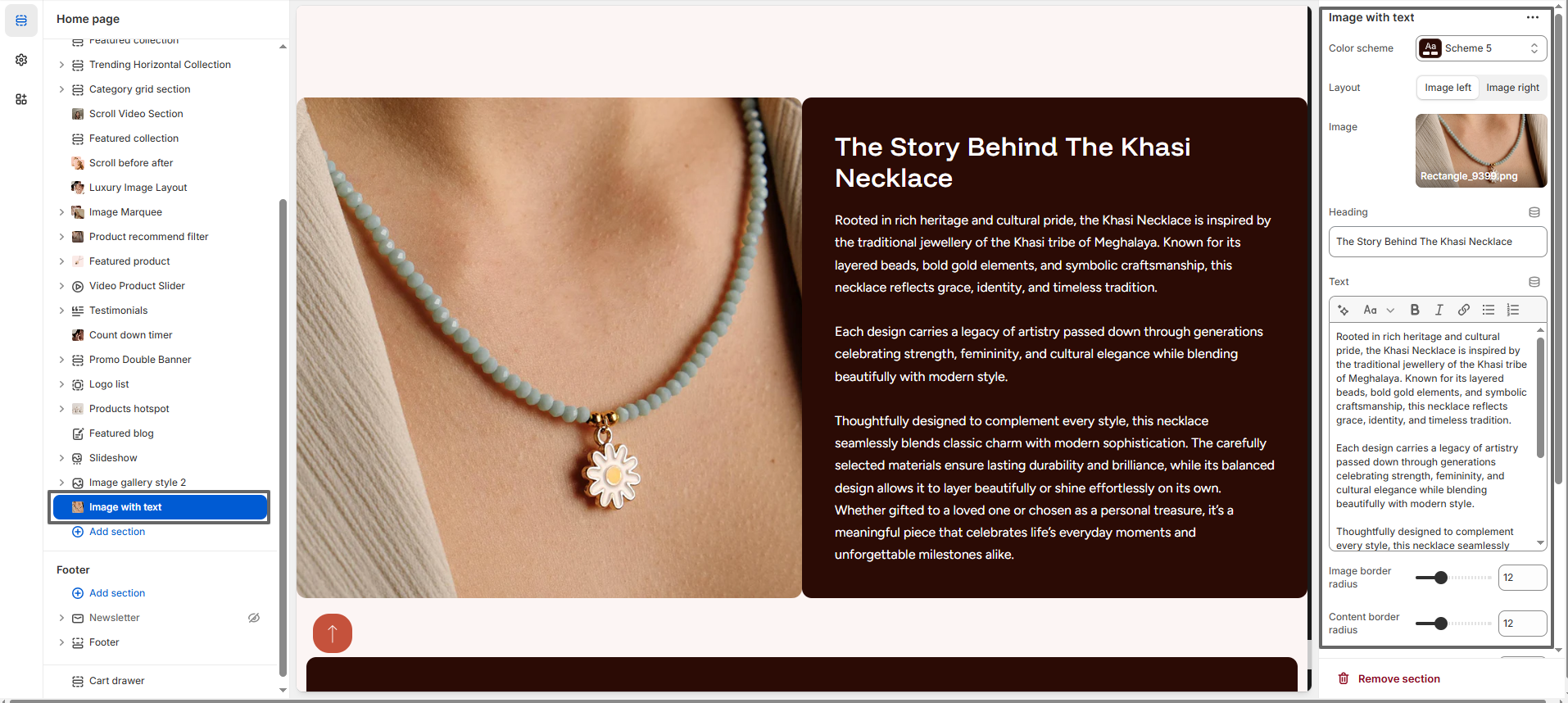
- Color Scheme: Choose a color scheme to control the background and text appearance. For example, a darker scheme can highlight storytelling content like product history.
- Layout: Select whether the image appears on the left or right side of the content to create a balanced design.
- Image: Upload a high-quality image that represents your product or story. In this example, a close-up necklace image is used to create a premium visual appeal.
- Heading: Add a compelling title such as "The Story Behind The Khasi Necklace" to immediately capture attention.
- Text Content: Use this area to describe the story, craftsmanship, or inspiration behind your product. You can include multiple paragraphs to provide depth and authenticity.
- Image Border Radius: Adjust the roundness of the image corners to match your theme style.
- Content Border Radius: Customize the text container corners for a softer and modern look.
- Spacing: Control top and bottom padding for both desktop and mobile to maintain proper spacing and readability.