
Scroll Zoom Video Image
The Scroll Zoom Video Image section in the Dynamic theme creates a visually striking experience by combining immersive video or imagery with smooth scroll-based zoom effects. Paired with overlay text and call-to-action buttons, it draws attention instantly and helps communicate your brand story in a bold, memorable way.
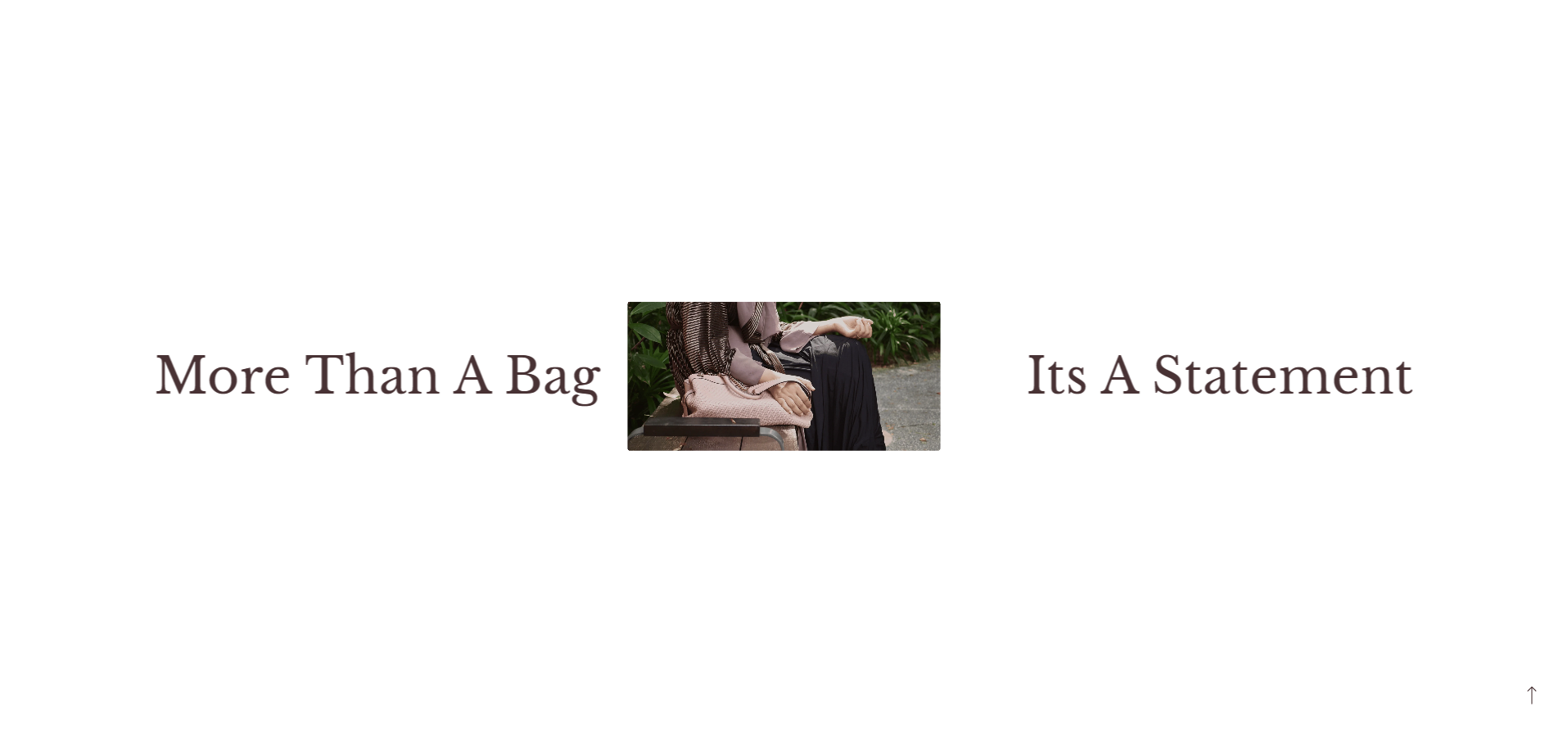
Adding the Scroll Zoom Video Image section
- Open the Customizer and go to the page where you want to add the Scroll Zoom Video Image section.
- On the left-hand side, you'll find a list of available sections. Click the "Add section" button.
- From the available options, choose "Scroll Zoom Video Image to add it to your page.
How to edit the Scroll Zoom Video Image section
Here are the steps to set up the Scroll Zoom Video Image section in your Dynamic Shopify theme:
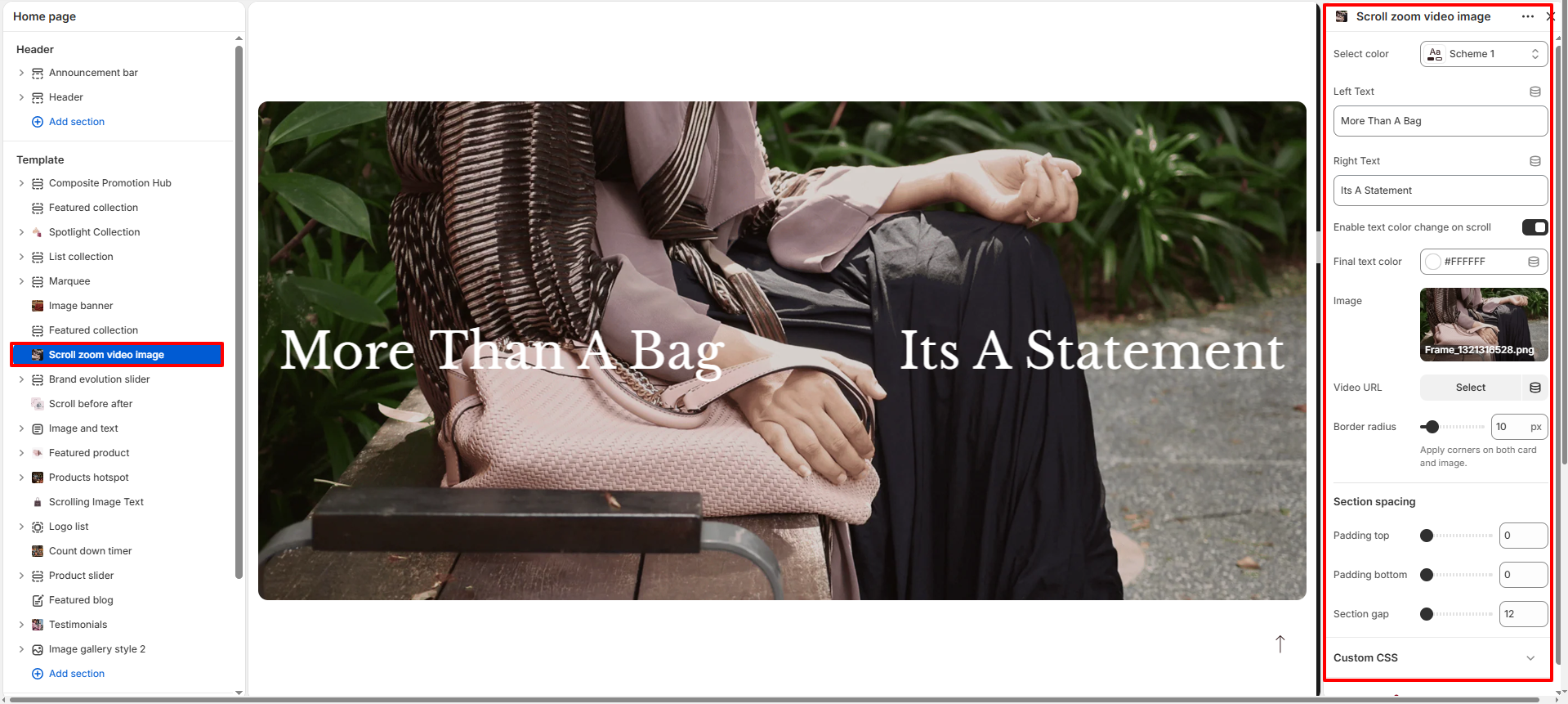
- Color Scheme: Select a predefined color scheme (e.g., Scheme 2) to control the background, text, and accent colors used in this section.
- Left Text: Enter the text that appears on the left side of the section. This is typically used for short keywords or brand cues.
- Right Text: Add supporting or contrasting text on the right side to create visual balance and impact.
- Enable text color change on scroll:Check this box if you want the text to change color while scrolling through the section.
- Final text color:Select the color that the text should change to while scrolling through the section.
-
Image:
Upload an image to display in the section.
- Click Upload images to add your own visual.
- Or use Explore free images to select from Shopify's image library.
- Video URL: Add a video file URL to enable the scroll-zoom video effect. The video will smoothly scale as users scroll, creating an immersive visual experience.
- Border Radius: Adjust the corner roundness of both the card and media (image/video). Higher values create a softer, more modern look.