
Countdown Timer
The Countdown Timer section helps create urgency by displaying a live countdown for special offers, flash sales, or upcoming launches. By showing the remaining time clearly, it encourages customers to take action faster and increases engagement and conversions.

Adding the Countdown timer section
- Open the Customizer and go to the page where you want to add the "Countdown" section.
- On the left-hand side, you'll find a list of available sections. Click the "Add section" button.
- From the available options, choose "Countdown"to add it to your page.
How to edit the Countdown Timer section
To configure the section background image and related settings in your Shopify theme, Dynamic, follow these steps:
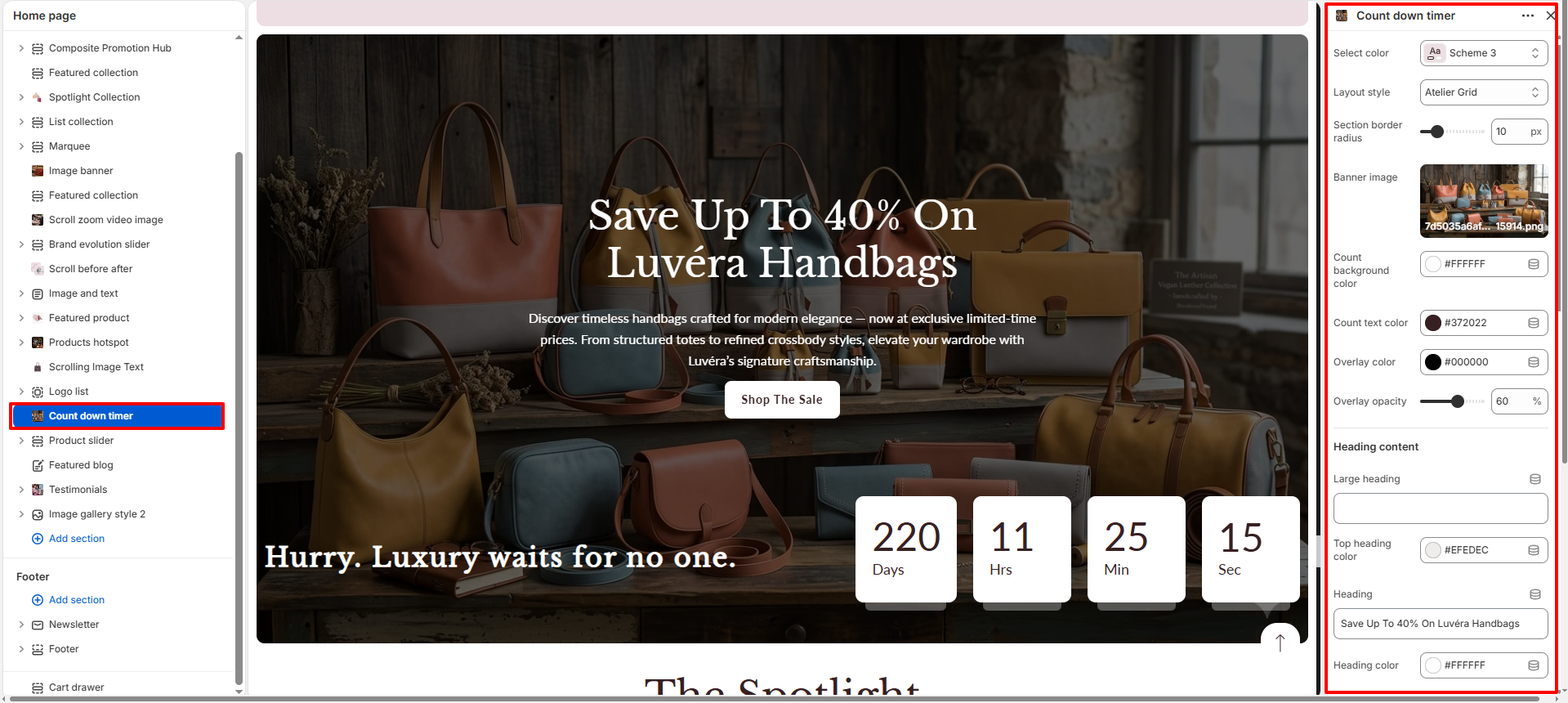
- Select Color: Select a color scheme (e.g., Scheme 3) to control the overall background, text, and accent colors of the countdown section.
-
Layout Style: Choose the layout style for the section (e.g.,
Atelier Grid).
- Full-Image:The section will take up the full width of the page.
- Half-Image:Create a split layout(Image and countdown timer side by side)
- Atelier Grid:The section will take up the full width of the page and show bottom heading and coudown timer in grid structure
- Section Border Radius: Adjust the corner roundness of the section (e.g., 10px).
-
Banner Image:
Upload a background image for the countdown banner.
- Click Upload images to add a custom image.
- This image appears behind the countdown content.
- Count Background Color: Set the background color for the countdown numbers container.
- Count Text Color: Choose the color used for the countdown numbers.
- Overlay Color: Select a color overlay applied on top of the banner image to improve text readability.
- Overlay Opacity: Adjust the transparency level of the overlay (higher value = darker overlay).
- Large Heading: Add a bold introductory heading to grab attention.
- Top Heading Color: Select the color for the large top heading text.
- Heading: Enter the main promotional title for the countdown section.
- Heading Color: Select the color for the main heading text.
- Paragraph Text: Add supporting text to describe the offer, sale, or event in more detail.
- Paragraph Text Color: Select the color for the paragraph text.
- End Date & Time: Set the countdown expiration using the format YYYY-MM-DD HH:MM. Once this time is reached, the countdown will end automatically.
- Countdown Number Size: Control the size of the countdown digits for better visibility.
- Button Label: Enter the call-to-action text (e.g., “Shop The Sale”).
- Bottom Heading: Enter a secondary heading text to display at the bottom (e.g., “Hurry. Luxury waits for no one.”). Note: This is only visible when the layout style is set to "Atelier Grid".
- Bottom Heading Color: Select the color for the bottom heading text.
- Button Link: Choose where the button redirects customers (collection, product, or page).
- Padding Top: Adjust the space above the section.
- Padding Bottom: Adjust the space below the section.
- Margin Top Bottom: Adjust the spacing margin above and below the section.
- Section Gap: Control the spacing between elements inside the section.
FAQs
How does the countdown timer adjust for different time zones?
The countdown timer automatically follows the time zone set for your store, ensuring consistency across all customers viewing it.
How long does the 'End Text' message display?
The 'End Text' message will remain visible indefinitely until you update it with new date and time settings.
Why does my timer show 0:0:0:0?
This usually happens when the date or time format is entered incorrectly. Make sure:
- The date format is YYYY-MM-DD.
- The time format follows the 24-hour clock as HH:MM.
What happens when the timer ends?
The behavior of the timer depends on your settings:
- If you've added End Text, it will replace the timer.
- If you've enabled the Hide Timer option after expiry, only the section content (excluding the timer) will remain visible.
- If no action is taken, the timer will stay displayed as 0:0:0:0.