
Tabs Advanced
The Tabs Advanced section allows you to display multiple content blocks such as FAQ and Partners in a tab-based layout. This helps organize content in a clean and interactive way for better user experience.
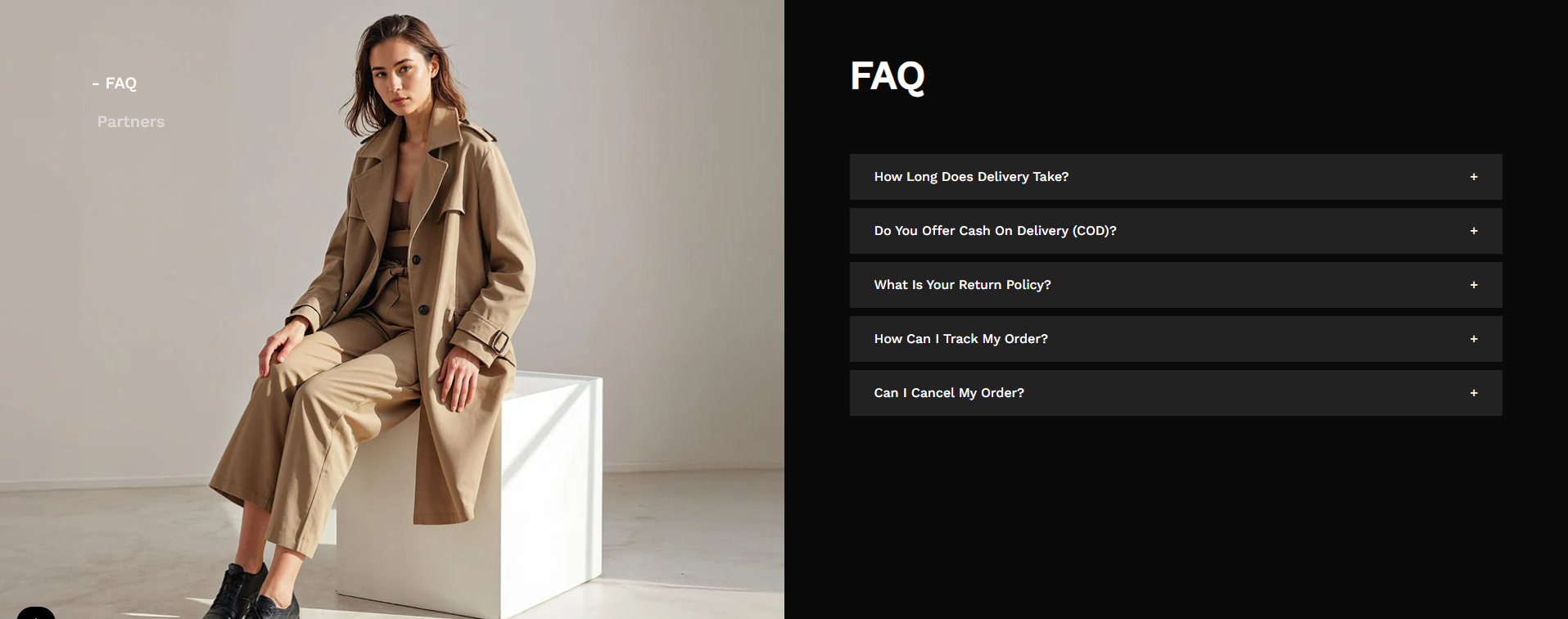
Adding the Tabs Advanced Section
- From your Shopify admin, go to Online Store ? Themes.
- Click Customize on your active theme.
- Select the page where you want to add the section.
- Click Add Section and choose Tabs Advanced.
- Click Save to apply changes.
How to edit the Tabs Advanced Section
You can control spacing, colors, and manage different blocks like FAQ and Partner from the section settings.
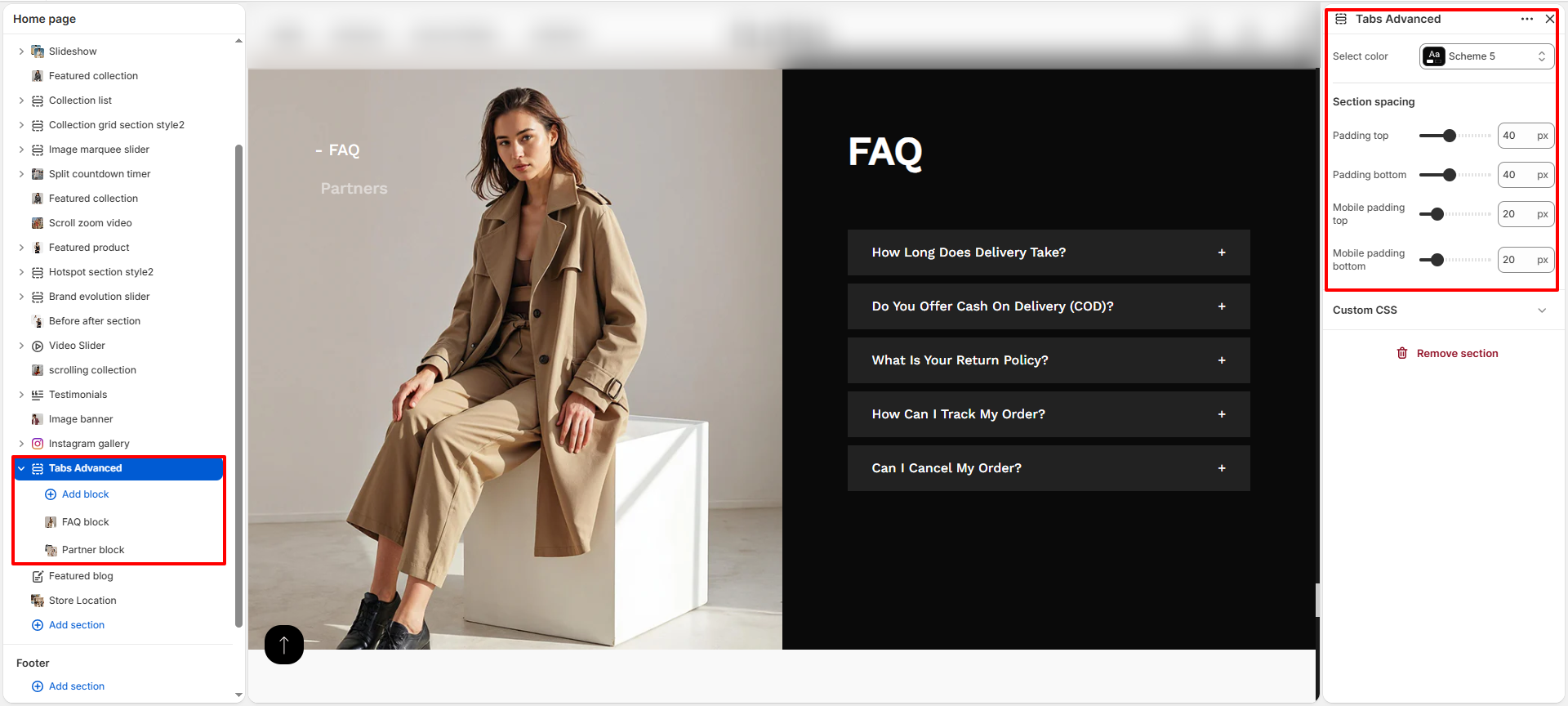
- Color Scheme: Select a color scheme for the section.
- Padding Top: Adjust space above the section.
- Padding Bottom: Adjust space below the section.
- Mobile Padding Top: Set top spacing for mobile devices.
- Mobile Padding Bottom: Set bottom spacing for mobile devices.
FAQ Block
The FAQ Block allows you to display frequently asked questions in an accordion format. Customers can expand each question to view the answer.
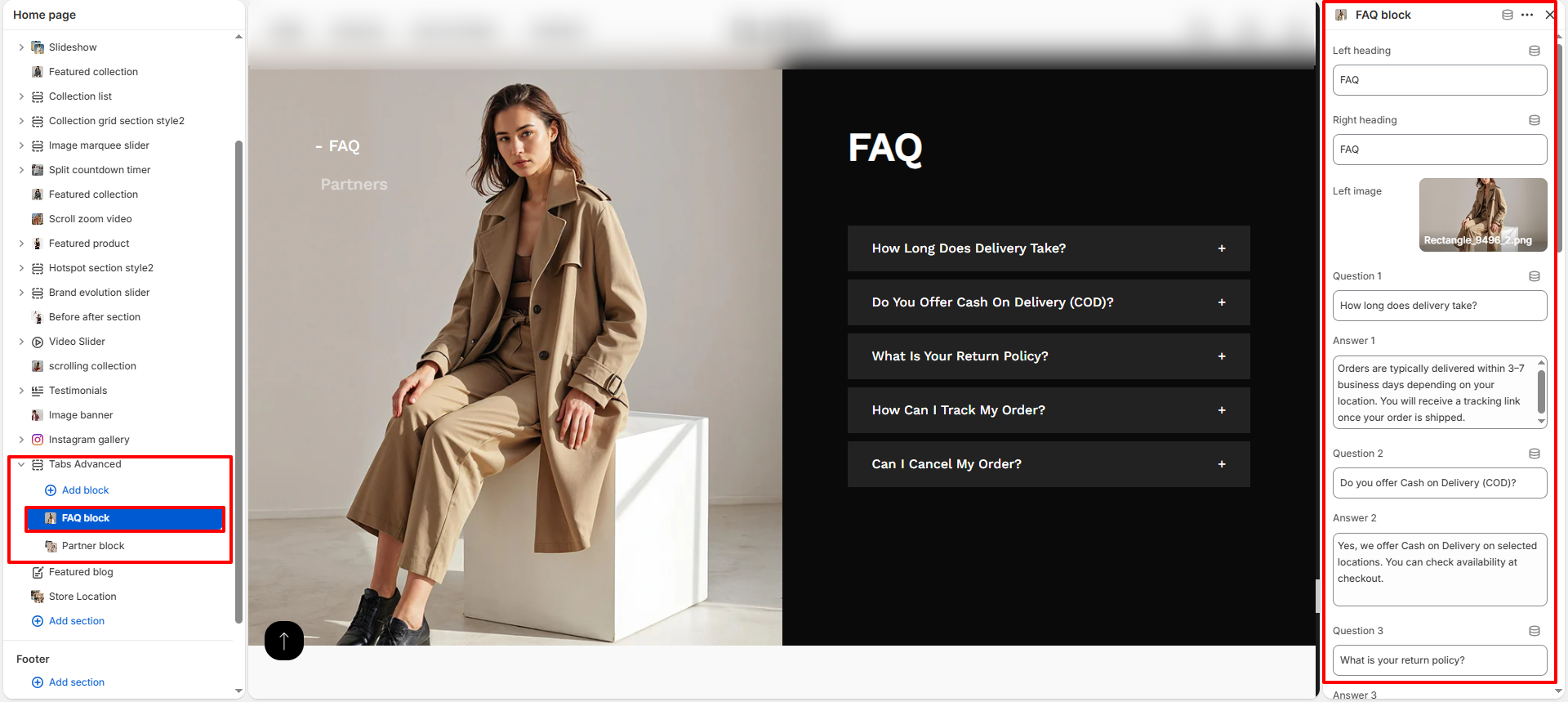
- Left Heading: Add heading text for the left side (e.g., FAQ).
- Right Heading: Add heading text displayed above the FAQ list.
- Left Image: Upload an image displayed on the left side.
- Question: Enter the FAQ question.
- Answer: Add the answer for the question.
- You can add multiple FAQ items to build a complete FAQ section.
Partner Block
The Partner Block is used to showcase your partners, brands, or collaborators using logo images in a grid layout.
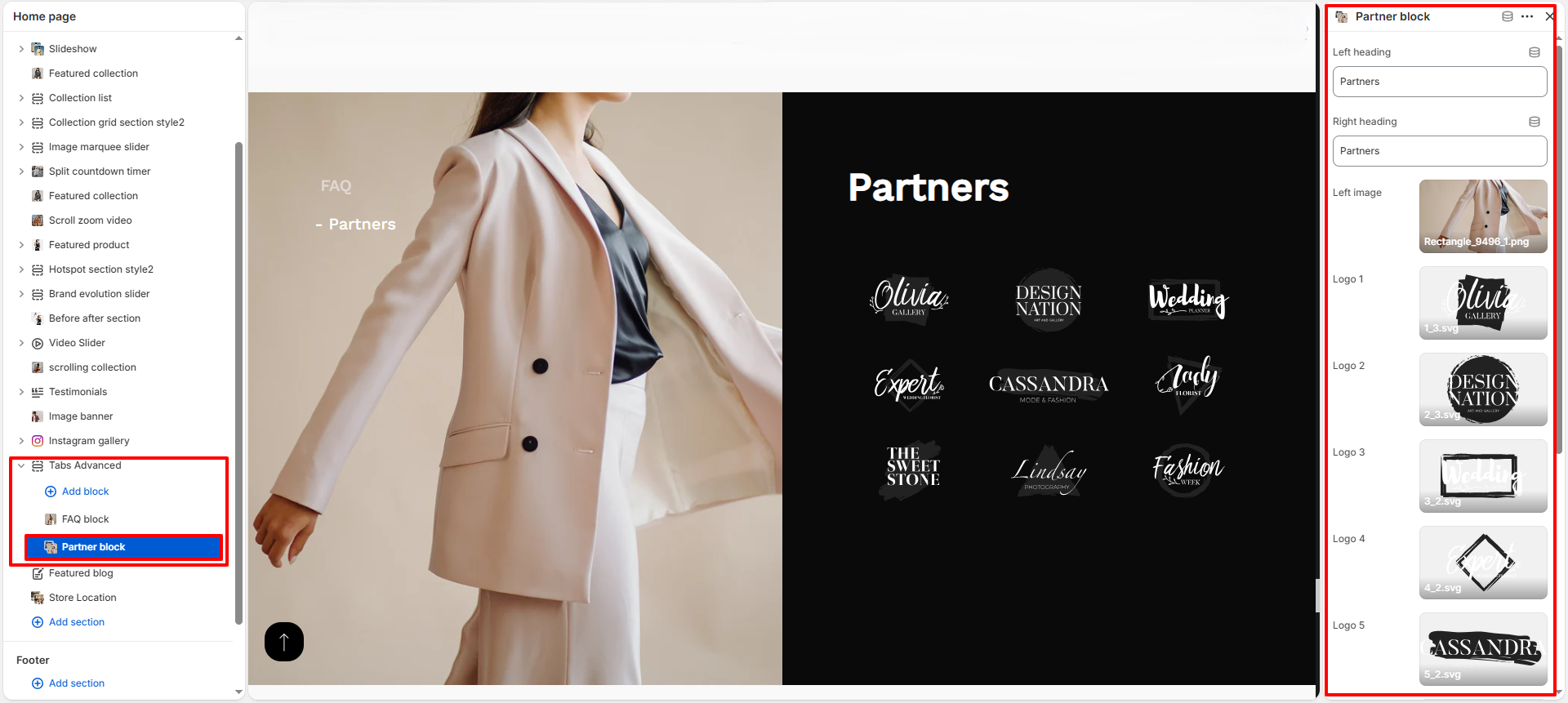
- Left Heading: Add heading text for the left side (e.g., Partners).
- Right Heading: Add heading text displayed above the logos.
- Left Image: Upload an image displayed on the left side.
- Logo 1 - Logo 8: Upload logos of your partners or brands.
- Use high-quality transparent images (PNG or SVG) for best results.