
Collection List
The Collection List section allows you to showcase multiple collections in a visually engaging layout. You can display featured collections with custom images, headings, and products, helping customers quickly explore different categories and discover trending or highlighted items.
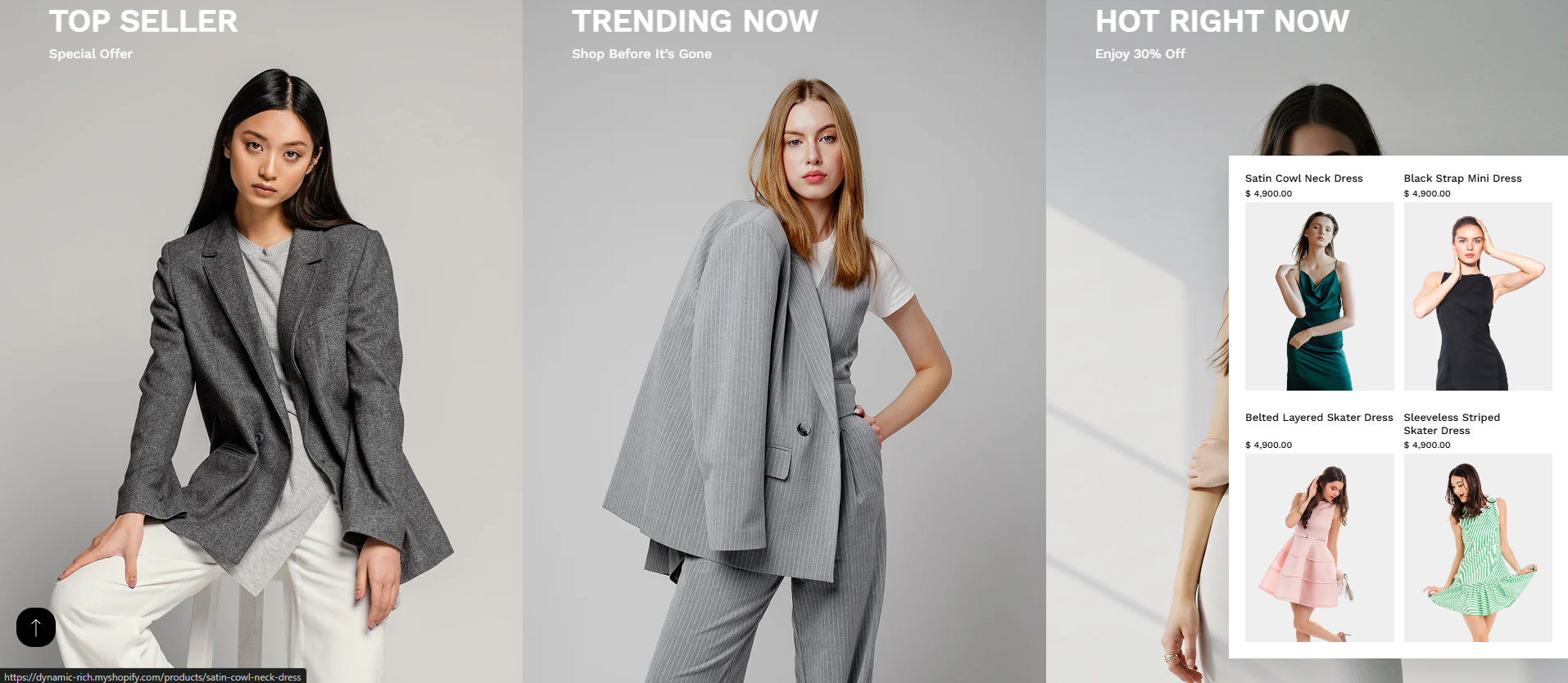
Adding the Collection List section
- Open the Customizer and navigate to the page where you want to add the "Collection List" section.
- Click on the "Add section" button in the left panel.
- From the available sections, select "Collection List".
- Add multiple collection blocks like Top Seller, Trending Now, or Hot Right Now.
How to edit the Collection List section
Steps for configuring the "Collection List" section in the Dynamic Theme:
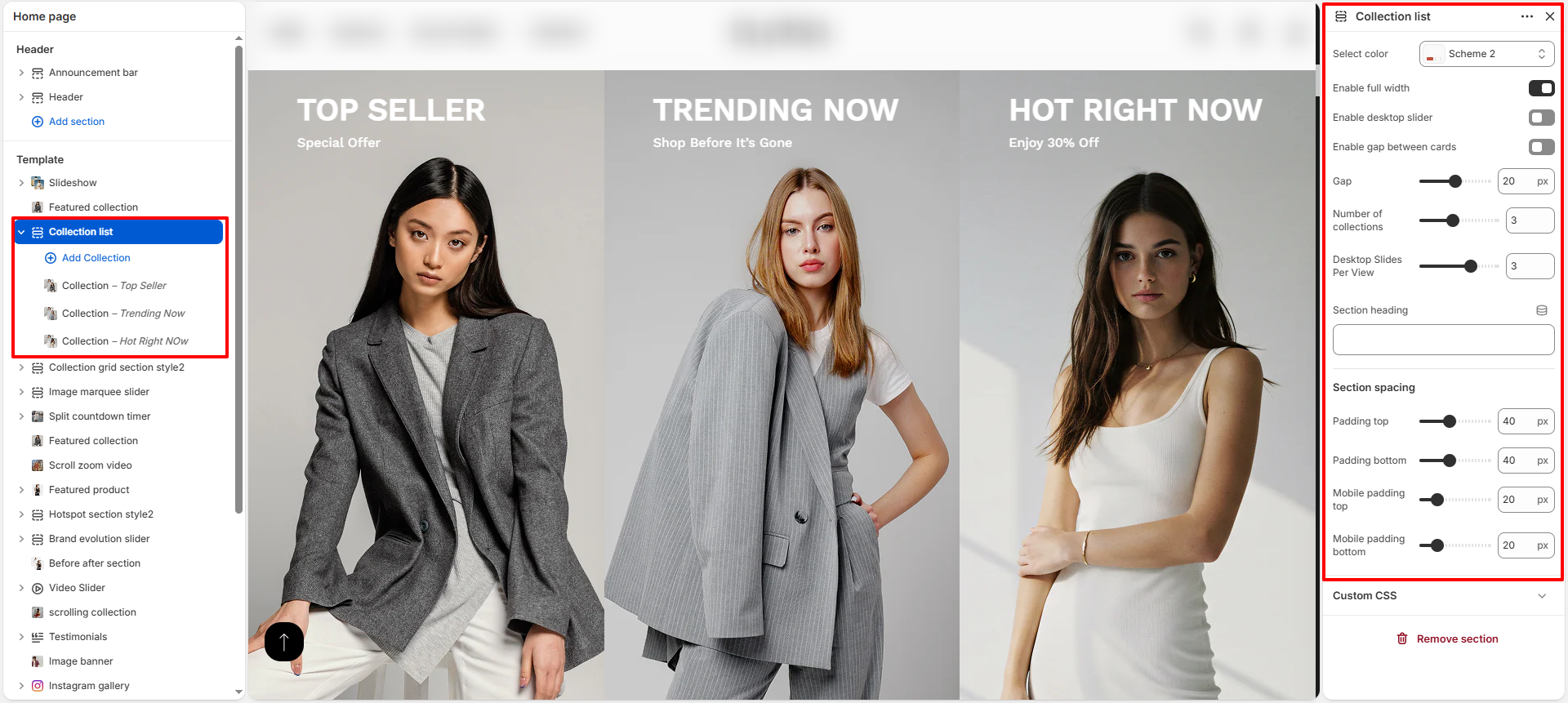
- Select Color Scheme: Choose a color scheme for the section to match your store branding.
- Enable Full Width: Toggle this option to make the section span the full width of the screen.
- Enable Desktop Slider: Enable this option to display collections in a slider format on desktop devices.
- Enable Gap Between Cards: Turn on spacing between collection cards for better visual separation.
- Gap: Adjust the spacing between collection items using the slider.
- Number of Collections: Define how many collection blocks you want to display.
- Desktop Slides Per View: Set how many collections are visible at once on desktop screens.
- Section Heading: Add a heading for the entire collection section (optional).
-
Section Spacing:
Control the spacing around the section:
- Padding Top
- Padding Bottom
- Mobile Padding Top
- Mobile Padding Bottom
- Custom CSS: Add custom styles to further personalize the section design.
Collection Block Settings
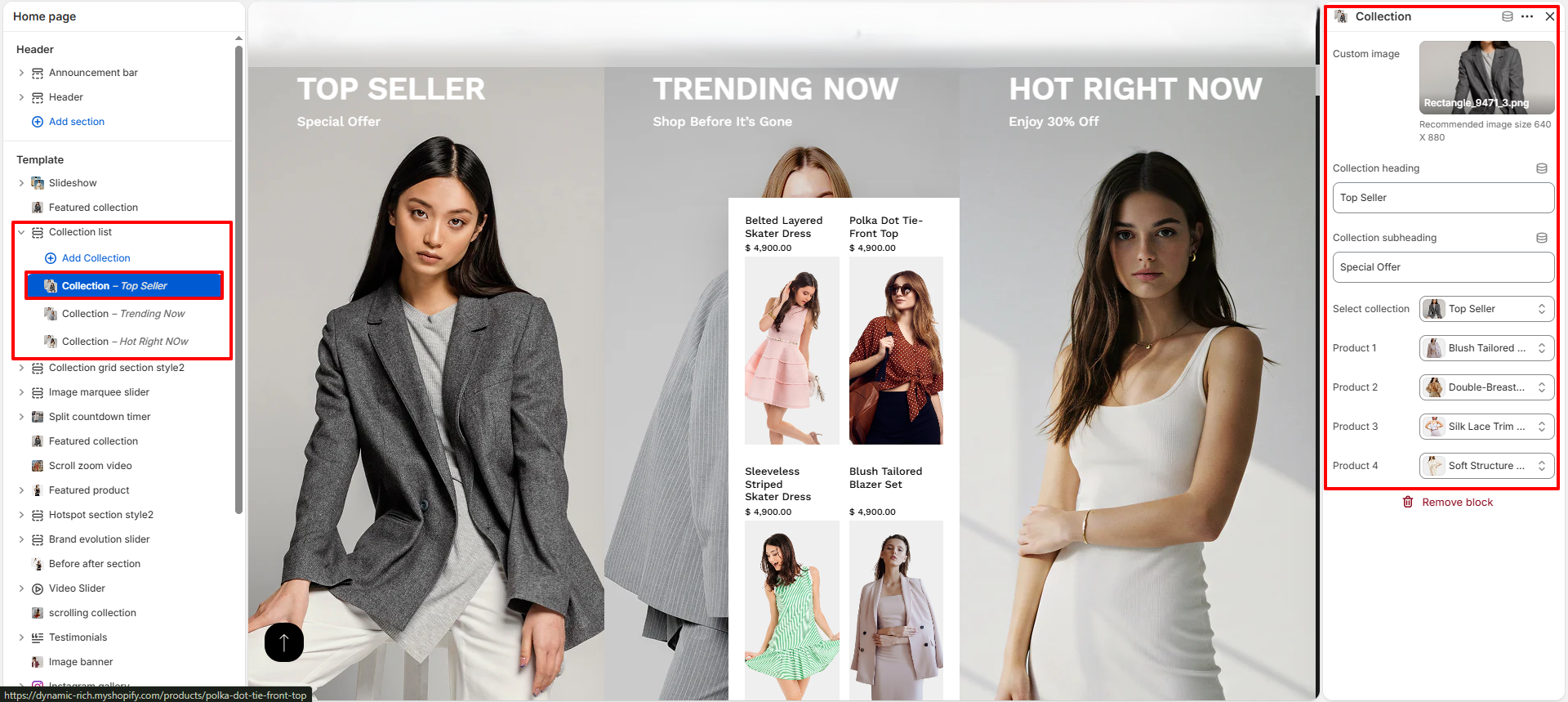
- Custom Image: Upload a custom image to represent the collection visually.
- Collection Heading: Enter a title such as "Top Seller" or "Trending Now".
- Collection Subheading: Add a short description like "Special Offer" or "Enjoy 30% Off".
- Select Collection: Choose the collection you want to display products from.
- Products: Select products (Product 1–4) to highlight inside the collection card preview.