
Image Gallery
The Image Gallery section in the Dynamic theme allows you to showcase images in a clean, grid-style layout. It's perfect for displaying product visuals, lifestyle photography, promotions, or user-generated content in one place. A well-organized gallery helps customers visually explore your brand, enhances product appeal, and builds trust through rich, high-quality imagery.

How to add an Image gallery section to your Shopify store
- Open the Customizer and go to the page where you want to add the "Image gallery" section.
- On the left-hand side, you'll find a list of available sections. Click the "Add section" button.
- From the available options, choose "Image gallery"to add it to your page.
How to edit an Image gallery section
To edit the image gallery section in your Shopify theme, Dynamic, follow these steps:
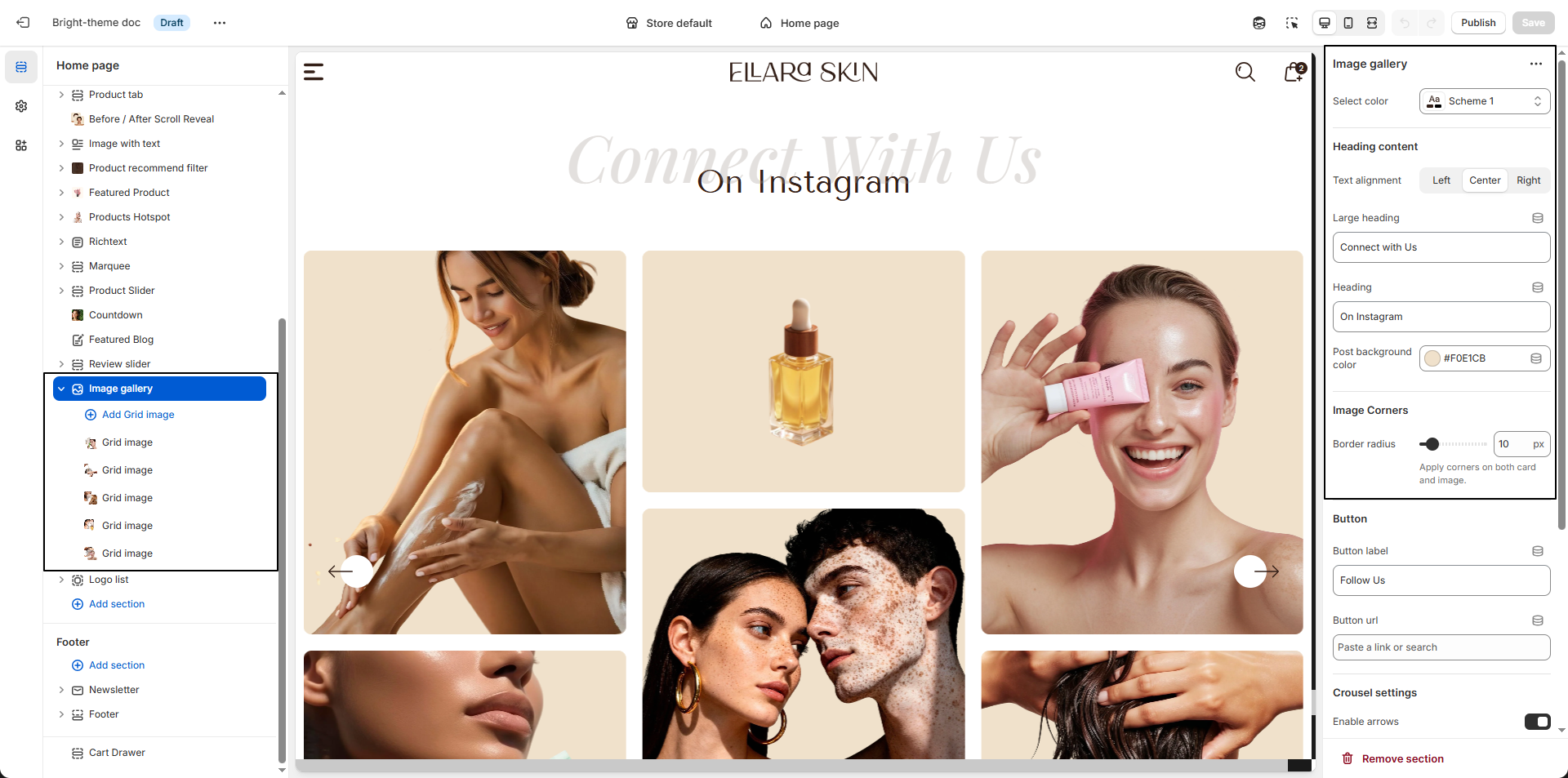
- Color Scheme: Select a color scheme (e.g., Scheme 1) to control the background, text, and accent colors of the Image Gallery section.
- Large Heading: Enter a bold introductory line to grab attention.
- Heading Content: Add a main heading and optional large heading to introduce the gallery (e.g., “Connect with Us” / “On Instagram”).
-
Text Alignment:
Choose how the heading text aligns within the section.
- Left: Aligns text to the left.
- Center: Centers the text for a balanced look.
- Right: Aligns text to the right.
- Post Background Color: Set the background color for each gallery item or card (e.g., #F0E1CB).
- Image Corners: Adjust the border radius to round the corners of both images and cards (e.g., 10px) for a soft, modern style.
-
Button:
Add a call-to-action button below the gallery.
- Button Label: Enter button text such as “Follow Us”.
- Button URL: Paste a link to your social profile or any page.
-
Carousel Settings:
Control how the gallery scrolls.
- Enable Arrows: Show navigation arrows for manual scrolling.
- Enable Autoplay: Automatically slide through images for a dynamic experience.
Add or Edit Image Block
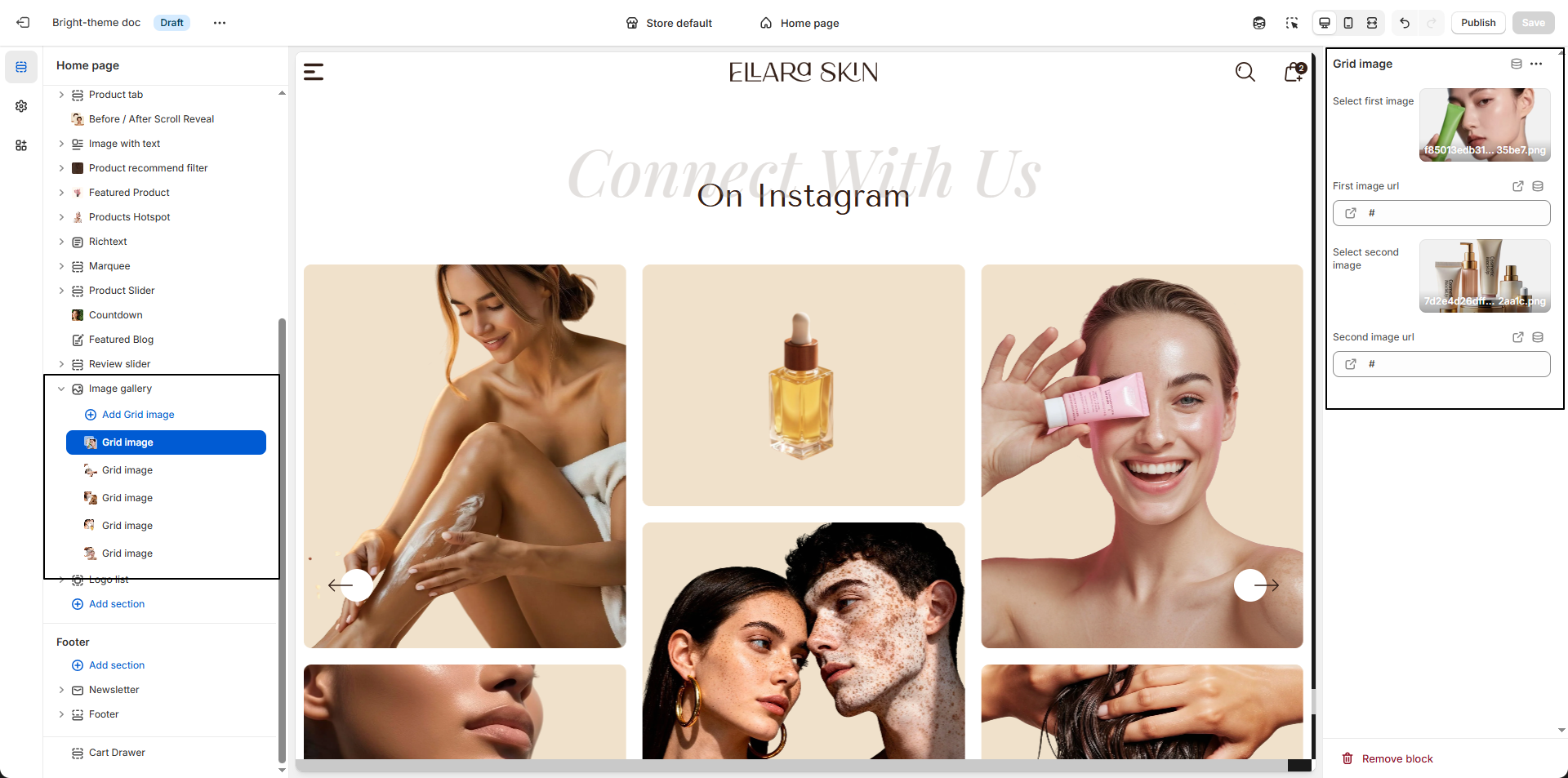
- Add a New Grid Image: Click the Add image block button to insert a new image into the grid.
- Select First Image: Click Upload images to add the first image, choose from your library, or use Shopify's free images.
- First Image URL: Paste a link to make the first image clickable and redirect customers to a page, collection, or product.
- Select Second Image: Upload the second image to complete the grid layout.
- Second Image URL: Add a URL so customers can click the second image and navigate to a relevant page.
- Remove an Image Block: Select the image block you want to delete and click Remove block.