
Swatches
Swatches are small yet impactful visual elements that display the available colors, patterns, or materials of a product. Instead of showing plain text options, swatches provide an interactive and visually appealing way for customers to explore and select product variants. The Dynamic theme supports swatches in the variant picker, product cards, and product filters. Swatches can display solid colors, custom images, or variant images, depending on your settings. Dynamic is fully compatible with Shopify's native swatch functionality, making setup and management simple and efficient. Color swatches in the Dynamic theme visually present product color options as clickable samples rather than text labels. This improves product presentation and allows customers to quickly identify and select their preferred color, creating a smoother and more engaging shopping experience.
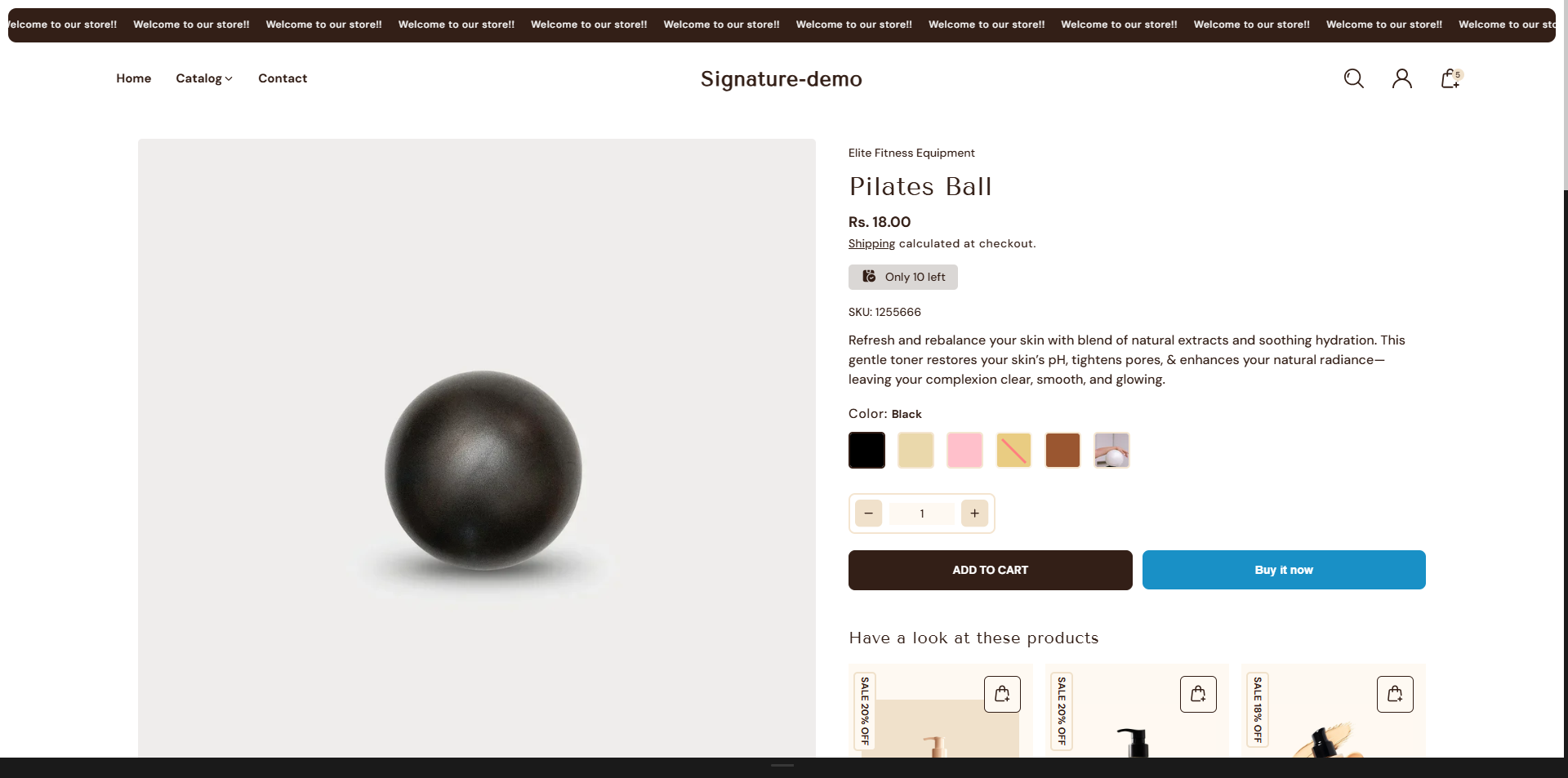
How to set up swatches on produst page
Step 1: Assign a Product Category
Shopify enables category metafields (e.g., Color, Size) only after a product has an assigned category.
- From your Shopify admin, go to Products.
- Click the product you want to edit.
- In the Category section, click Browse categories.
- Select a relevant category (e.g., Apparel & Accessories → Clothing → Shirts).
- Click Save.
Note: Only products with assigned categories can use category metafields.
Step 2: Configure the Color Metafield
Once a category is assigned, you can configure available values for the Color metafield.
- From your Shopify admin, go to Settings → Custom data → Categories.
- Click the category you previously assigned.
- Locate the Color metafield and click Manage entries.
- Add new color entries:
- Enter a color name (e.g., Red, Blue).
- Optionally upload a swatch image or enter a color hex (e.g., #FF0000).
- Click Save.
Step 3: Connect the Color Metafield to Variant Options
Link your product's Color option to the metafield you just configured.
- Open your product in the Products section.
- Under Variants, click Add options like size or color.
- In Option name, type Color.
- Click the dynamic source icon (🔗) next to it.
- Select the Color category metafield.
- Assign each variant the appropriate metafield entry (e.g., Red, Blue).
- Click Done and then Save the product.
Step 4: Set Up Swatch Shape
You can configure the global swatch shape for product swatches across your store.
- From your Shopify admin, go to Online Store → Themes.
- Click Customize on the Dynamic theme.
- In the Theme Editor, navigate to Theme Settings → Color Swatches Selectors.
- Select your preferred style for displaying variants
-
- Dropdown: Shows options in a dropdown menu.
- Buttons: Displays options as buttons.
- Select the desired shape for your swatches from the following options:
- Circle – A circular swatch (default shape if none is selected).
- Square – A perfect square swatch.
- Click Save to apply your changes.
Shopify swatches
Shopify's native swatches are supported and provide a seamless way to link variant options to color metafields. These swatches can be displayed in variant pickers and on product cards, offering an engaging and visually appealing way for customers to explore product options.
For a detailed guide on how to set up category metafields, refer to Shopify's official documentation here.
Custom Color Swatches
The Custom Color Swatches feature allows you to display product options such as color, flavour, or shades as visual swatches instead of plain text. This improves the product selection experience by making variant options more interactive and visually clear for customers. You can define which product options should appear as swatches and assign custom colors to each value.
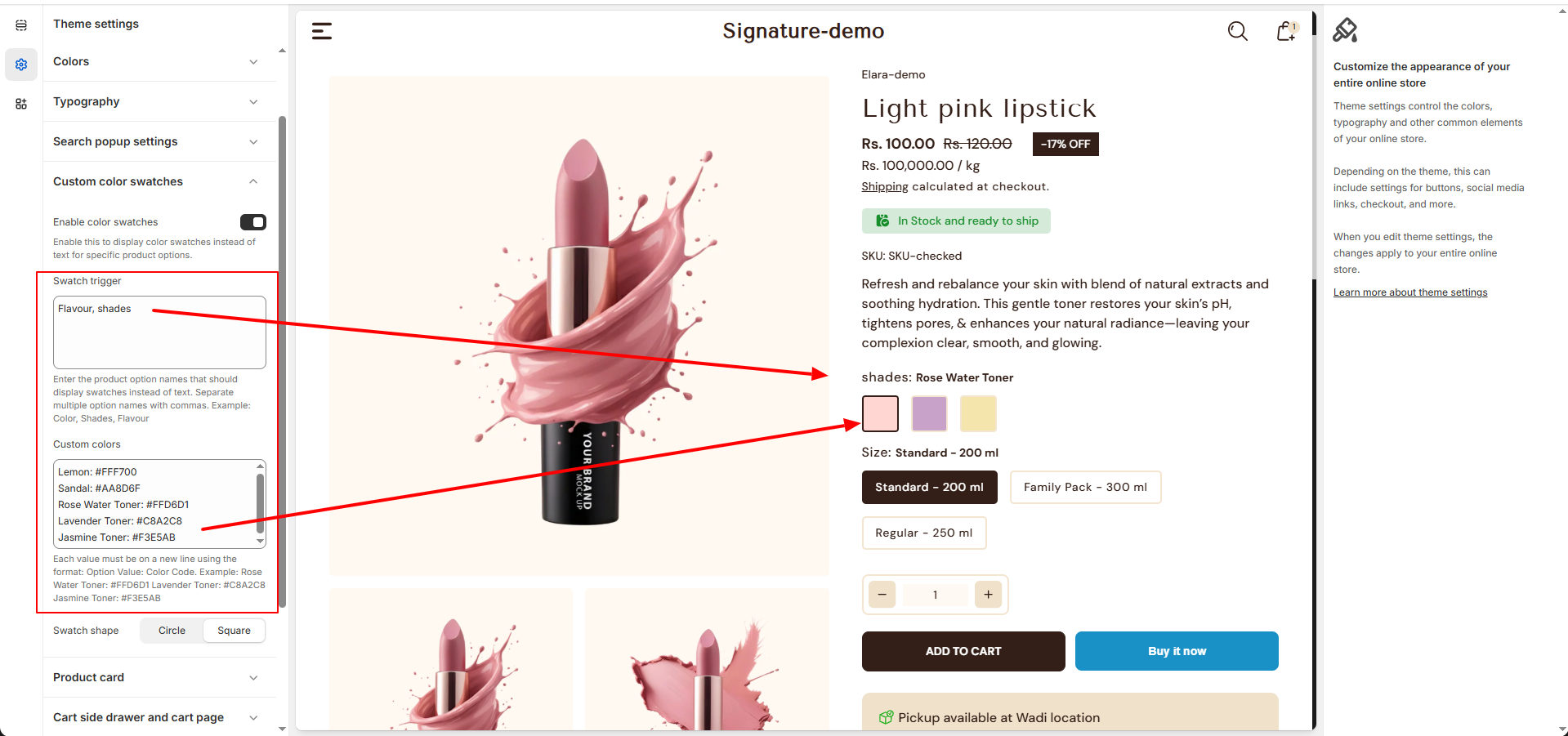
Steps to Enable Custom Color Swatches
- From your Shopify admin, go to Online Store → Themes.
- Click Customize on your theme.
- In the Theme Editor, open Theme Settings.
- Navigate to Custom Swatch Colors.
- Enable the option Enable color swatches to display swatches instead of text.
Configure Swatch Options
-
Swatch Trigger:
Enter the product option names that should display swatches instead of text.
Multiple option names can be separated using commas.
Example: Color, Shades, Flavour -
Custom Colors:
Define custom color values for each option. Each entry must be written on a new line
using the format:
Option Value: Color Code -
Example:
Rose Water Toner: #FFD6D1
Lavender Toner: #C8A2C8
Jasmine Toner: #F3E5AB
Once configured, the specified product options will appear as colored swatches across the product page, variant picker, and product cards, giving customers a more visual and engaging way to select product variants.
FAQs
Why isn't the color swatch showing?
Color swatches may not appear for several reasons:
- Ensure the color category metafield is properly configured for your products in the Shopify admin. Swatches rely on the metafield data to display.
- Verify that the variant names match the color options exactly, including capitalization and spaces. Any mismatch can prevent the swatches from displaying
For a detailed guide on how to set up category metafields, refer to Shopify's official documentation here.
Can I change the color swatch style?
Yes, you can customize the style of the color swatches.
- Go to Customize in the Shopify theme editor.
- Select the Product block.
- Locate the Variant Picker section.
- Choose your preferred style for displaying the swatches.