
Testimonials
The Testimonials section allows you to showcase customer feedback in a clean and elegant layout. It helps build trust by displaying real customer experiences along with product references. This section is ideal for highlighting reviews and user satisfaction.
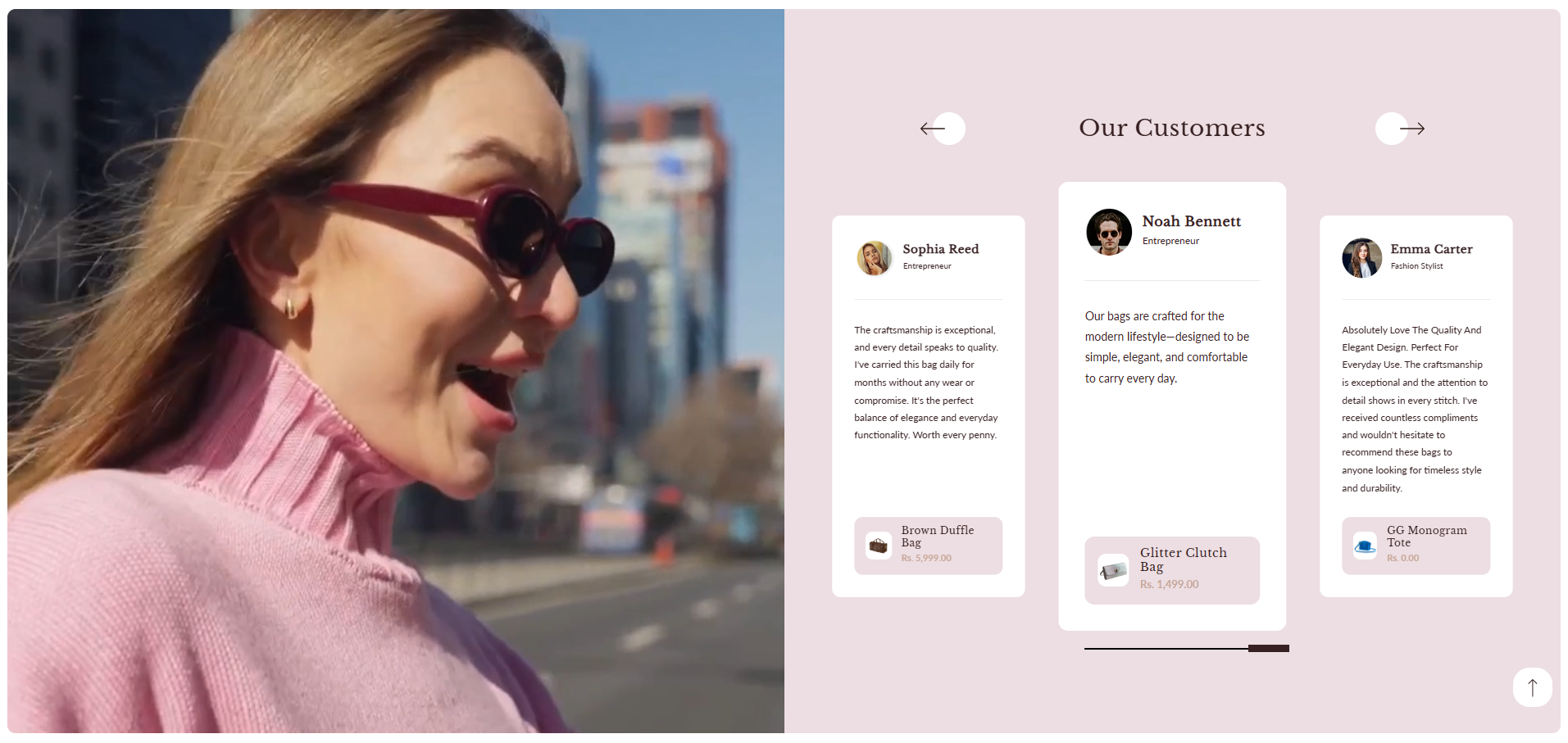
Adding the Testimonials Section
- From your Shopify admin, go to Online Store ? Themes.
- Click Customize on your active theme.
- Select the page where you want to add the section.
- Click Add Section and choose Testimonials.
- Click Save to apply changes.
How to Edit the Testimonials Section
You can customize the Testimonials section using the following settings available in the theme editor.
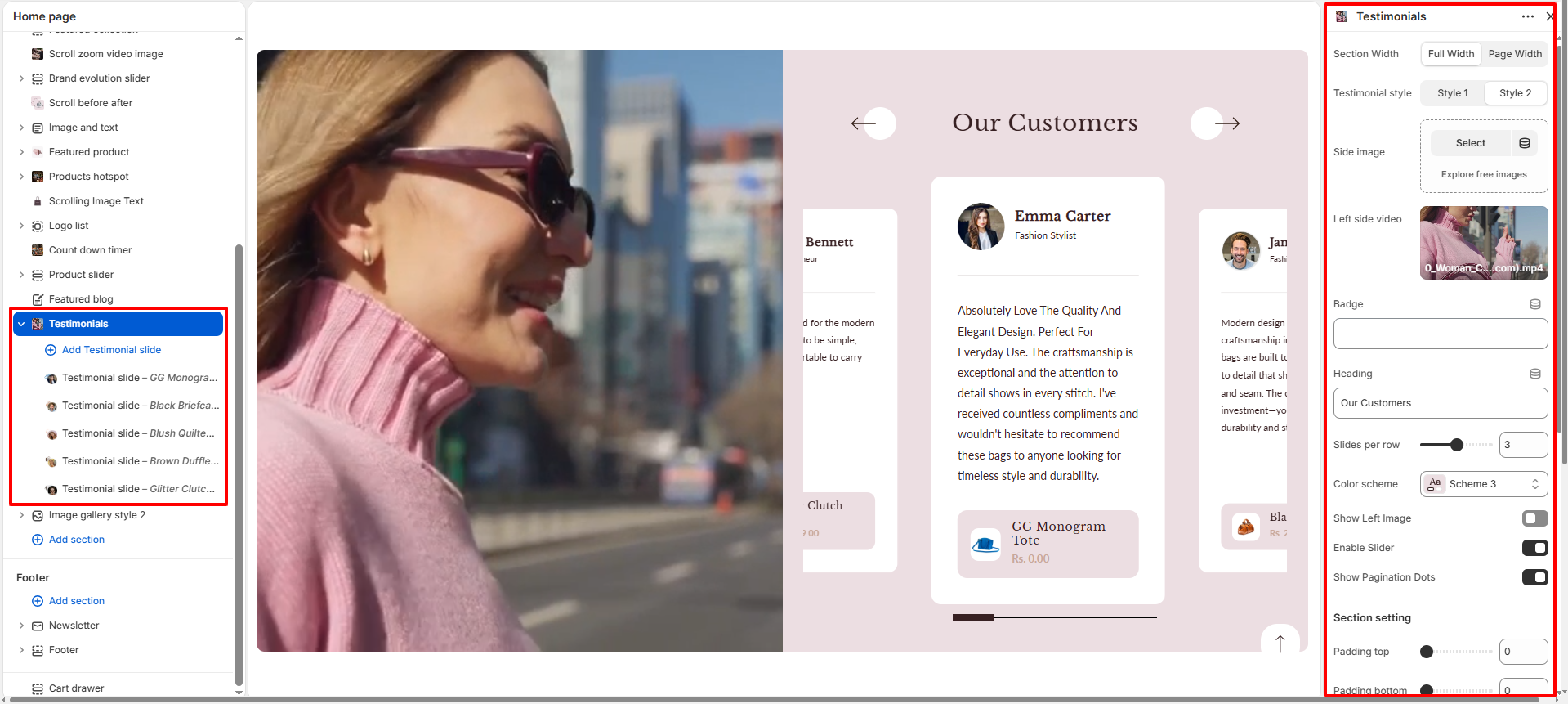
- Section Width: Select whether the section should display as Full Width or be contained to Page Width.
- Testimonial Style: Choose the layout style for the testimonials (e.g., Style 1 or Style 2).
- Side Image: Choose or upload an image to display on the side of the testimonial section.(Show only if selected)
- Left Side Video: Upload or select a video file to be displayed on the left side of the testimonial layout.(Show only if selected)
- Badge: Add a small label displayed above the heading (e.g., “LOVED BY”).
- Heading: Enter the main title for the section (e.g., “Our Customers”).
- Slides Per Row: Control how many testimonial cards appear in one row.
- Color Scheme: Select a color scheme (e.g., Scheme 3) for the section.
- Show Left Image: Enable or disable the left-side image inside testimonial cards.
- Enable Slider: Turn on this option to display testimonials as a slider. When disabled, testimonials will appear in a grid layout.
- Show Pagination Dots: Toggle to display navigation/pagination dots below the testimonials slider.
- Section Settings:
- Padding Top: Adjust spacing above the section.
- Padding Bottom: Adjust spacing below the section.
- Padding Left: Control left spacing inside the section.
- Padding Right: Control right spacing inside the section.
- Margin Left: Adjust outer margin spacing on the left side (in px).
- Margin Right: Adjust outer margin spacing on the right side (in px).
- Section Border Radius: Adjust the roundness of the section container.
- Card Border Radius: Control the corner roundness of testimonial cards.
- Padding Top Mobile: Set top spacing for mobile devices.
- Padding Bottom Mobile: Set bottom spacing for mobile devices.
Testimonial Slide Blocks
You can add multiple Testimonial Slide blocks to display different customer reviews. Each block represents a single testimonial.
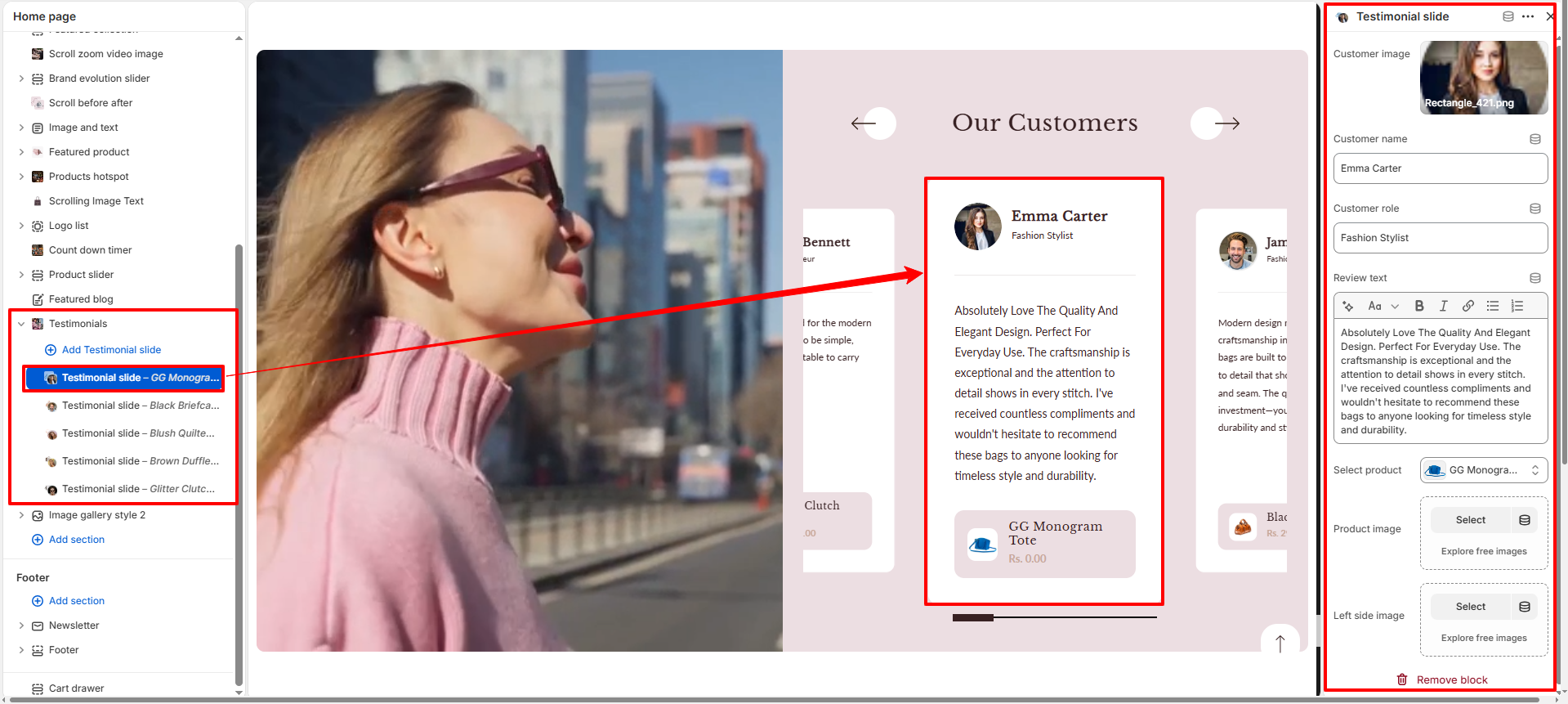
- Customer Image: Upload an image of the customer.
- Customer Name: Enter the reviewer's name (e.g., “Ava Sharma”).
- Customer Role: Add a label such as “Verified Customer”.
- Review Text: Write the customer's feedback.
- Select Product: Link a product to the testimonial.
- Product Image: Upload or display the associated product image.
- Left Side Image: Upload an image displayed on the left side of the testimonial layout.
The Testimonials section helps improve credibility and encourages new customers to make purchases by showcasing real user experiences and product satisfaction.