
Composite Promotion Hub
The Composite Promotion Hub section in the Dynamic theme allows you to showcase multiple promotional blocks in a visually engaging and modern layout. Each block can feature a custom background image, promotional content, featured products, and call-to-action links to help highlight important categories, collections, or special campaigns.
This section is ideal for displaying curated promotions, seasonal campaigns, featured products, or branded collections in a clean side-by-side format. With customizable layouts and styling controls, the Composite Promotion Hub helps improve product discovery while creating an attractive shopping experience for your customers.
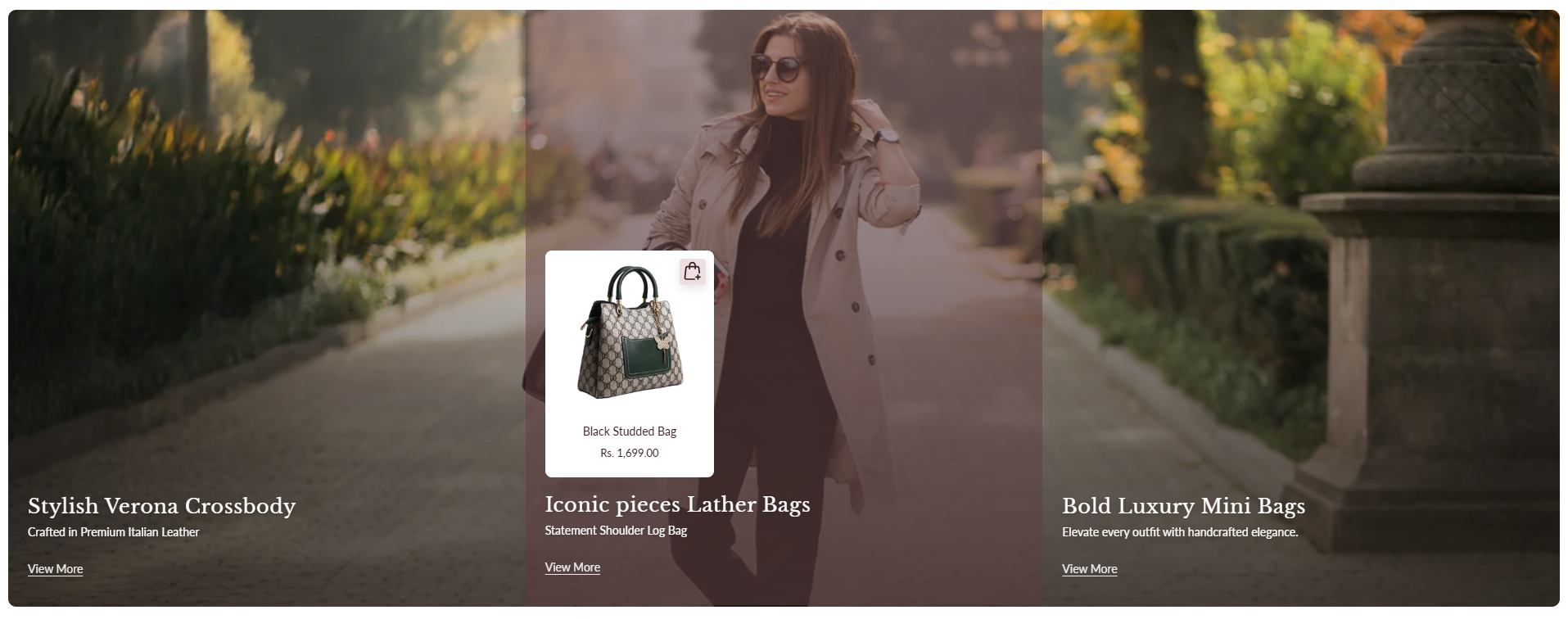
How To Add the Composite Promotion Hub section
- Login to your Customizer and navigate to the page where you want to display this section.
- On the left sidebar, click the Add section button.
- From the available sections list, select Composite Promotion Hub.
How To Edit the Composite Promotion Hub section
Here are the available customization options for the Composite Promotion Hub section in your Dynamic Shopify theme:
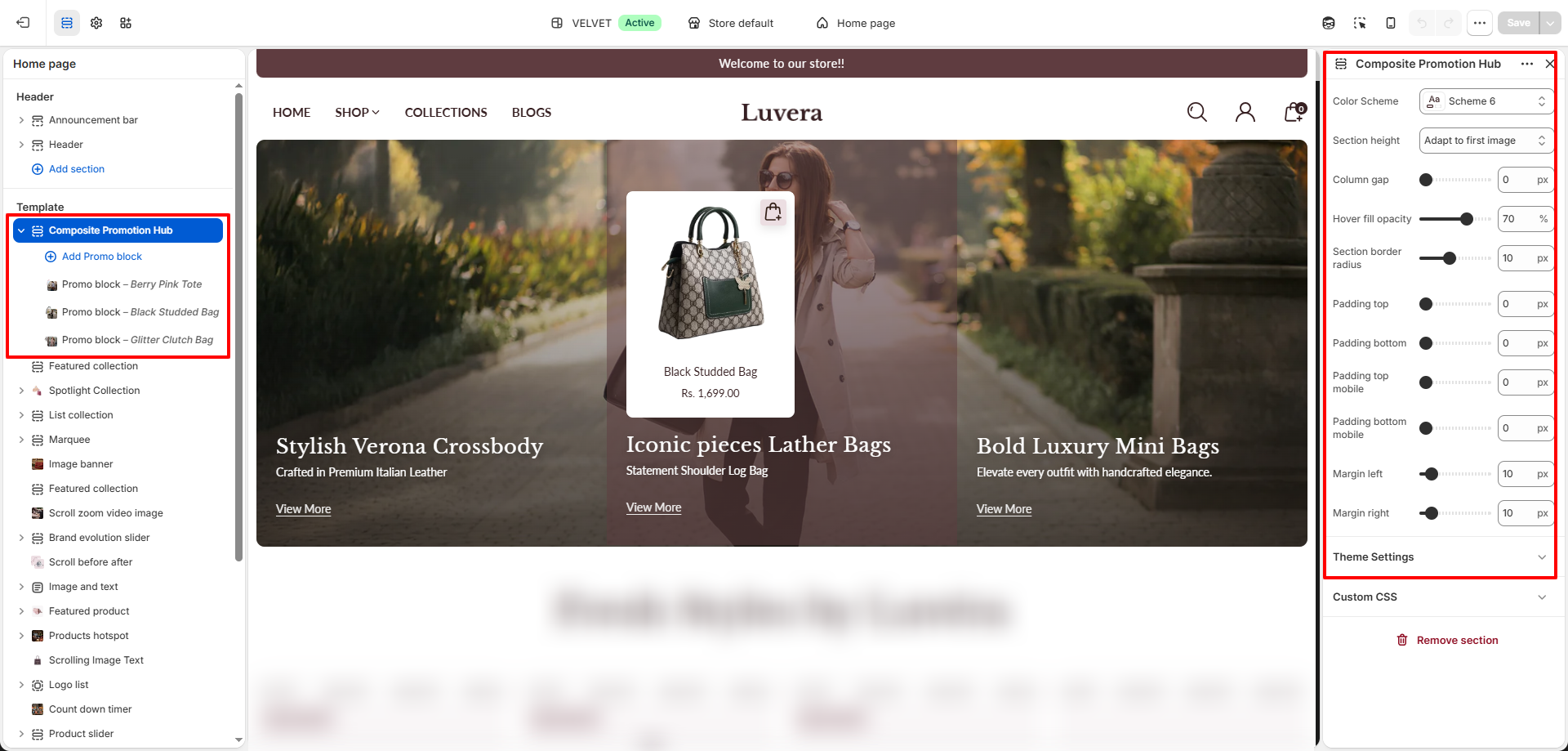
- Color Scheme: Select a color scheme to control the overall appearance of the section including text, background, and accent colors.
- Section Height: Choose the height behavior for the promotional layout such as adapting to the first image or maintaining a fixed structure.
- Column Gap: Adjust the spacing between promotional blocks to create either a compact or spacious layout.
- Hover Fill Opacity: Control the overlay opacity shown on hover to improve text visibility and interactive effects.
- Section Border Radius: Apply rounded corners to the entire section for a softer and modern design appearance.
- Padding Top & Padding Bottom: Add spacing above and below the section for better alignment within the page layout.
- Mobile Padding Settings: Configure separate top and bottom padding values specifically for mobile devices.
- Margin Left & Margin Right: Adjust the horizontal spacing of the section to control overall page alignment.
Configure the Promo Block Settings
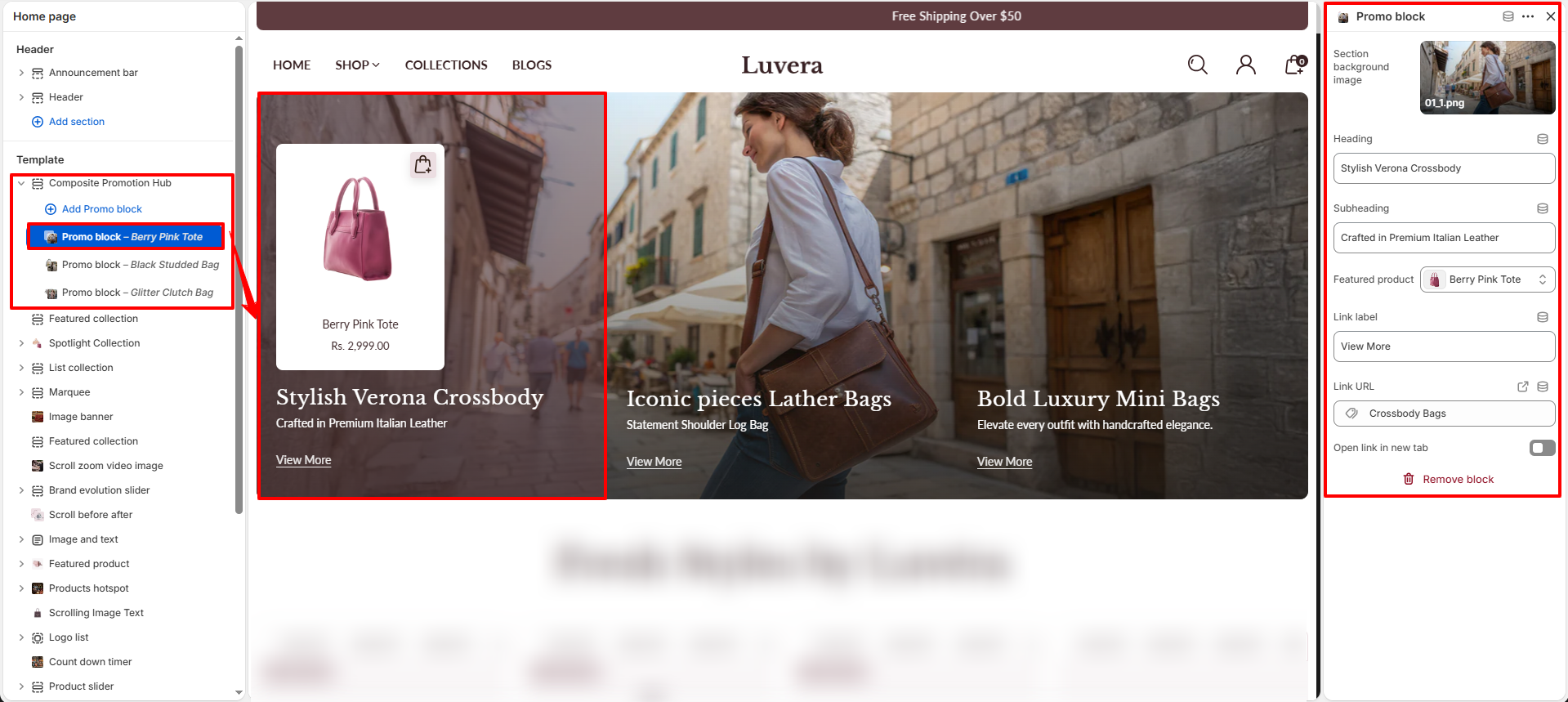
- Add a New Promo Block: Click the Add Promo block button inside the Composite Promotion Hub section to create a new promotional item.
- Section Background Image: Upload a custom background image for the promotional block to visually highlight the campaign or collection.
- Heading: Enter the main promotional title displayed on the block.
- Subheading: Add supporting promotional text or a short description below the heading.
- Featured Product: Select a product to showcase directly inside the promotional block with product image and pricing.
- Link Label: Customize the button or text label used for the call-to-action link such as “View More” or “Shop Now”.
- Link URL: Choose the destination page where customers will be redirected after clicking the link.
- Open Link in New Tab: Enable this option to open the selected link in a separate browser tab.