
Mega Menu
The Mega Menu in the Signature theme is designed to deliver clear, structured, and visually rich navigation across your store. By organizing collections, pages, and links into a spacious, easy-to-scan layout, it helps customers quickly find what they're looking for without feeling overwhelmed.
Signature supports both simple dropdown menus and advanced full-width mega menus with text and images. This flexible navigation system enhances usability, improves product discovery, and creates a smooth, premium browsing experience from the very first interaction.
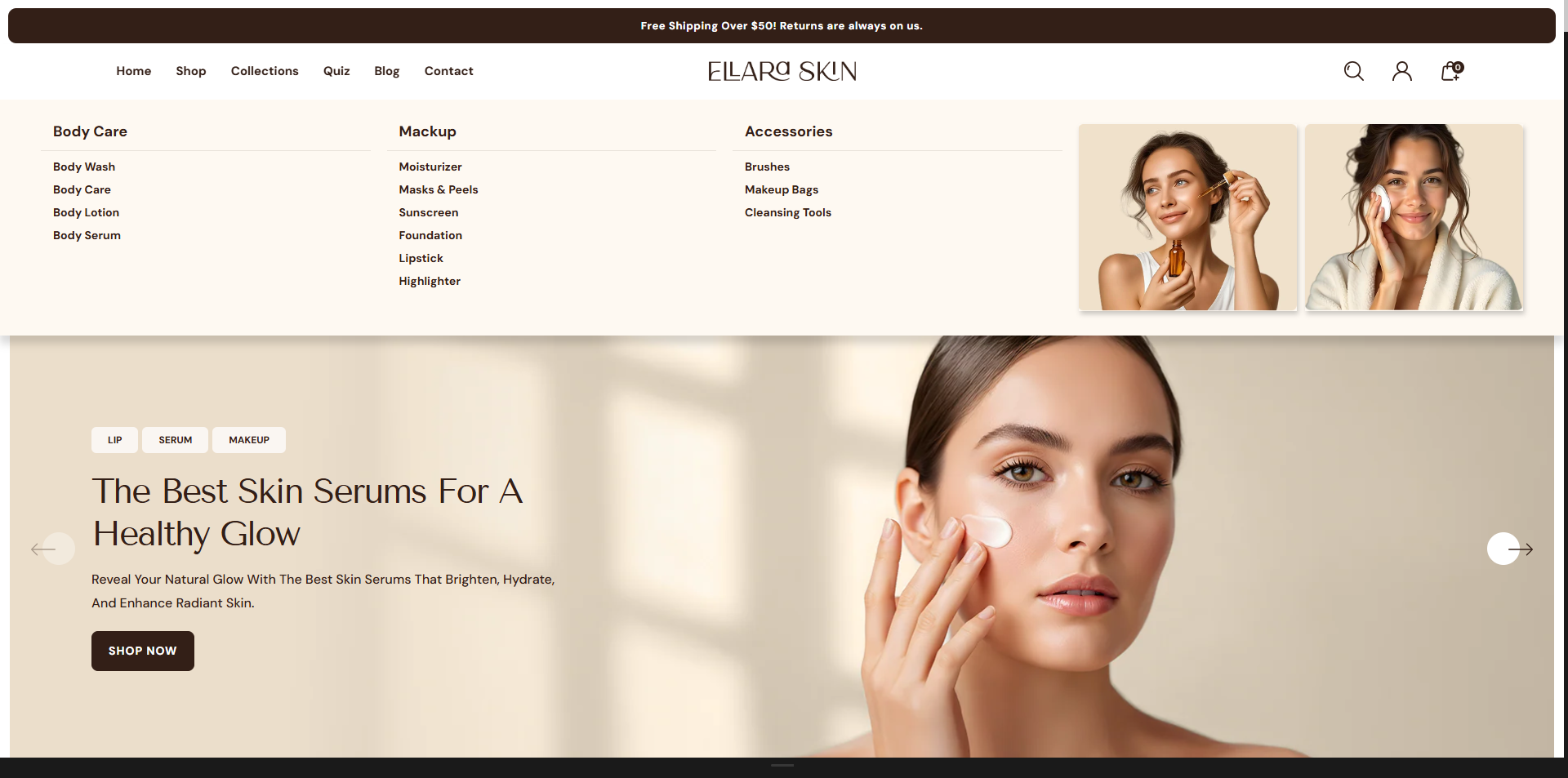
How to Set Up a Mega Menu
Step 1: Add a Mega Menu Block
- From your Shopify admin, go to Online Store ? Themes ? Customize.
- In the theme editor, open the Header section where navigation settings are managed.
- Click Add Mega Menu to create a new mega menu block.
Step 2: Configure the Mega Menu
- Set the Parent Menu Item: Enter the exact name of the top-level menu item (for example, Catalog) where the mega menu should appear. This name must match the menu title used in your main navigation.
- Add a Feature Image: Click Select image to upload a promotional banner or highlight image. You can also use Explore free images to choose from Shopify's stock image library.
- Image Title & Link: Enter a short heading in the Image Title field and add a URL in Image Link to direct customers to a collection, product, or page when the image is clicked.
-
Create a Nested Navigation Menu:
Go to Online Store ? Navigation and build a multi-level menu structure.
The mega menu requires at least two levels:
- Level 1: Main heading
- Level 2: Sub-headings with links
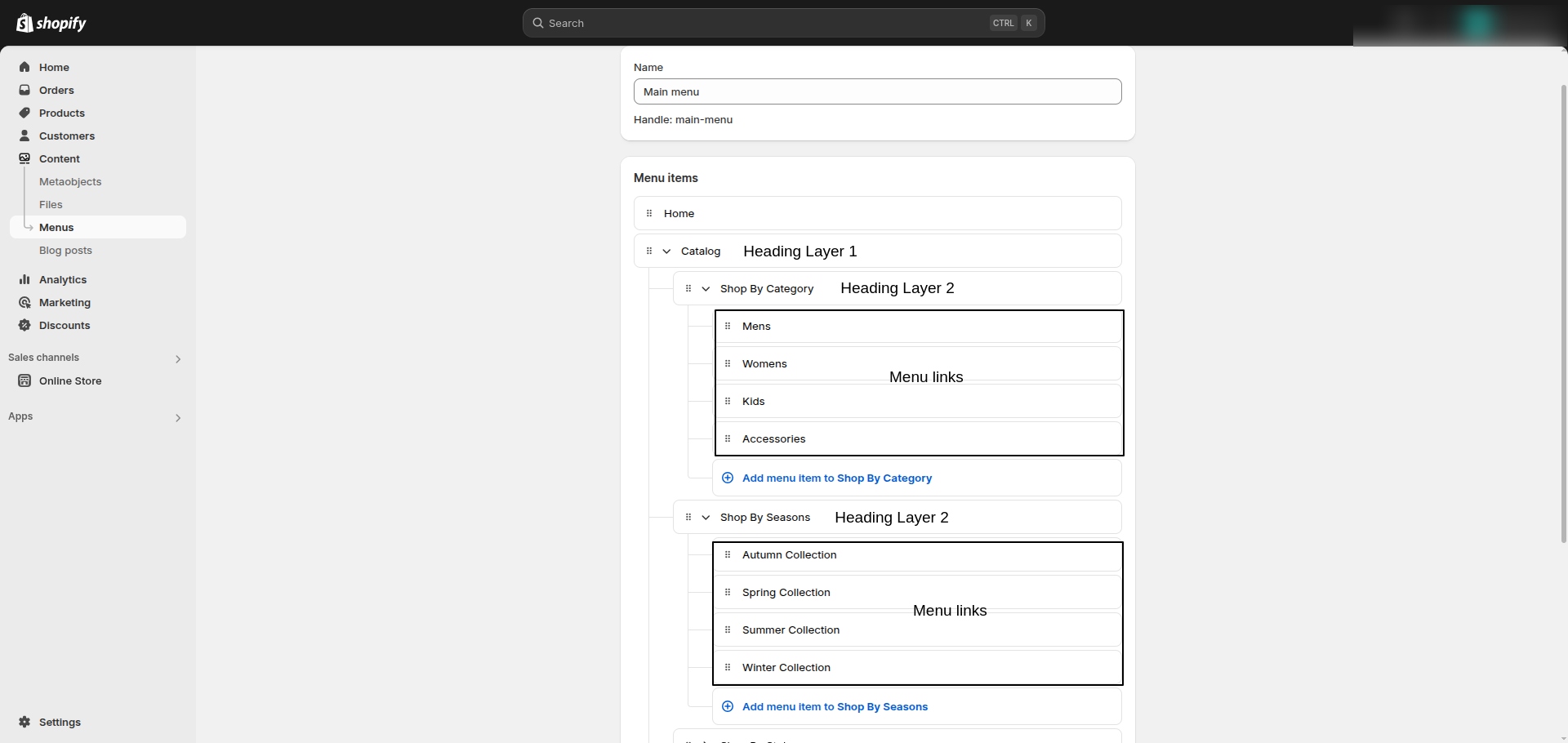
Note: Follow the menu structure exactly as shown. Adding extra menu levels or incorrect nesting may cause the mega menu layout to break or not appear as intended.