
Logo List
The Logo List section in the Dynamic theme lets you highlight brand logos, partners, certifications, or featured mentions in a clean and visually balanced layout. Displaying trusted logos helps build credibility, reinforce brand authority, and create confidence among your customers. This section is perfect for showcasing collaborations, press features, or well-known brands associated with your store.

How to add an Logo List to your Shopify store
- Open the Customizer and go to the page where you want to add the "Logo List" section.
- On the left-hand side, you'll find a list of available sections. Click the "Add section" button.
- From the available options, choose "Logo List"to add it to your page.
How to edit an Logo List section
To edit the logo list section in your Shopify theme, Dynamic, follow these steps:
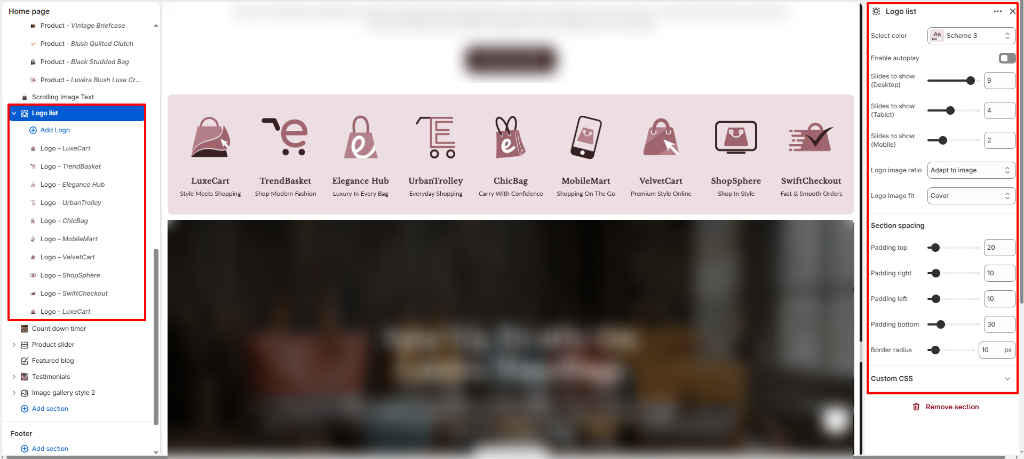
- Select Color: Choose a color scheme (e.g., Scheme 3) to control the background and visual styling of the Logo List section.
- Enable Autoplay: Turn this option on to automatically scroll or rotate logos, creating a smooth and dynamic brand showcase.
- Slides to Show (Desktop): Set the number of logo slides visible at a time on desktop screens (e.g., 9).
- Slides to Show (Tablet): Set the number of logo slides visible at a time on tablet screens (e.g., 4).
- Slides to Show (Mobile): Set the number of logo slides visible at a time on mobile screens (e.g., 2).
- Logo Image Ratio: Select the aspect ratio for logo images (e.g., Adapt to image). This controls how logos are cropped or displayed within their containers.
- Logo Image Fit: Choose how the logo image fits within its container (e.g., Cover). Options include Cover and Contain.
- Padding Top: Adjust the space above the section (e.g., 20).
- Padding Right: Adjust the space to the right of the section (e.g., 10).
- Padding Left: Adjust the space to the left of the section (e.g., 10).
- Padding Bottom: Adjust the space below the section (e.g., 30).
- Border Radius: Adjust the corner roundness applied to logos and containers (e.g., 10px) for a softer, modern appearance.
Configure Logo Blocks
-
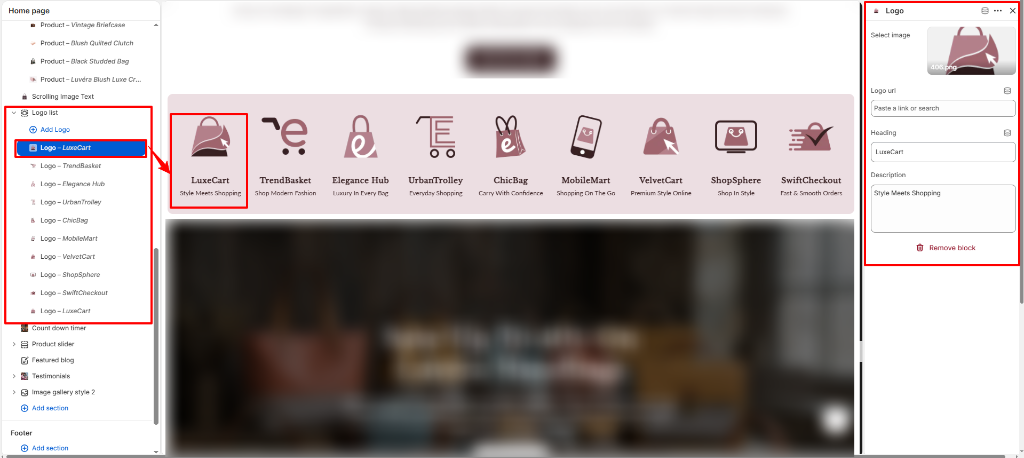
Select Image:
Upload a logo image by clicking Upload images.
Tip: Use transparent (SVG or PNG) logos for best visual results. - Logo URL: Enter a link to make the logo clickable. This can redirect customers to a partner's website, brand page, or any relevant destination.
- Heading: Enter the brand or logo name (e.g., "LuxeCart") to display below the logo image.
- Description: Add a short tagline or description for the brand (e.g., "Style Meets Shopping") to provide additional context.