
Interactive Banner
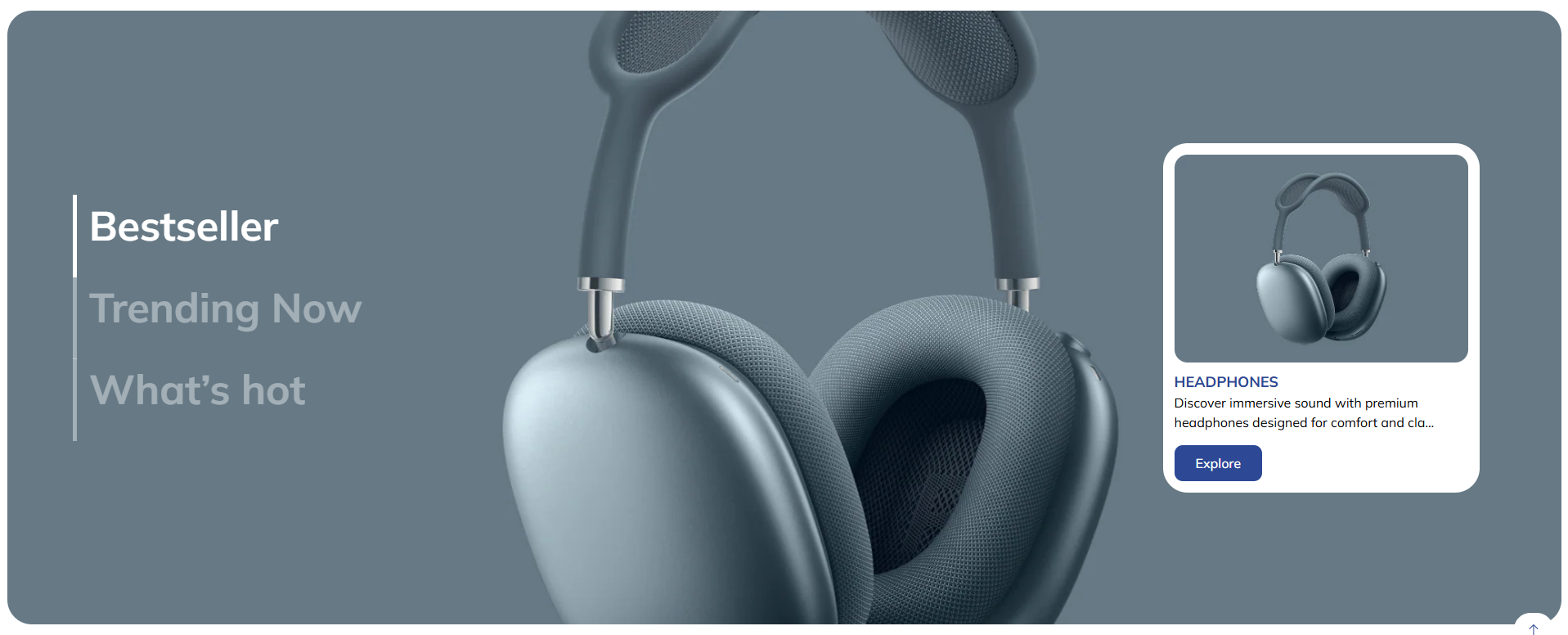
The Interactive Banner section is a dynamic and engaging way to showcase multiple products or categories within a single banner. It features a vertical menu on the left that allows customers to switch between different background images and associated product cards. This interactive format is perfect for highlighting trending items, bestsellers, or new arrivals in a visually compelling way.
Adding the Interactive Banner section
- Open the Customizer and go to the page where you want to add the "Interactive Banner" section.
- On the left-hand side, you'll find a list of available sections. Click the "Add section" button.
- From the available options, choose "Interactive banner" to add it to your page.
How To Configure Interactive Banner section
Steps for Configuring the "Interactive Banner" Section in the Dynamic Theme
-
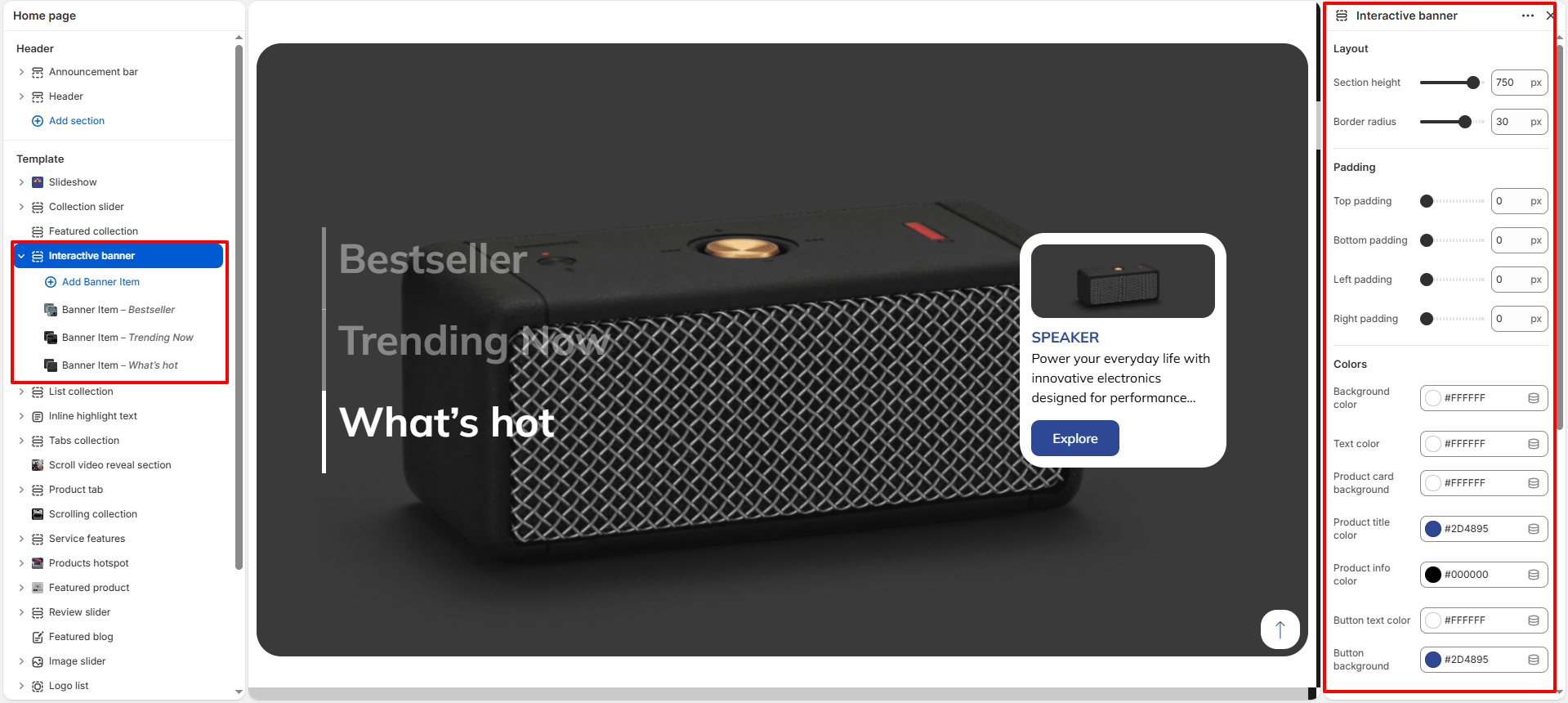
Layout:
- Section height: Set the overall height of the banner.
- Border radius: Adjust the roundness of the banner corners.
-
Padding:
- Top / Bottom / Left / Right padding: Customize the spacing around the section content.
-
Colors:
- Background color: Set the primary background color for the section.
- Text color: Choose the color for the menu labels and headings.
- Product card background: Select the background color for the product information card.
- Product title color: Choose the color for the product name within the card.
- Product info color: Set the color for the product description and price details.
- Button text color: Choose the text color for the "Explore" button.
- Button background: Set the background color for the button.
-
Menu:
- Menu Font Size: Control the size of the sidebar navigation menu text.
- Left content padding: Adjust the spacing of the menu from the left edge.
-
Product card:
- Right spacing: Set the distance of the product card from the right edge.
- Card border radius: corner roundness of the floating product card.
- Top / Bottom gap: Adjust the vertical positioning of the product card.
- Left right gap: Set the horizontal padding within the card.
How To Configure Banner Item (Blocks):
Each block represents a menu item and its corresponding banner content.
- Left heading: The text that appears in the vertical navigation menu.
- Background Image: The full-size image displayed behind the banner content when the item is active.
- Select product: The product featured in the interactive card for this specific banner item.