
Inline Highlight Text
The Inline Highlight Text section is a creative way to display large, impactful headings interspersed with images. This fluid layout allows you to mix text and visual elements seamlessly, perfect for brand storytelling, slogans, or highlighting key value propositions.

Adding the Inline Highlight Text section
- Open the Customizer and go to the page where you want to add the "Inline highlight text" section.
- On the left-hand side, click the "Add section" button.
- From the available options, choose "Inline highlight text" to add it to your page.
How To Configure Inline Highlight Text section
Steps for Configuring the "Inline highlight text" Section in the Dynamic Theme
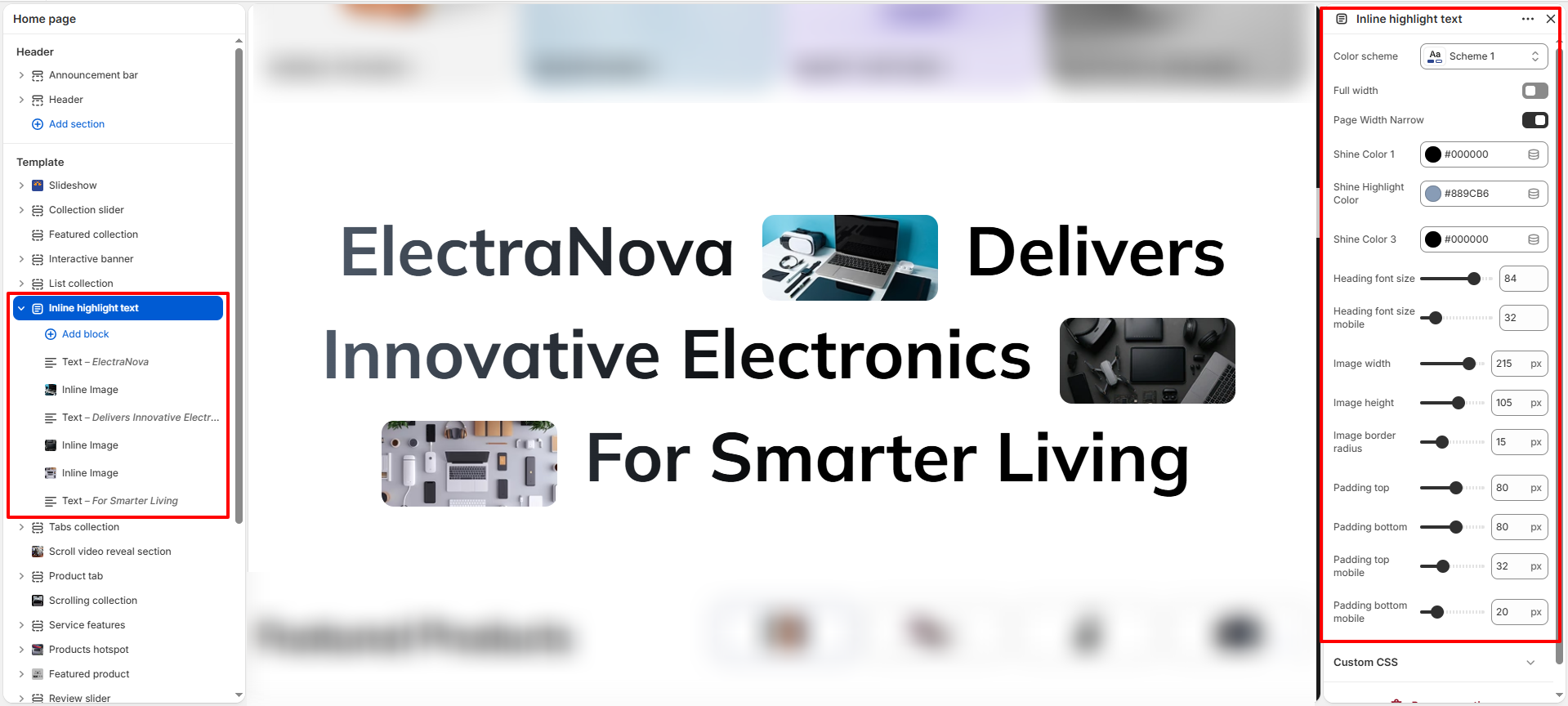
- Color scheme: Choose a predefined color scheme for the section.
- Full width: Toggle to expand the section to the full width of the screen.
- Page Width Narrow: Enable a narrower container for the text for better readability.
- Shine Colors: Customize the three color fields for the text highlighting effect.
- Heading font size: Control the size of the heading text on desktop.
- Heading font size mobile: Control the size of the heading text on mobile screens.
- Image Dimensions: Adjust the Width and Height of all inline images.
- Image border radius: Set the corner roundness of the inline images.
- Padding: Set the Top and Bottom padding separately for desktop and mobile devices.
How To Configure Blocks:
This section uses two types of blocks to build the fluid heading content.
1. Text Block
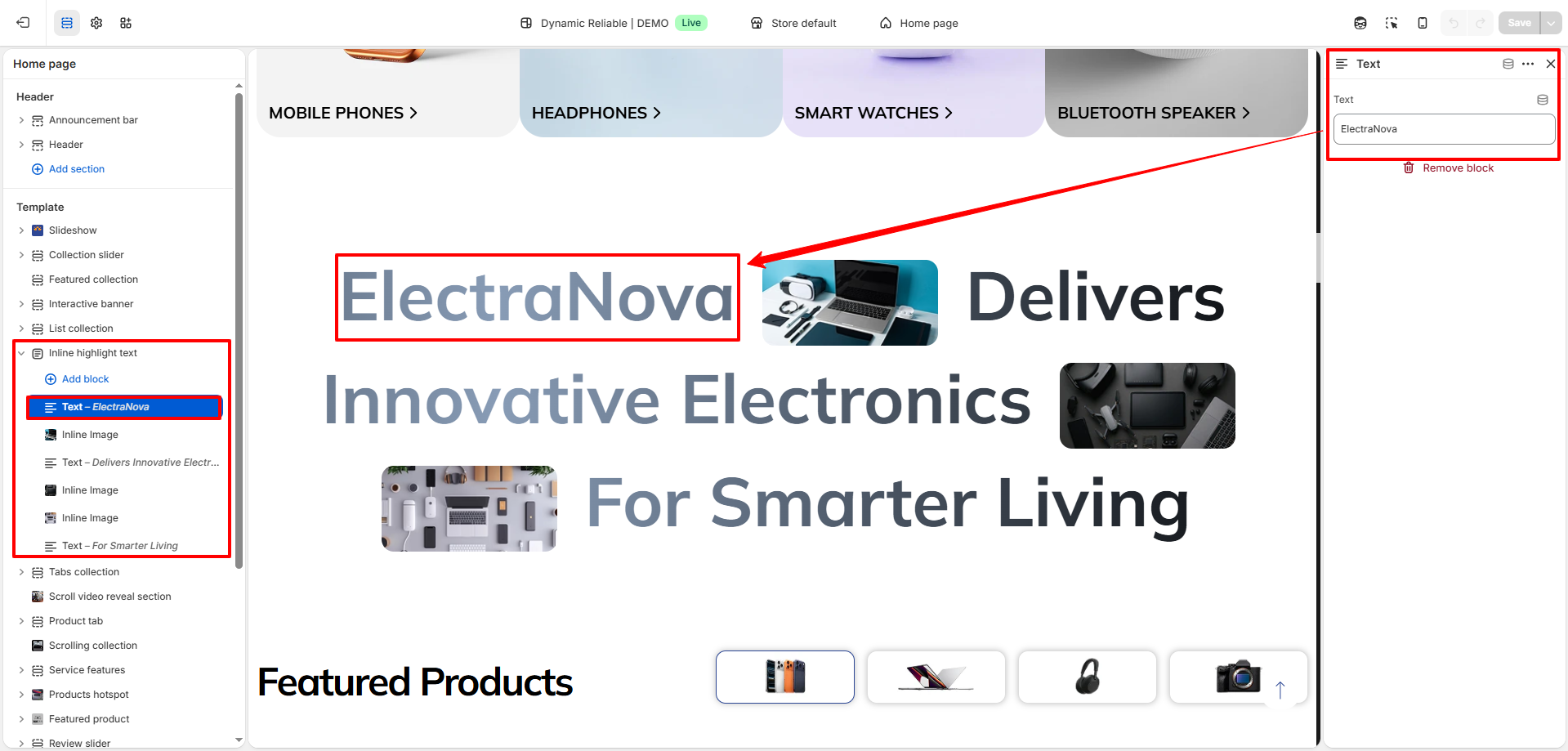
- Text: Enter the specific word or phrase you want to display in this segment of the heading.
2. Inline Image Block
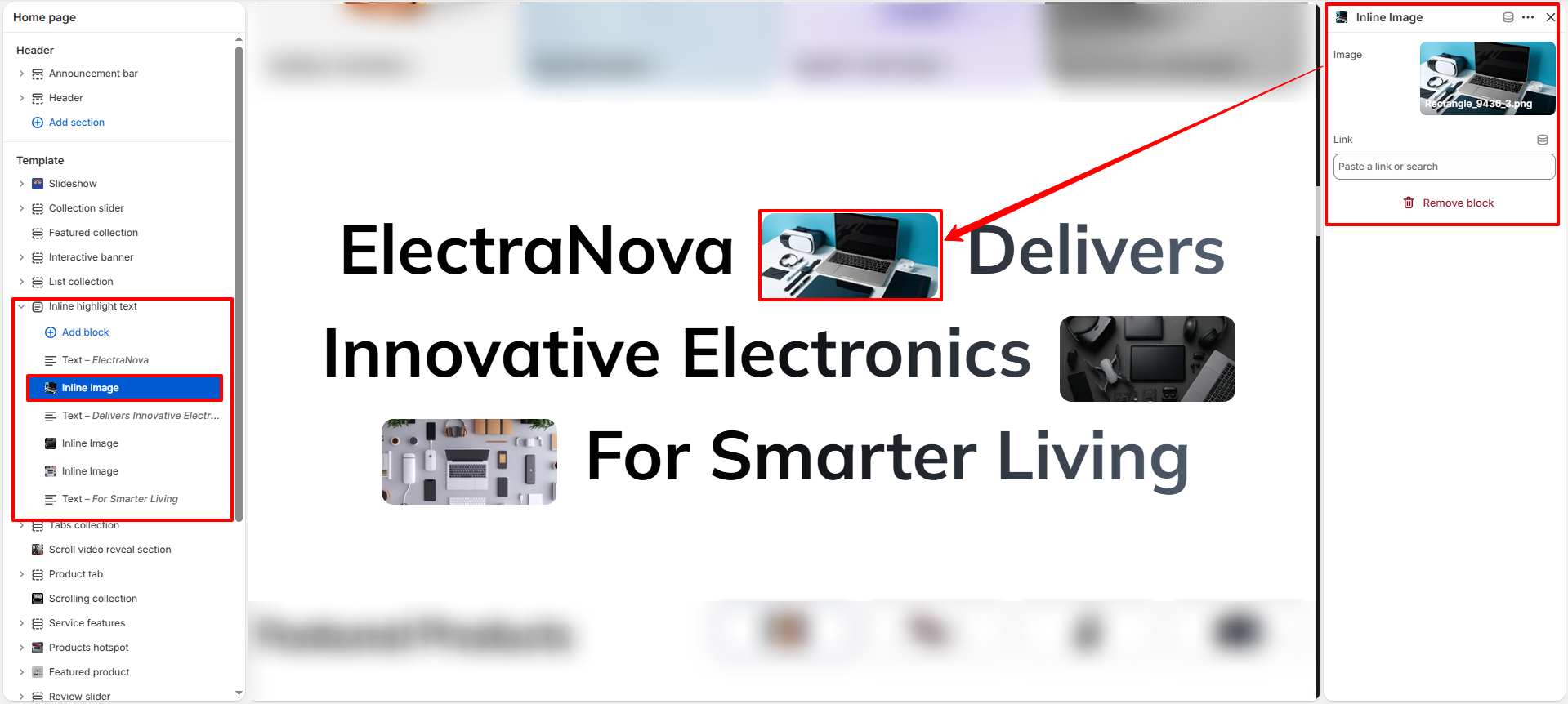
- Image: Upload the image to be interspersed within the heading text.
- Link: Optionally add a URL to make the inline image clickable.