
Store Location
The Store Location section allows you to showcase your physical store locations with images, city names, address details, and a direct link to Google Maps. This helps customers easily find your stores and get directions.
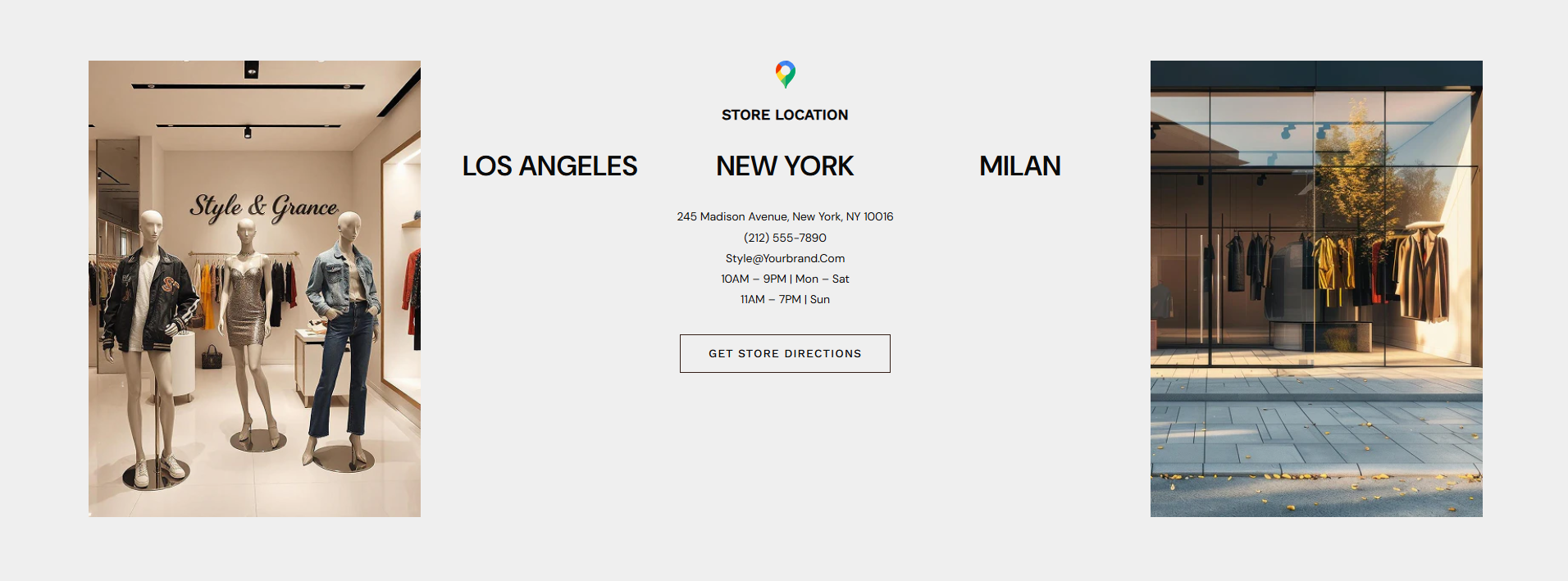
Store Location Settings
You can customize the Store Location section using the following settings, displayed in the same order as in the theme editor.
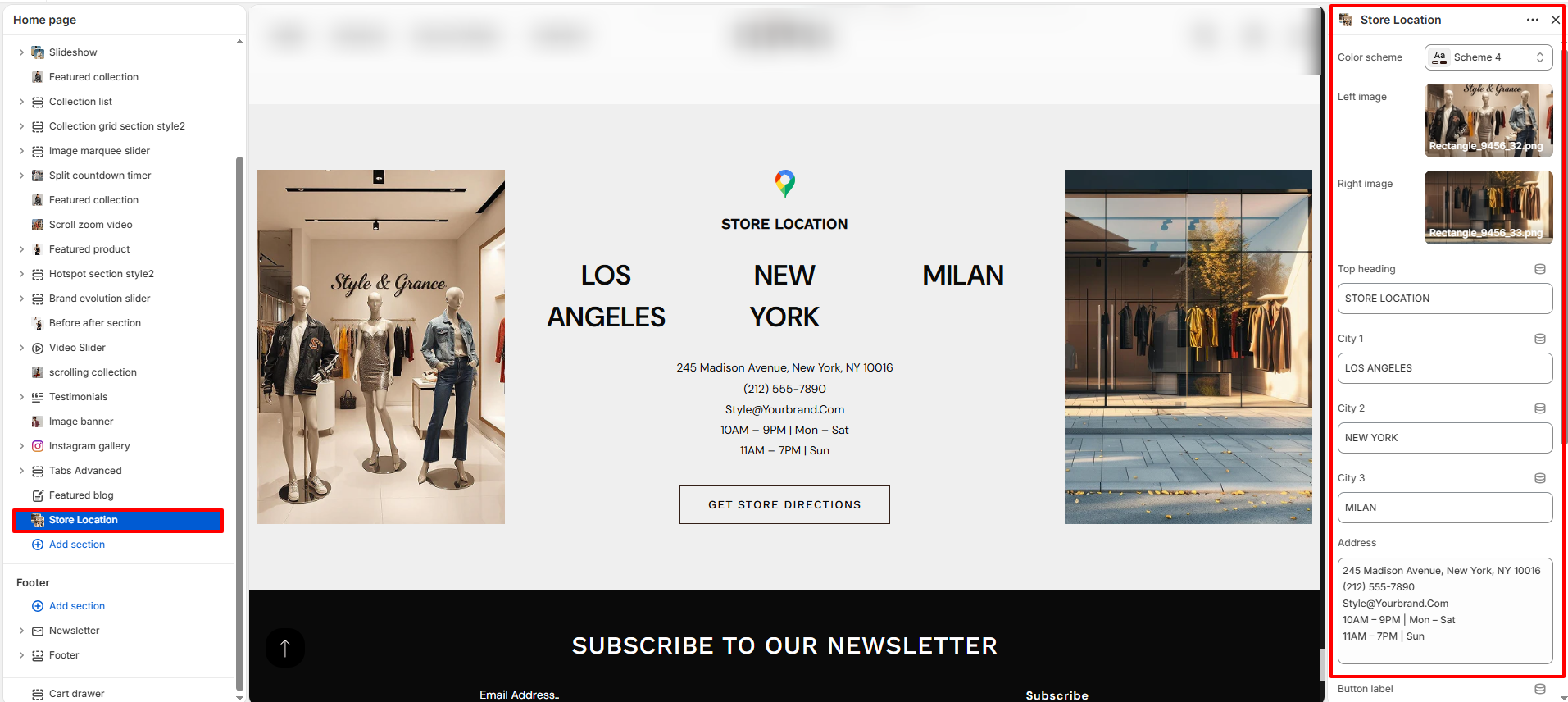
- Color Scheme: Select a color scheme for the section appearance.
- Left Image: Upload an image displayed on the left side of the section.
- Right Image: Upload an image displayed on the right side of the section.
- Top Heading: Add the main heading text displayed above the locations (e.g., STORE LOCATION).
- City 1: Enter the first city name (e.g., LOS ANGELES).
- City 2: Enter the second city name (e.g., NEW YORK).
- City 3: Enter the third city name (e.g., MILAN).
- Address: Add store details such as address, phone number, email, and working hours.
- Button Label: Set the text for the button (e.g., GET STORE DIRECTIONS).
- Button Link: Add the link where the button will redirect (usually a Google Maps URL).
- Section Spacing:
- Padding Top: Adjust spacing above the section.
- Padding Bottom: Adjust spacing below the section.
- Padding Top (Mobile): Set top spacing for mobile devices.
- Padding Bottom (Mobile): Set bottom spacing for mobile devices.
- Custom CSS: Add custom CSS to further style this section if needed.