
Split Countdown Timer
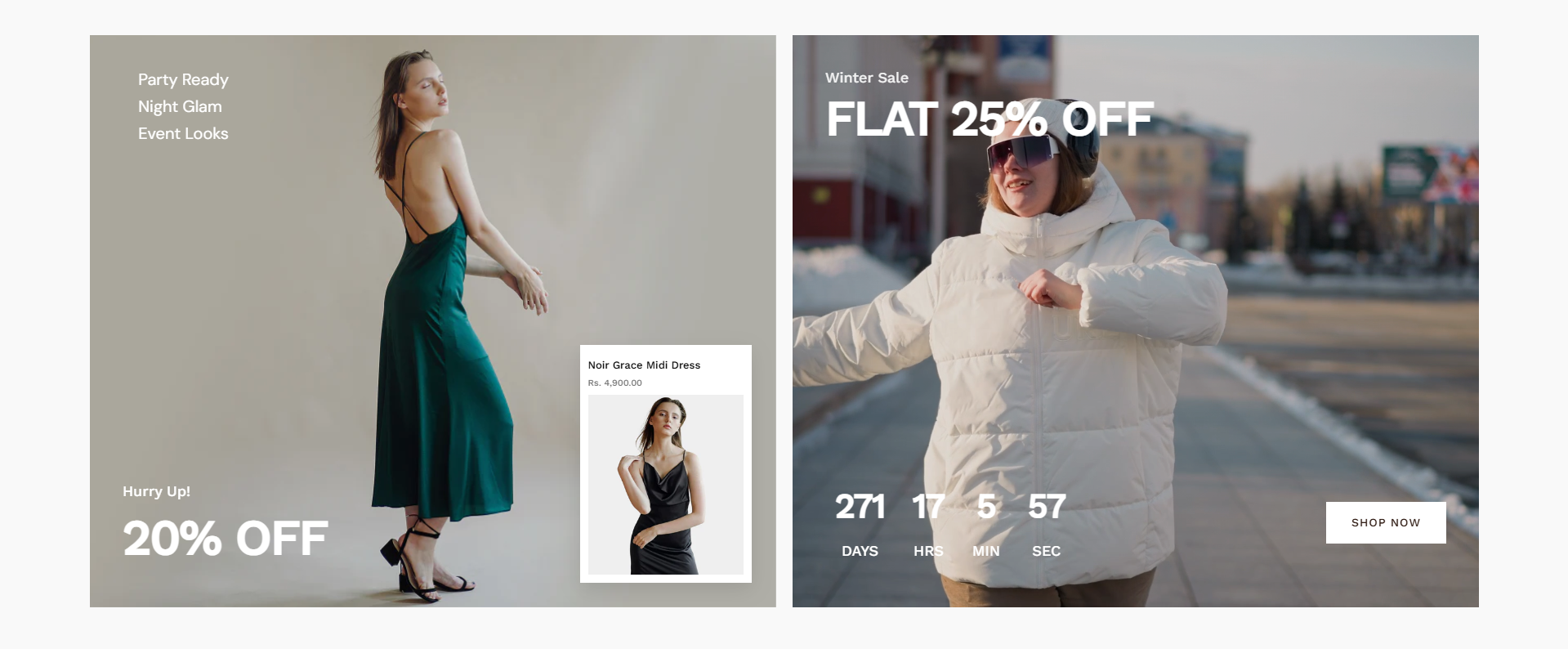
The Split Countdown Timer section allows you to showcase promotional banners alongside a live countdown timer. This layout is split into two parts, combining visually engaging images with time-based urgency to boost conversions. You can add multiple Image Tabs with different promotions such as discounts, BOGO offers, or seasonal sales, while displaying a countdown timer with a call-to-action button.
This section works in an interactive split layout. On the left side, multiple image tabs are displayed. When a user hovers over each tab, the corresponding image, product details, and text content update dynamically. This allows you to showcase different promotions or products within the same space.
On the right side, a limited-time offer is highlighted using a countdown timer along with a promotional heading and call-to-action button. This creates urgency and encourages customers to take action before the offer expires.
How To Add the Split Countdown Timer
- Login to your Shopify Theme Customizer.
- Navigate to the page where you want to add this section.
- Click on the Add section button.
- Select Split countdown timer from the list.
How To Edit the Split Countdown Timer
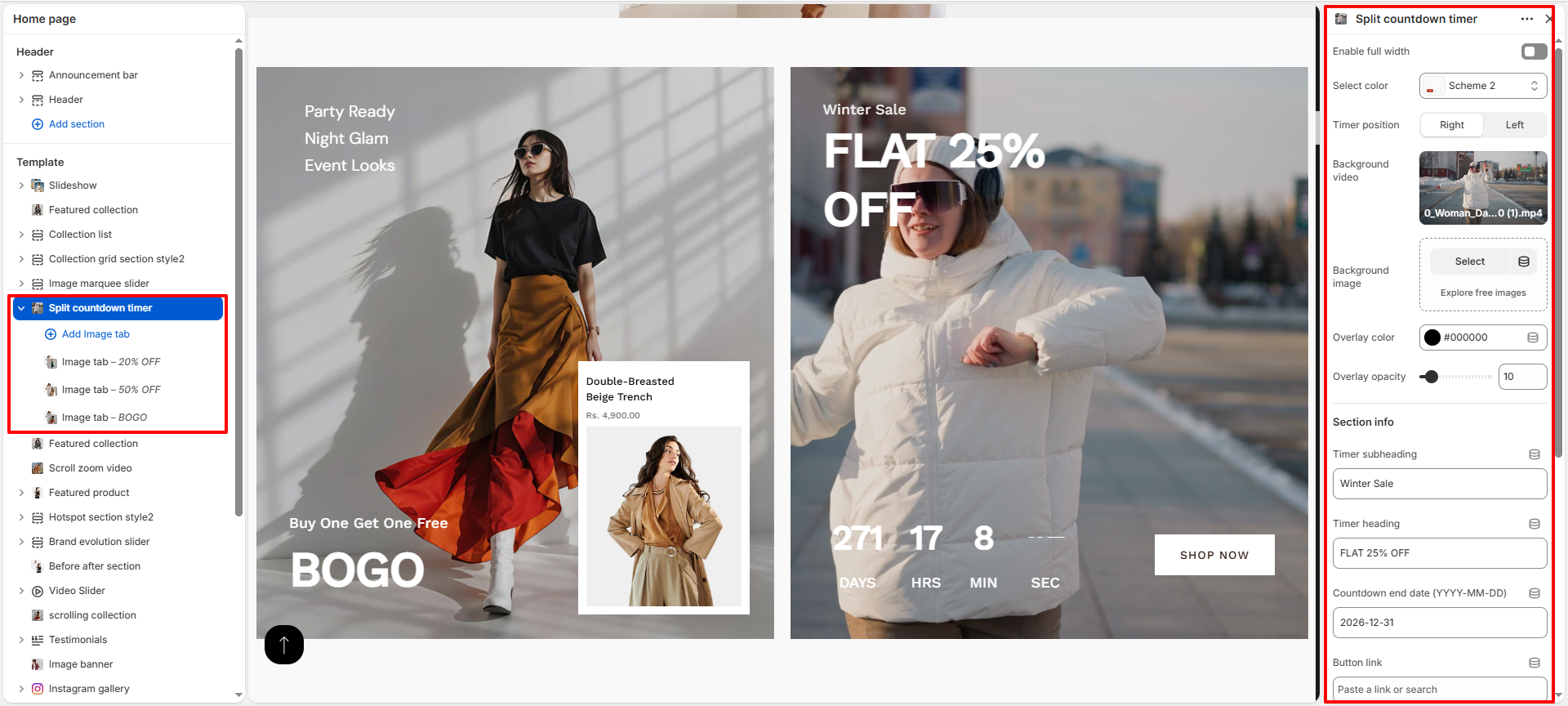
- Enable Full Width: Toggle to make the section span the full width of the screen.
- Color Scheme: Select a predefined color scheme for the section.
- Timer Position: Choose whether the countdown timer appears on the left or right side.
- Background Video: Upload a video to display as the background.
- Background Image: Select an image as a fallback or alternative background.
- Overlay Color: Apply a color overlay on the background.
- Overlay Opacity: Adjust transparency of the overlay.
- Timer Subheading: Add text above the main heading (e.g., Winter Sale).
- Timer Heading: Main promotional text (e.g., FLAT 25% OFF).
- Countdown End Date: Set the date when the timer will expire.
- Button Link: Add a link for the call-to-action button.
- Button Text: Customize button label (e.g., Shop Now).
- Padding: Adjust top and bottom spacing for desktop.
- Padding Mobile: Adjust spacing for mobile devices.
Configure Image Tabs
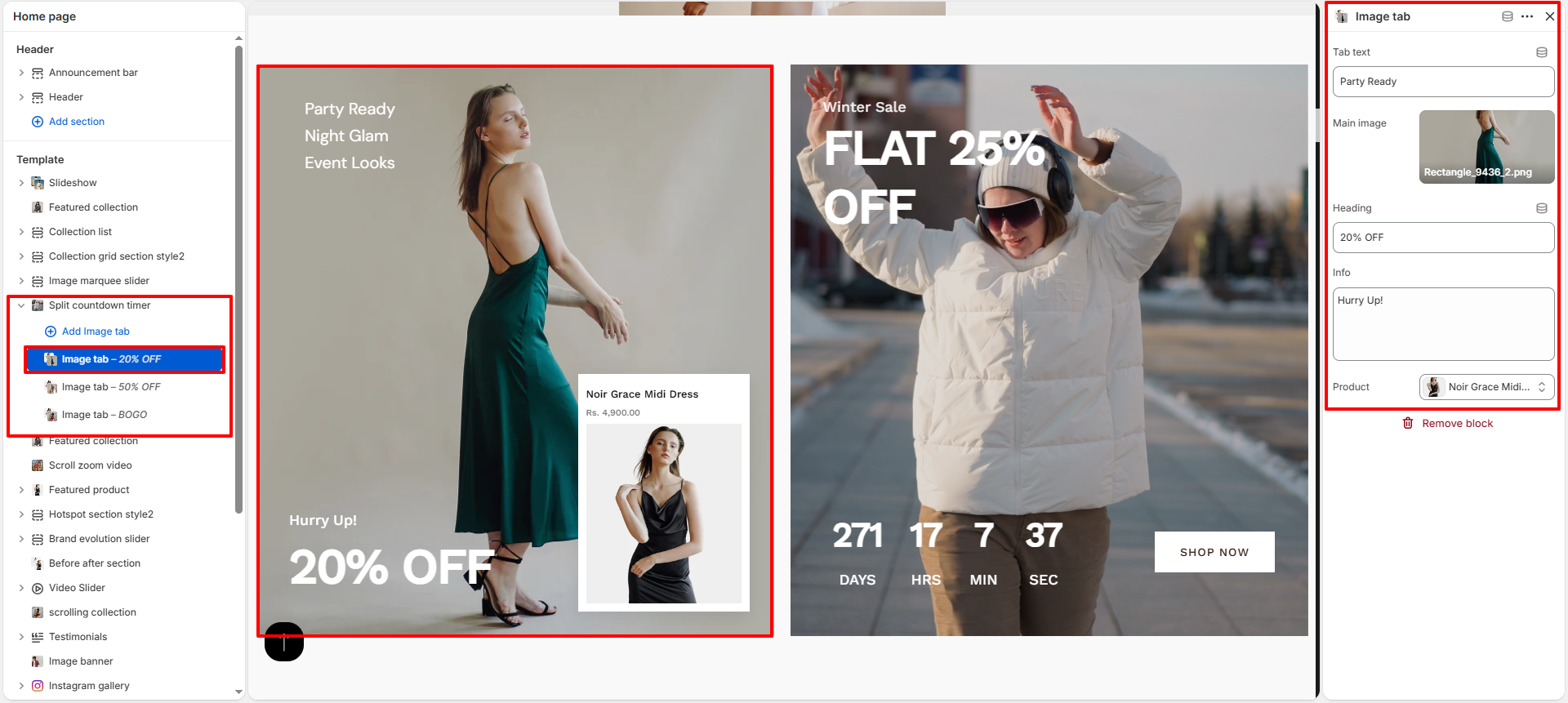
- Add Image Tab: Click Add Image tab to create a new promotional block.
- Tab Text: Enter label text (e.g., Party Ready, Winter Sale).
- Main Image: Upload the image for the tab.
- Heading: Add promotional heading (e.g., 20% OFF).
- Info Text: Add supporting text like “Hurry Up!”.
- Product: Select a product to showcase within the tab.
Tips
- Use high-quality lifestyle images for better visual impact.
- Keep headings short and bold for better readability.
- Use countdown timers for limited-time offers to create urgency.
- Combine multiple tabs to highlight different promotions.