
Collection Page
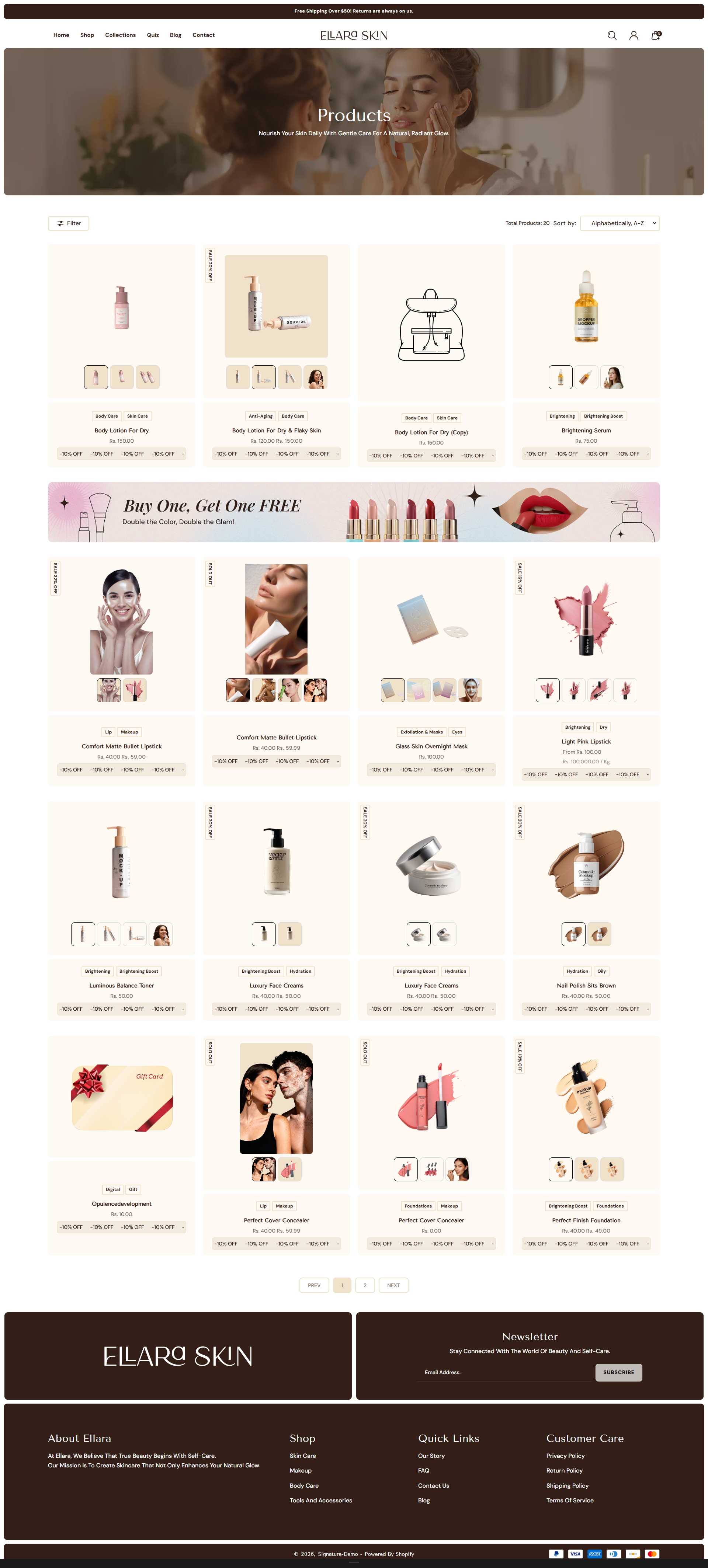
The Collection page in the Dynamic theme presents your products in a clean, well-structured layout that makes browsing effortless. Items are neatly organized within collections, helping customers quickly explore categories, compare products, and find what they're looking for with ease. This streamlined design improves product visibility and creates a smooth, enjoyable shopping experience.
How To Customize Collection Page
On the Collection page, you can customize how products are arranged and displayed to help customers browse collections smoothly and discover items with ease. Ensure the collection is published to your online store before modifying these settings.
- From your Shopify admin, go to Online Store ? Themes.
- Click Customize on the Dynamic theme.
- In the Theme Editor, open the page selector dropdown and choose Collections ? Default collection.
- Configure layout options, product grid settings, sorting, and filters based on your store requirements.
- Click Save to publish your changes.
How To Customize Collection Page
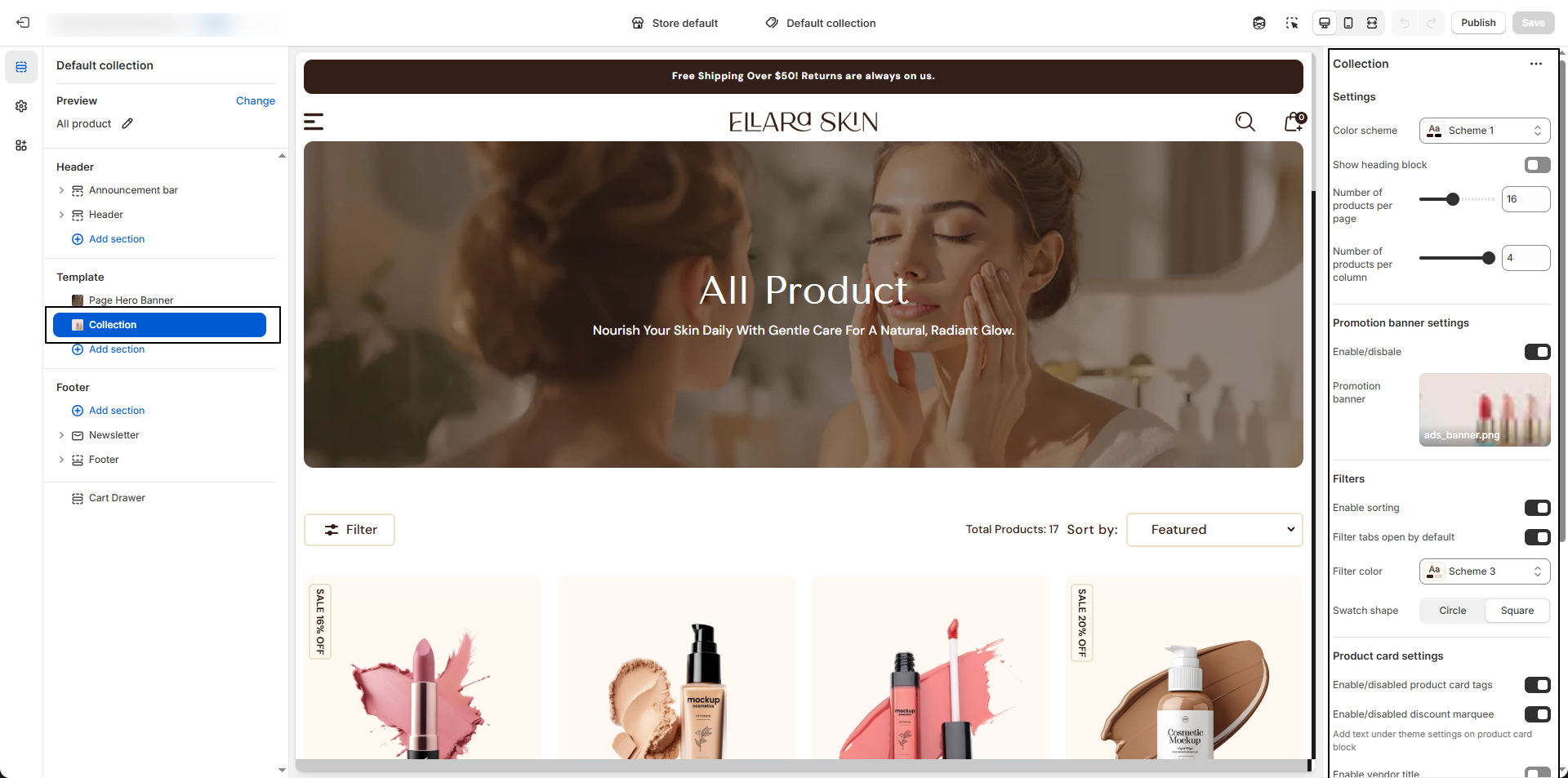
- Color Scheme: Select a predefined color scheme to style the collection page.
- Show Heading Block: Enable this option to display the collection heading at the top of the page.
- Number of Products per Page: Set how many products are shown on each collection page (e.g., 16).
- Number of Products per Row: Choose the number of product columns in the grid layout (e.g., 4).
- Promotion Banner:
- Enable Promotion Banner: Toggle on to display a promotional image within the collection page.
- Upload Banner Image: Click Upload images to add a custom promotion banner.
- Filters & Sorting:
- Enable Sorting: Allow customers to sort products by price, popularity, or newest.
- Filter Tabs Open by Default: Keep filter options expanded when the page loads.
- Filter Color Scheme: Choose a color scheme to style the filter area.
- Swatch Shape: Select Circle or Square for color swatches.
- Product Card Settings:
- Product Card Tags: Enable or disable labels such as “New” or “Sale”.
- Discount Marquee: Toggle to show or hide discount highlight text on product cards.
- Custom Text: Display additional text from Theme Settings below the product card.
- Show Vendor Title: Enable to display the product brand or vendor name.
How to Customize Filters in Dynamic
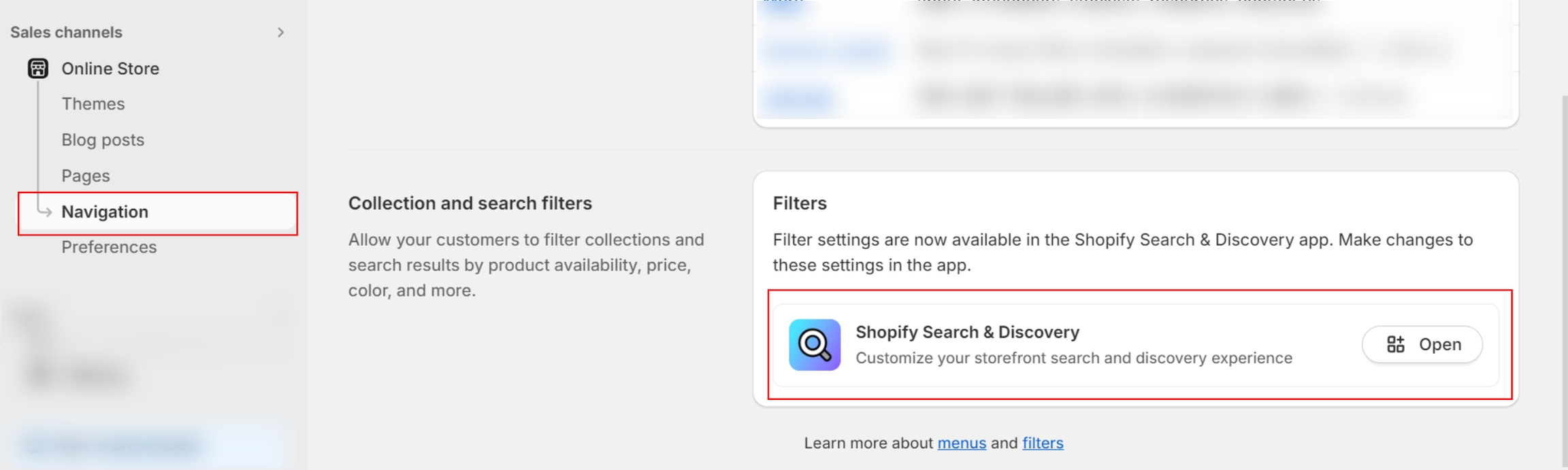
- From your Shopify admin, go to Online Store ? Navigation.
- Click Add app and install Shopify's Search & Discovery app if it's not already installed.
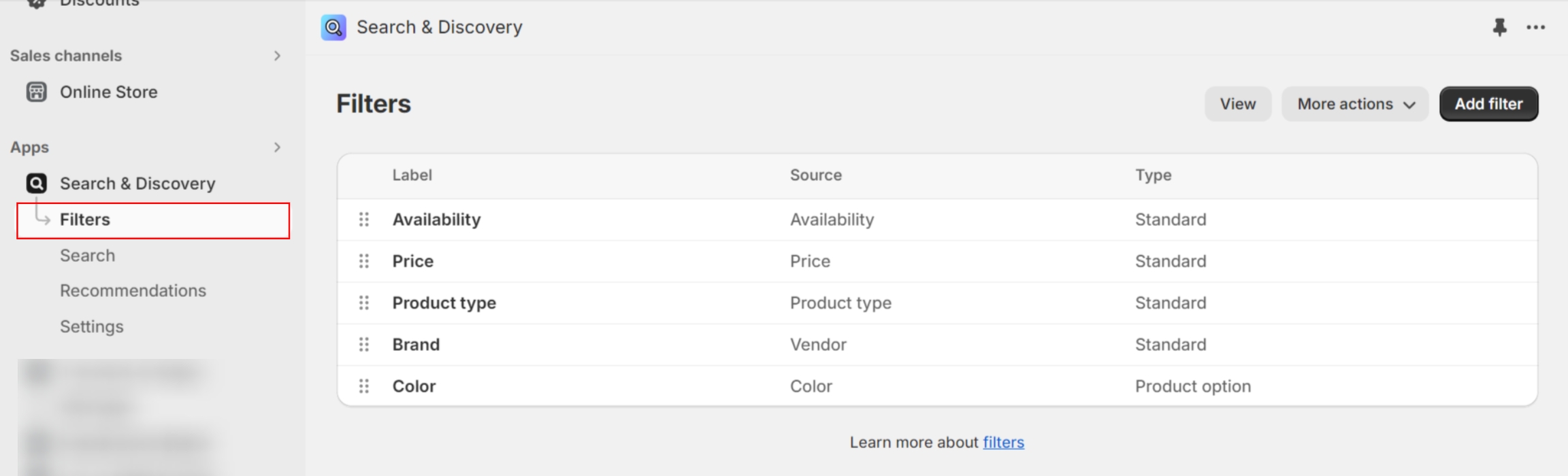
- Navigate to Apps ? Search & Discovery ? Filters ? Edit filters.
- Add, remove, or reorder filters to control which options appear on your Dynamic storefront.
- Click Save to apply your changes.
For detailed guidance, refer to Shopify's Search & Discovery filter documentation .
You can also review the Storefront Filters Customization Guide to further refine the filtering experience.