
Image Banner
The Image Banner section allows you to create a visually engaging hero area with an image or video background combined with text and a call-to-action button. This section is perfect for highlighting promotions, brand messaging, or featured collections.
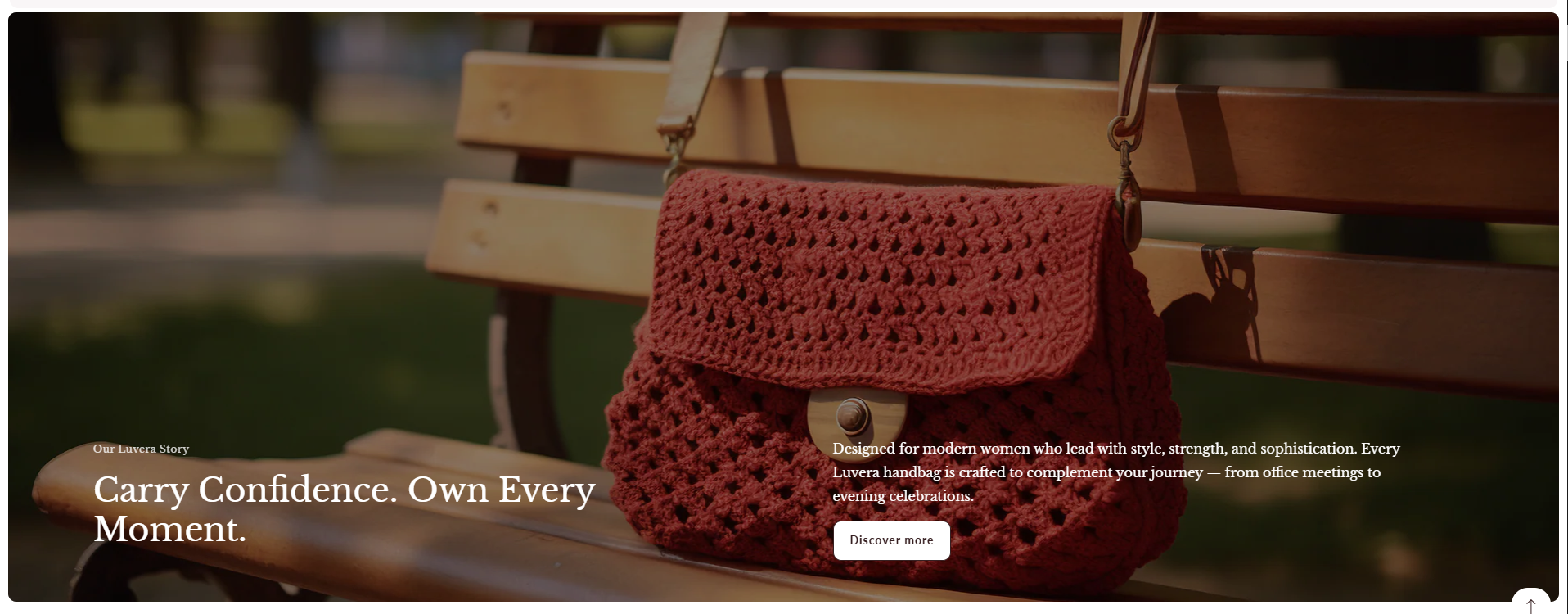
Adding the Image Banner Section
- From your Shopify admin, go to Online Store ? Themes.
- Click Customize on your active theme.
- Select the page where you want to add the section.
- Click Add Section and choose Image Banner.
- Click Save to apply changes.
How to edit the Image Banner Section
Use the following settings to customize the appearance and content of your Image Banner.
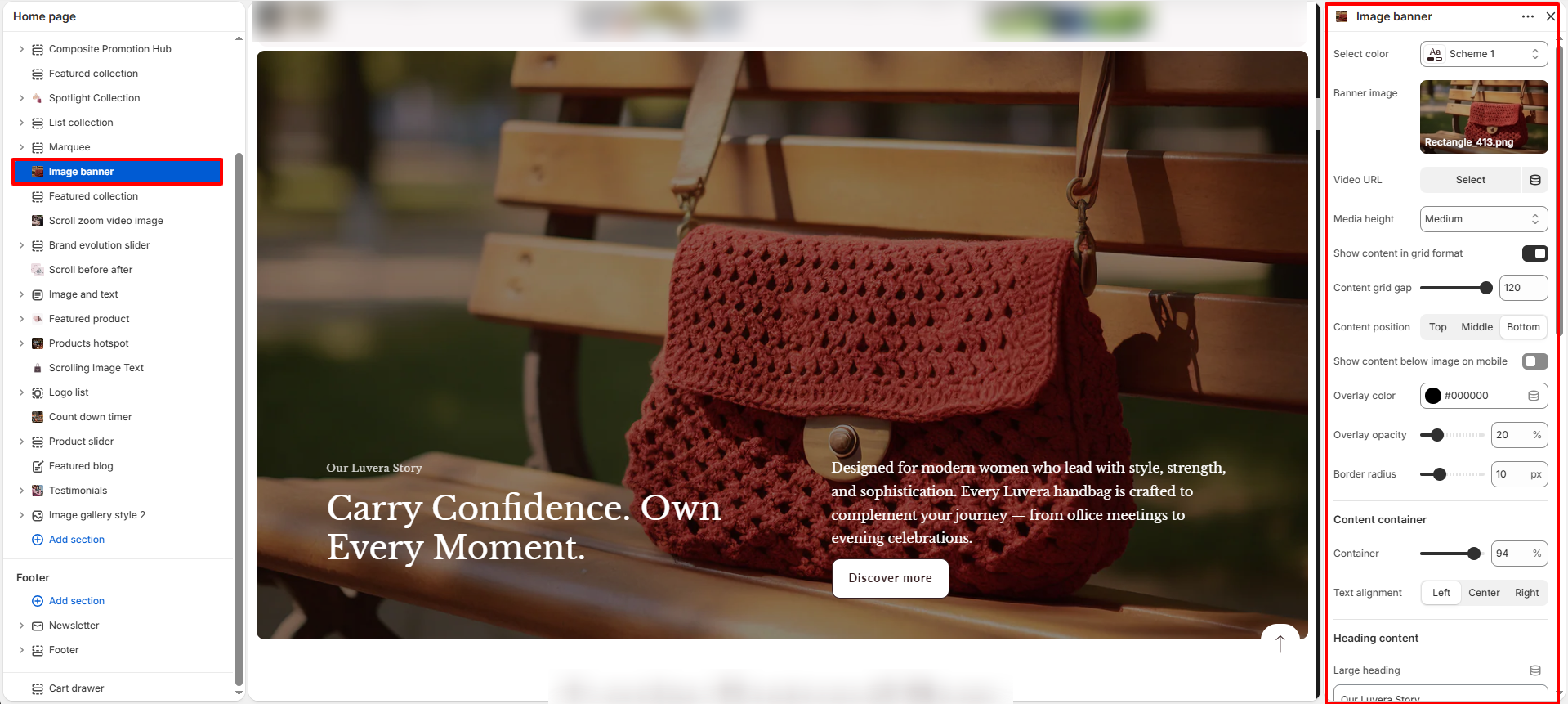
- Select Color Scheme: Choose a predefined color scheme for the section.
- Banner Image: Upload the main background image for the banner.
- Video URL: Add a video link if you want to display a video instead of an image.
- Media Height: Select the height of the banner (e.g., Small, Medium, Large).
- Show content in grid format: If enabled, the banner content will be displayed in a grid format.
- Grid gap:Set the grid gap for the banner content when �Show content in grid format� is enabled.
- Content Position: Choose where the text content appears (e.g., Bottom Right, Center, etc.).
- Show Content Below Image on Mobile: Enable this option to move content below the banner on mobile devices.
- Overlay Color: Add a color overlay on the image to improve text visibility.
- Overlay Opacity: Adjust the transparency level of the overlay.
- Border Radius: Set rounded corners for the banner.
- Content Container: Control the width of the content area inside the banner.
- Text Alignment: Set alignment for text (Left, Center, Right).
- Large Heading: Add a prominent heading displayed above the main heading.
- Large Heading Color: Choose the color for the large heading text.
- Heading: Enter the main heading text for the banner.
- Heading Color: Set the color of the heading text.
- Font Size: Adjust the size of the heading text.
- Paragraph Text: Add a description or supporting text below the heading.
- Paragraph Color: Choose the color for the paragraph text.
- Paragraph Font Size: Adjust the size of the paragraph text.
- Button Label: Enter text for the call-to-action button (e.g., "Discover More").
- Button Link: Add a link to redirect users when the button is clicked.
- Section Gap: Adjust left and right spacing of the section.
- Padding Top: Control spacing above the section.
- Padding Bottom: Control spacing below the section.
- Mobile Padding Top: Adjust top spacing for mobile devices.
- Mobile Padding Bottom: Adjust bottom spacing for mobile devices.