
Collection Slider
The Collection Slider section in the Dynamic theme lets you display multiple collections as compact, scrollable thumbnails in a clean and modern layout. It allows customers to quickly explore key categories by simply sliding through them, without relying on the main navigation menu.
This section is perfect for showcasing small collection previews such as new launches, trending categories, or curated selections. By presenting collections in a visually lightweight and interactive format, the Collection Slider helps improve discovery, keeps the layout uncluttered, and guides shoppers toward important sections of your store with minimal effort.
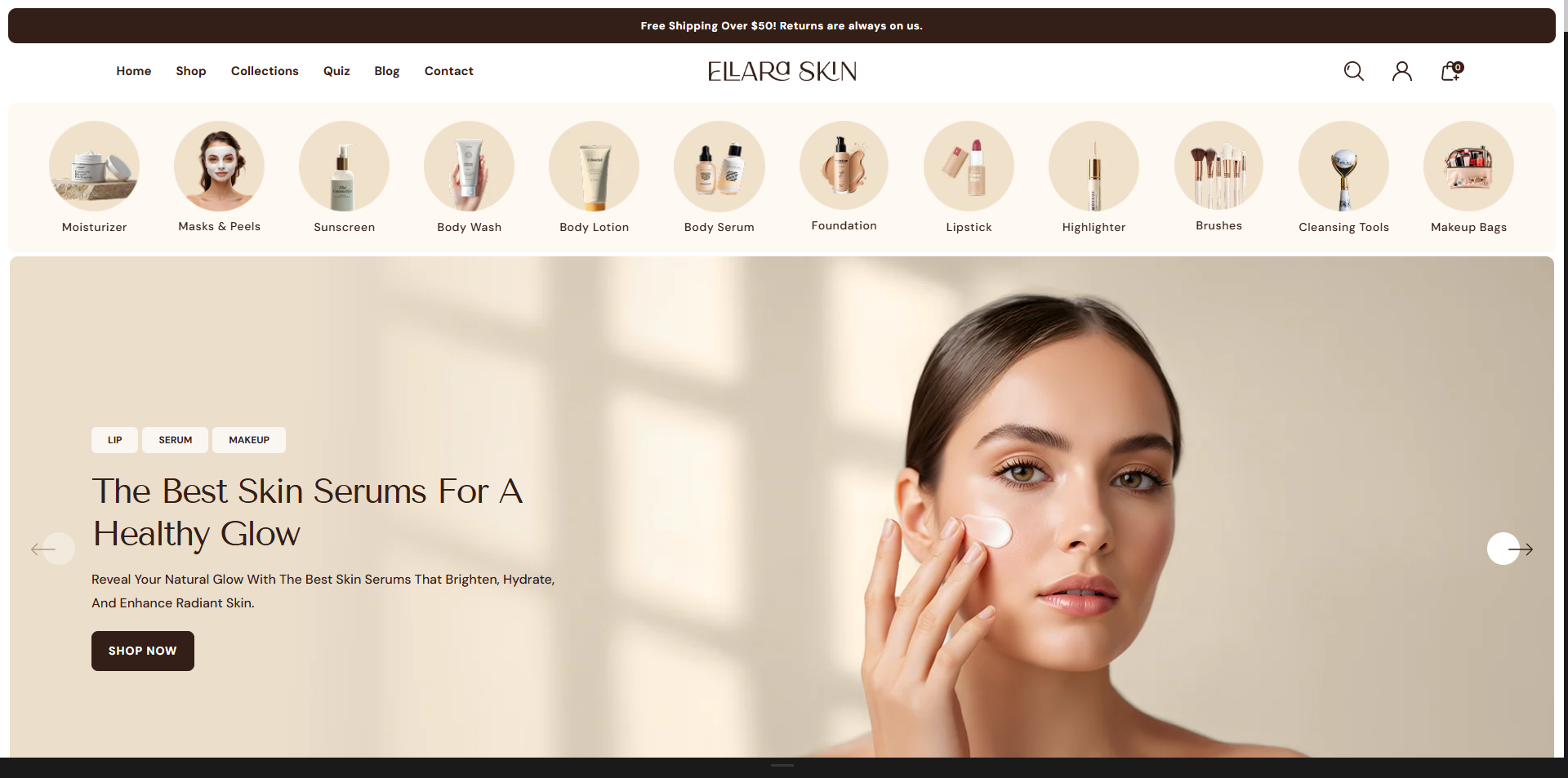
How To Add the Collection slider section
- Login to your Customizer and navigate to the page you would like to display this section.
- You'll see a list of available sections on the left-hand side. Locate the Add section button and click on it.
- From the list of available sections, find and select Collection slider.
How To Edit the Collection slider section
Here are the steps to configure the options mentioned for the Collection slider section in your Dynamic Shopify theme:
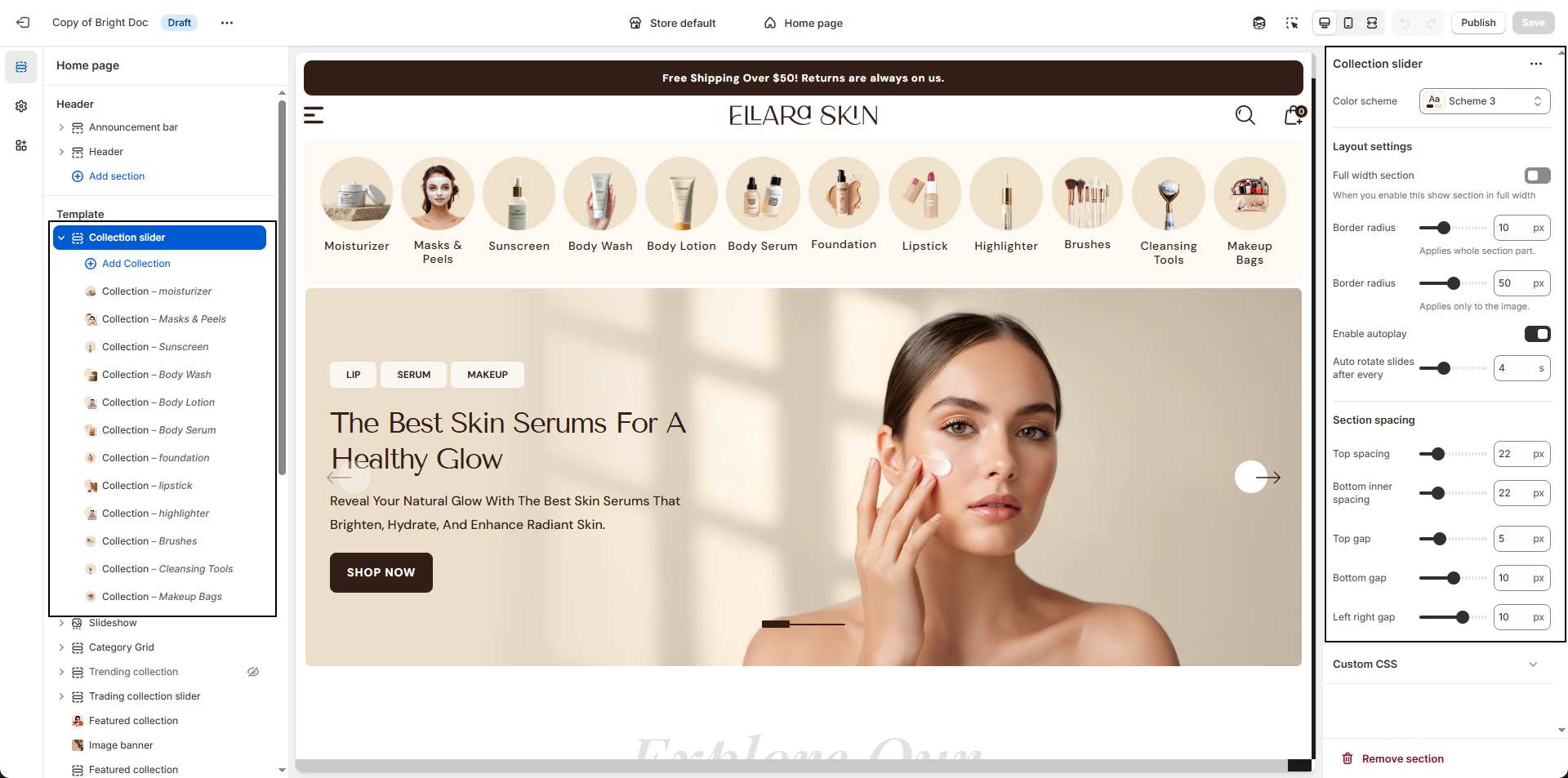
- Color Scheme: Choose a color scheme (e.g., Scheme 3) to control the background, text, and accent colors of the Collection Slider section.
- Section Border Radius: Adjust the border radius to round the corners of the entire section (e.g., 10px) for a softer, modern appearance.
- Image Border Radius: Set a separate border radius for collection images only (e.g., 50px) to achieve rounded or pill-shaped thumbnails.
- Enable Autoplay: Turn this on to automatically slide through collections without user interaction.
- Auto Rotate Slides After Every: Define the time interval (in seconds) between slide transitions when autoplay is enabled.
Configure the Collection Block Settings
- Add a New Collection Block: Click the Add block button inside the Collection Slider section to create a new collection item.
- Select Collection: Choose the collection you want to feature from the Select collection dropdown.
-
Select Image:
- Click Upload images to add a custom thumbnail from your computer.
- You can also use Explore free images to select images from Shopify's free library.
- If no image is uploaded, the default collection image will be displayed automatically.
- Collection Title: Enter a custom title to display below the image. If left blank, the original collection title will be used by default.