
Horizontal Collection Scroll
The Horizontal Collection Scroll section lets you display multiple collections in a smooth, scrollable layout. It is perfect for showcasing categories like Best Seller, Trending Now, and What's Hot in a single section. This interactive design improves product discovery and provides a modern shopping experience by allowing users to browse products horizontally.
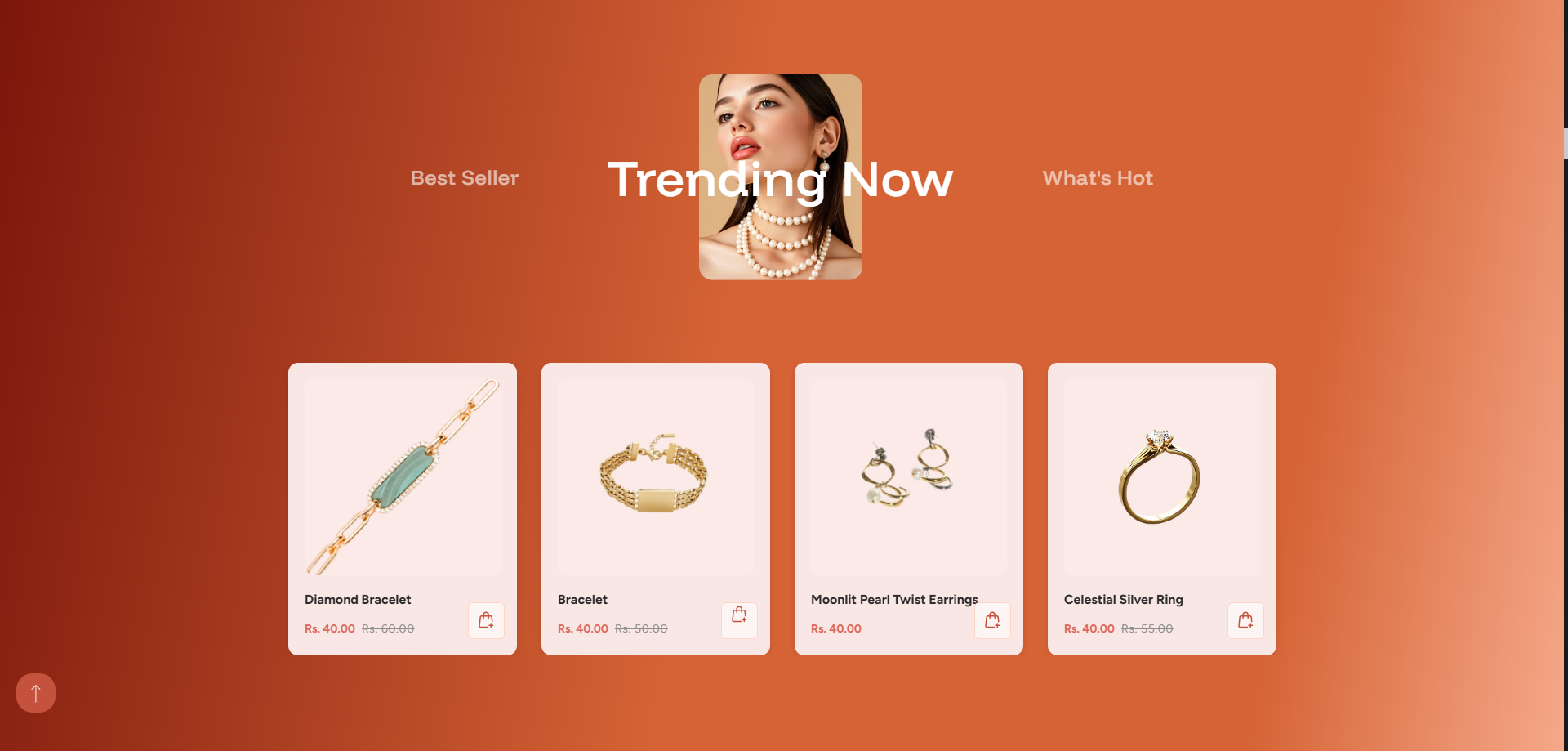
Adding the Horizontal Collection Scroll
- From your Shopify admin, go to Online Store ? Themes.
- Click Customize on the Dynamic theme.
- In the Theme Editor, choose the page where you want to add the section.
- Click Add Section and select Horizontal Collection Scroll.
- Click Save to apply your changes.
How to edit the Horizontal Collection Scroll section
To customize the section settings, follow these steps:
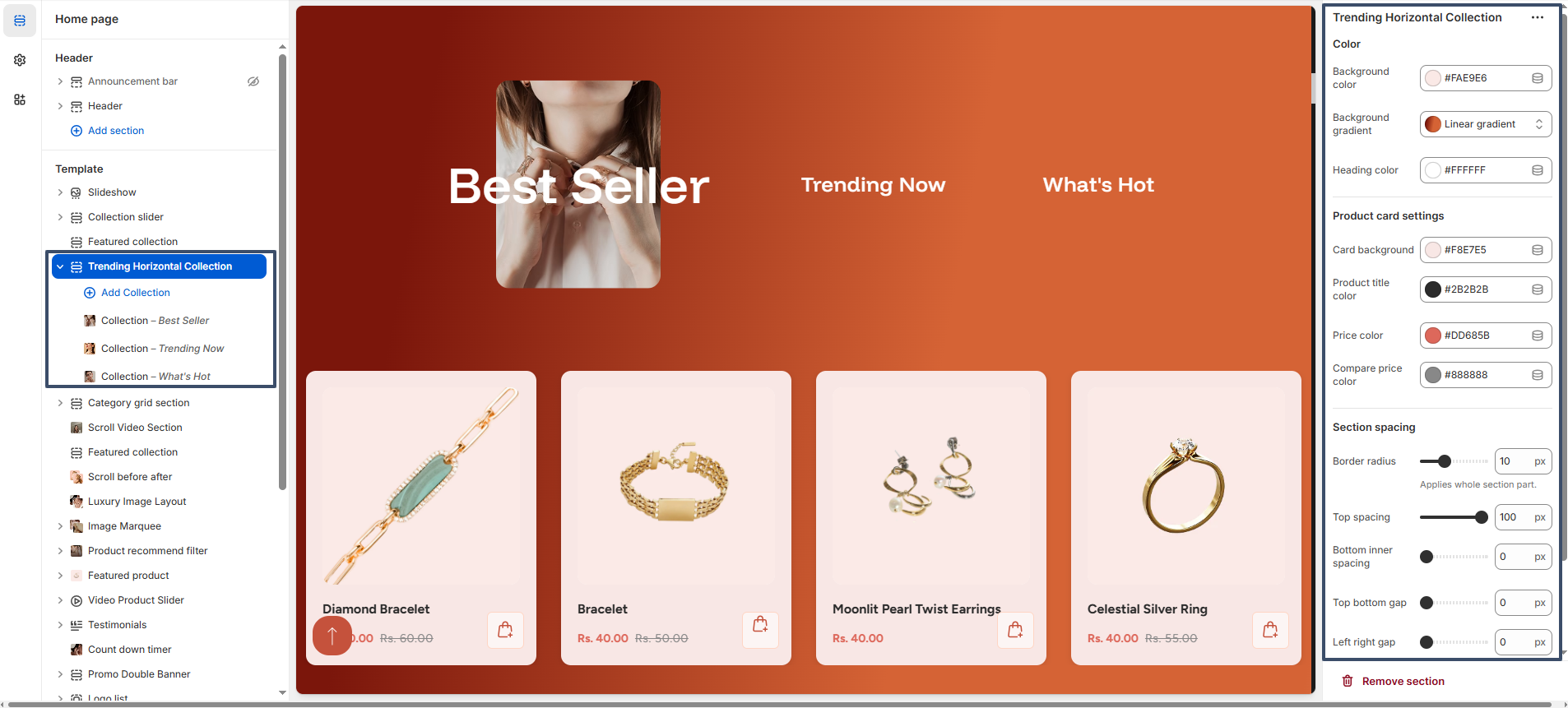
- Background Color: Select a background color (e.g., light beige) for the section.
- Background Gradient: Apply a gradient background (e.g., linear gradient) to create a visually appealing look.
- Heading Color: Set the color for collection headings like “Best Seller”, “Trending Now”, and “What's Hot”.
- Card Background: Customize the background color of product cards.
- Product Title Color: Adjust the color of product names.
- Price Color: Define the color used for product pricing.
- Compare Price Color: Set the color of the strikethrough (compare-at) price.
- Border Radius: Control the roundness of the section and product cards.
- Top Spacing: Adjust the space above the section.
- Bottom Inner Spacing: Set spacing inside the section at the bottom.
- Top Bottom Gap: Manage vertical spacing between elements.
- Left Right Gap: Control spacing between product cards horizontally.
Configure the Collection Block
The Horizontal Collection Scroll section allows you to add multiple collection blocks. Each block represents a collection tab such as Best Seller, Trending Now, or What's Hot.
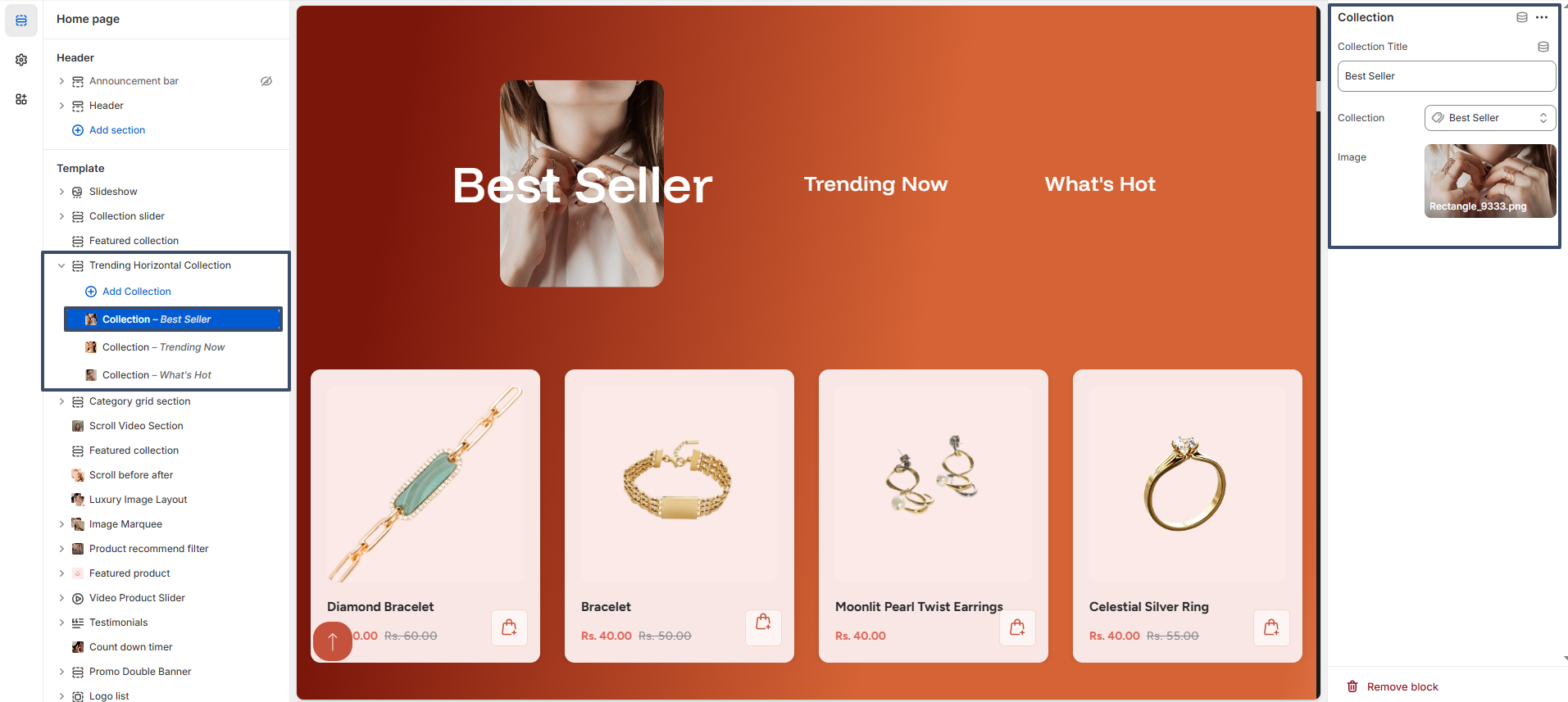
- Collection Title: Enter a custom title for the collection (e.g., Best Seller).
- Collection: Select a collection from your Shopify store to display its products.
- Image: Upload or choose an image to visually represent the collection.