
List Collection
The List Collection section provides a flexible grid layout to highlight your collections. It features advanced customization options for image ratios, corner roundness, and padding, allowing you to create a unique look for your collection cards. Each card can include a custom title and image, along with a collection count badge.
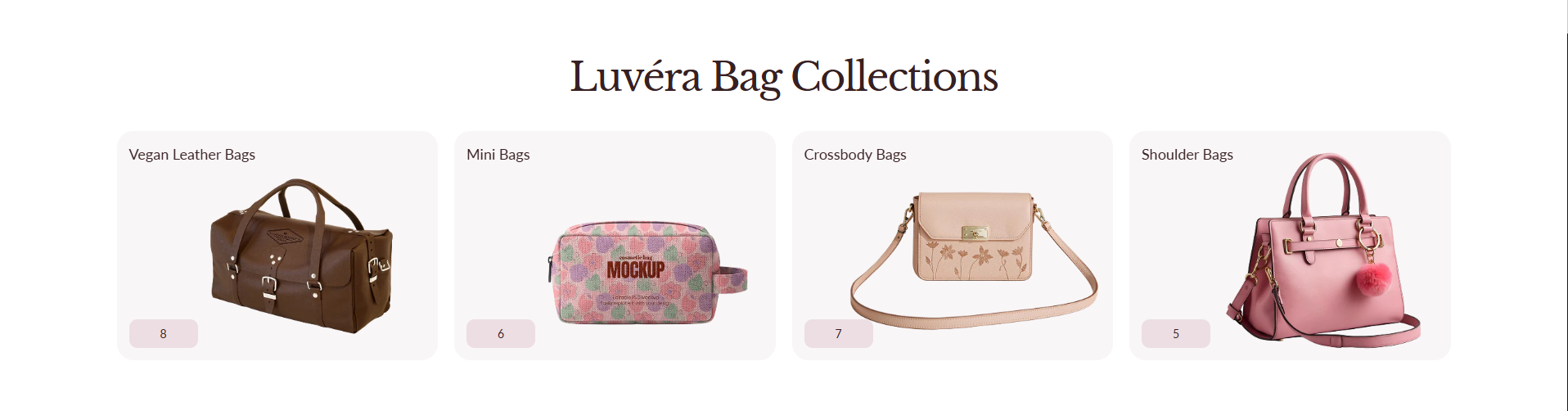
Adding the List Collection section
- Open the Customizer and go to the page where you want to add the "List Collection" section.
- On the left-hand side, click the "Add section" button.
- From the available options, choose "List collection" to add it to your page.
How to edit the List Collection section
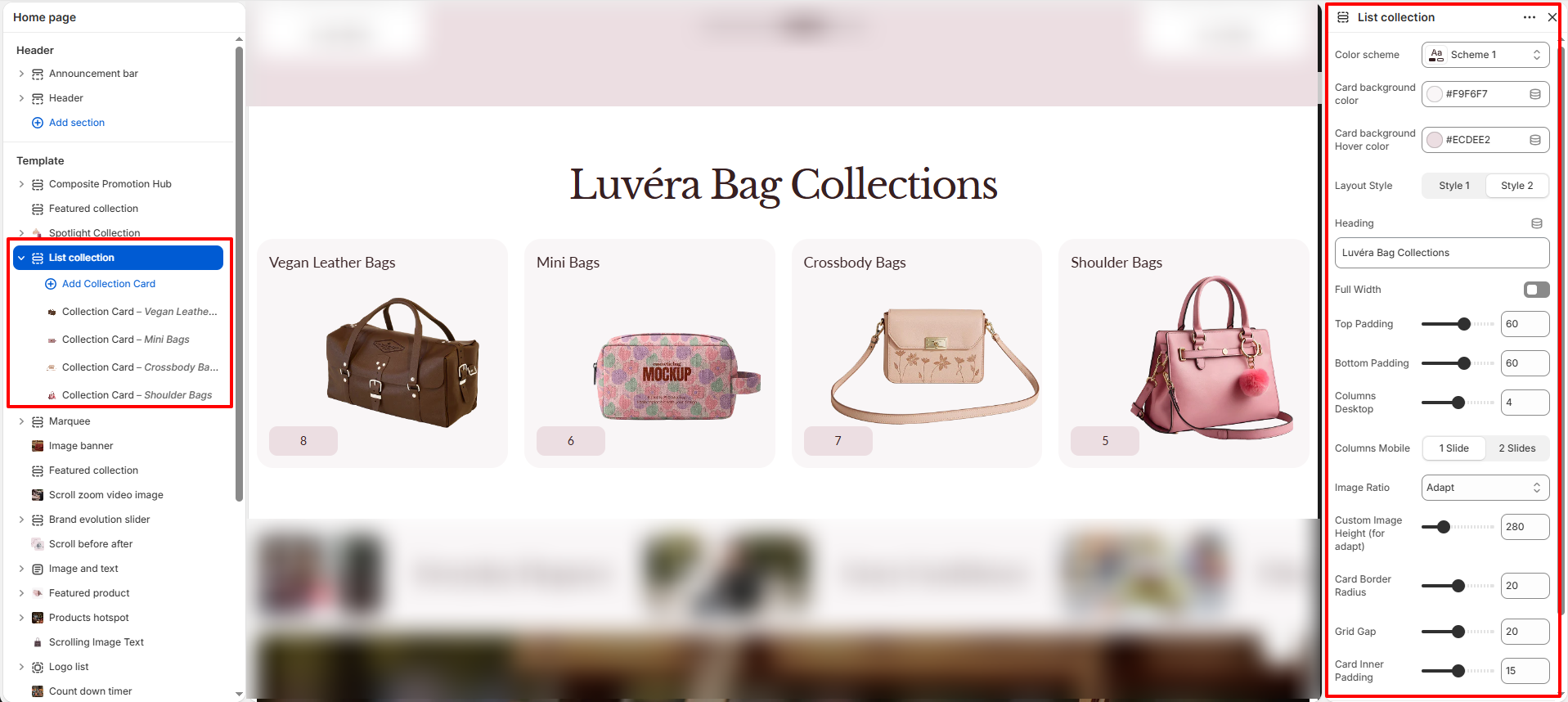
Steps for Configuring the "List Collection" Section in the Dynamic Theme
-
Section Settings:
- Color scheme: Choose a predefined color scheme for the section.
- Card background color: Set the background color for the card.
- Card background hover color: Set the background color for the card on hover.
- Layout style Choose a layout style for the section.
- Heading: Set a main title for the section (e.g., "Exclusive Collection").
- Full Width: Toggle to expand the section to the full width of the browser.
- Top / Bottom Padding: Adjust the vertical spacing of the section content.
- Columns Desktop: Set the number of columns to display on desktop devices (up to 4).
- Columns Mobile: Choose between "1 Slide" or "2 Slides" for mobile view.
- Image Ratio: Select the aspect ratio for collection images (e.g., Portrait).
- Custom Image Height: Manually set the image height for an "adapt to image" effect.
- Card Border Radius: Set the corner roundness of the collection cards.
- Grid Gap: Vertical and horizontal spacing between cards in the grid.
- Card Inner Padding: Set the internal spacing within each collection card.
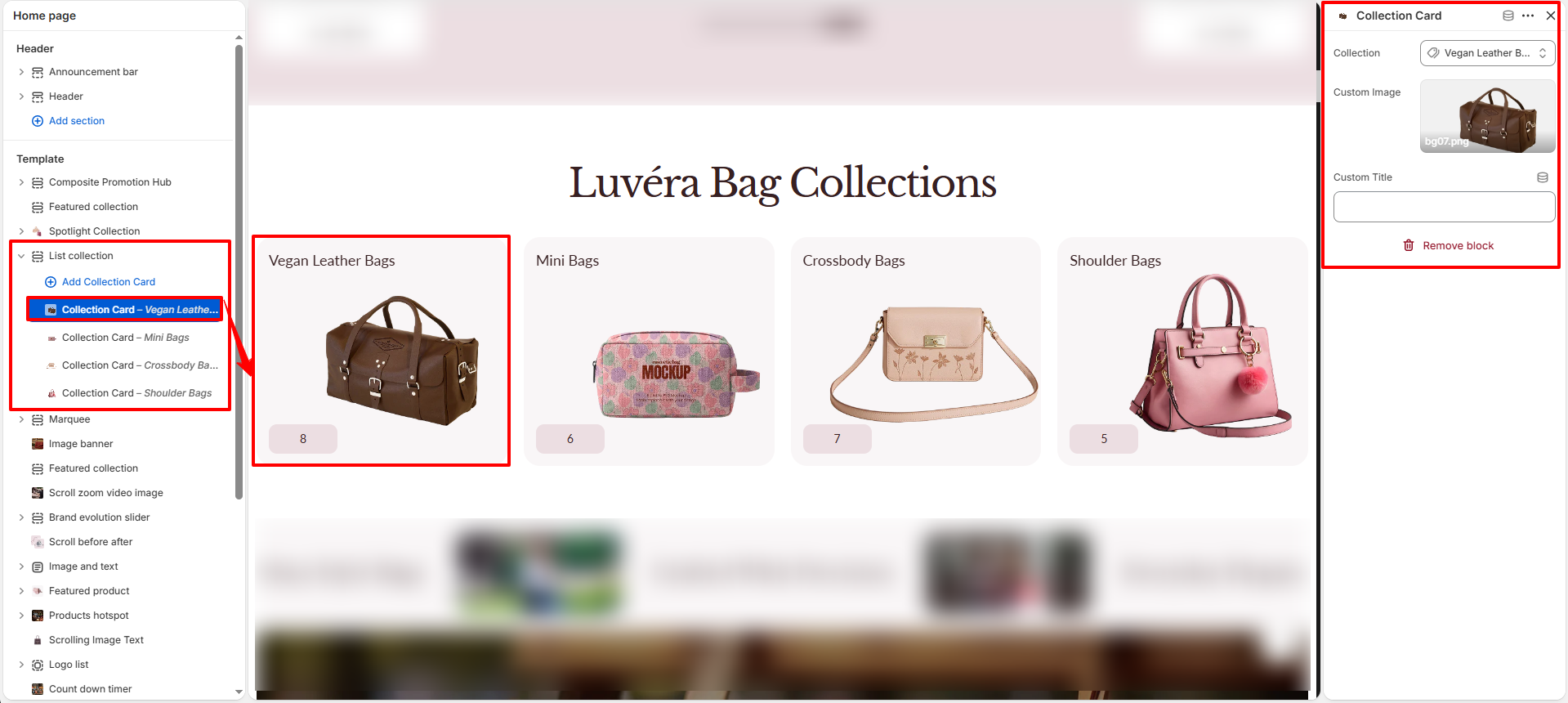
How To Configure Collection Card (Blocks):
Each block represents an individual collection card in the grid.
- Collection: Select the Shopify collection you want to link to.
- Custom Image: Upload an image to override the default collection featured image.
- Custom Title: Enter a custom title to display on the card (e.g., "MOBILE PHONES").