
Hotspot Section Style 2
The Hotspot Section Style 2 allows you to create an interactive shopping experience by placing clickable hotspots on images. Each hotspot can be linked to a product, displaying its details such as name, price, and image when hovered or clicked. This helps highlight specific products and makes it easier for customers to explore and shop directly from visual content.
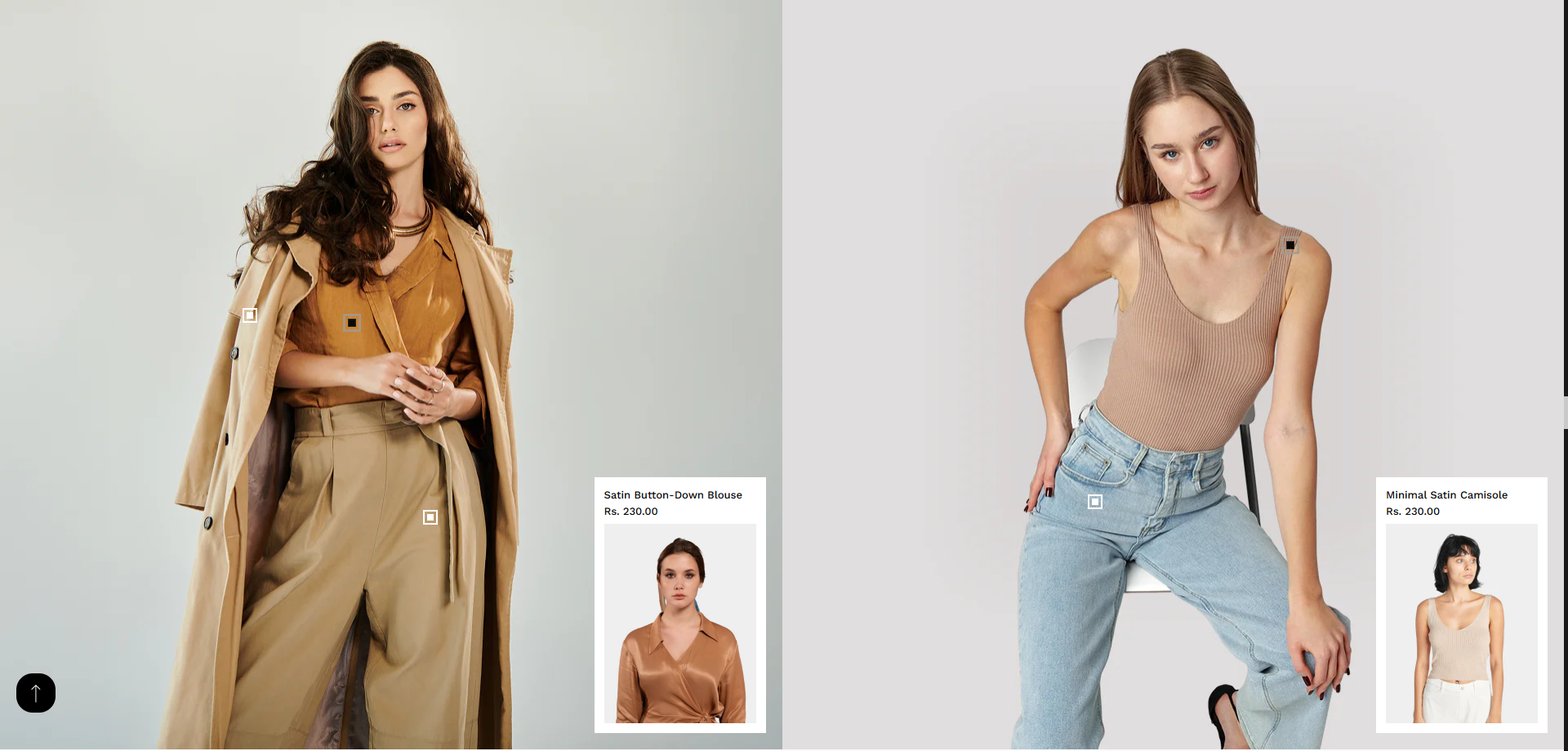
How to Configure the Hotspot Section Style 2
- From your Shopify admin, go to Online Store ? Themes.
- Click Customize on your active theme.
- In the Theme Editor, navigate to the page where you want to add the section.
- Click Add Section and select Hotspot Section Style 2.
- Customize the section settings and blocks as needed.
- Click Save to apply your changes.
How to Configure the Section Settings
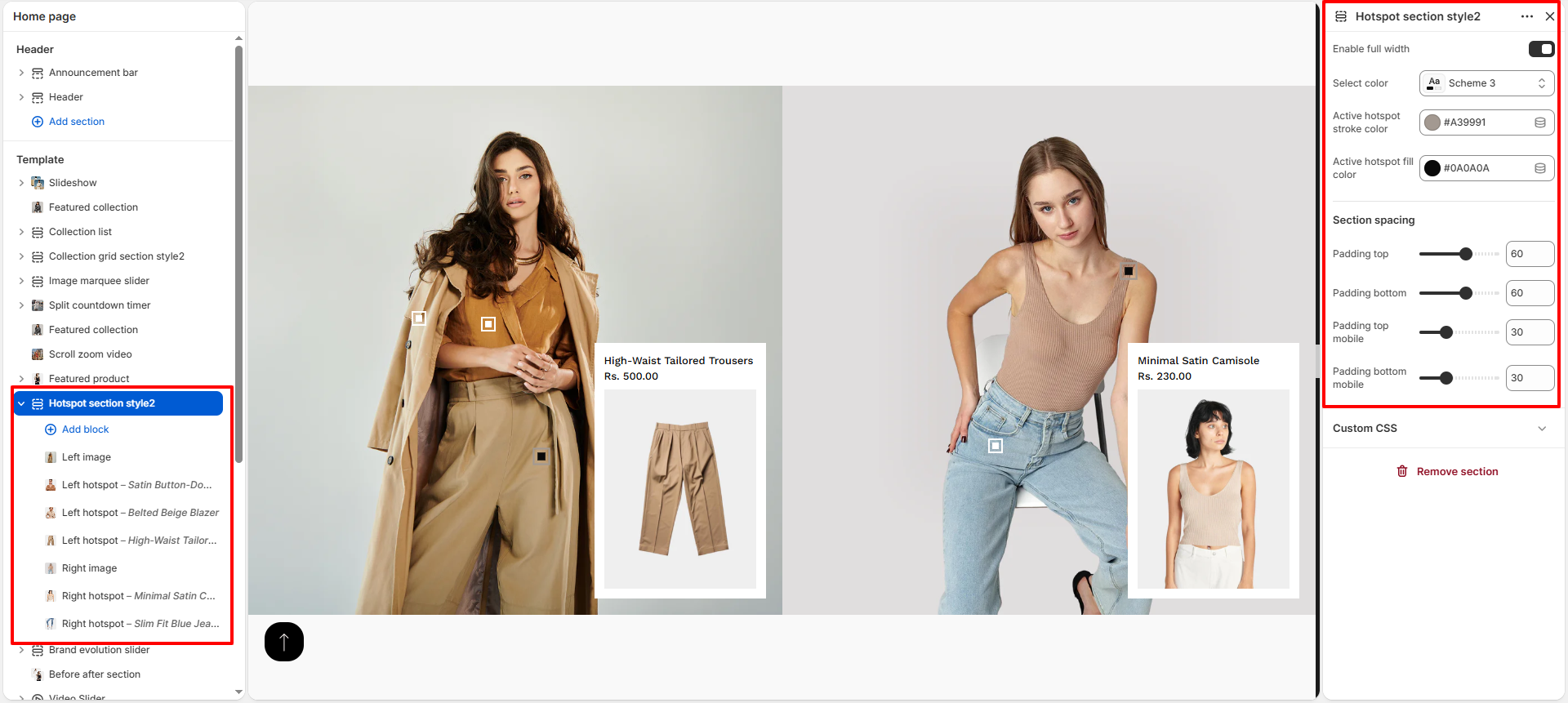
- Enable Full Width: Enable this option to stretch the section across the full screen width.
- Color Scheme: Select a color scheme to control the section's background and text colors.
- Active Hotspot Stroke Color: Set the border color of the active hotspot.
- Active Hotspot Fill Color: Set the fill color of the active hotspot.
- Section Spacing:
- Padding Top: Adjust the space above the section.
- Padding Bottom: Adjust the space below the section.
- Padding Top Mobile: Set top spacing for mobile devices.
- Padding Bottom Mobile: Set bottom spacing for mobile devices.
Configure Blocks in Hotspot Section Style 2
To configure blocks, select them from the left panel in the Theme Editor.
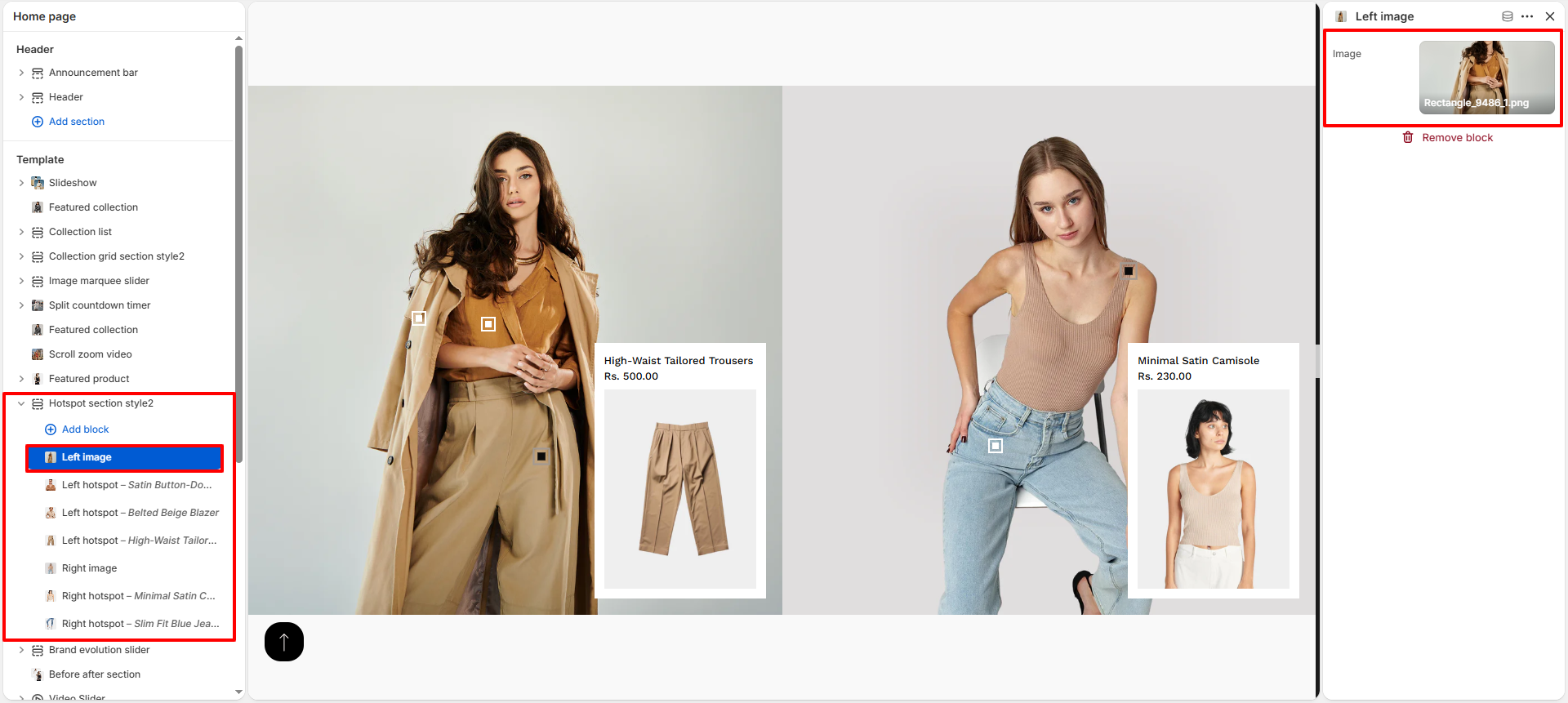
1. Image Blocks (Left Image / Right Image)
- Image: Upload or select an image to display in the section.
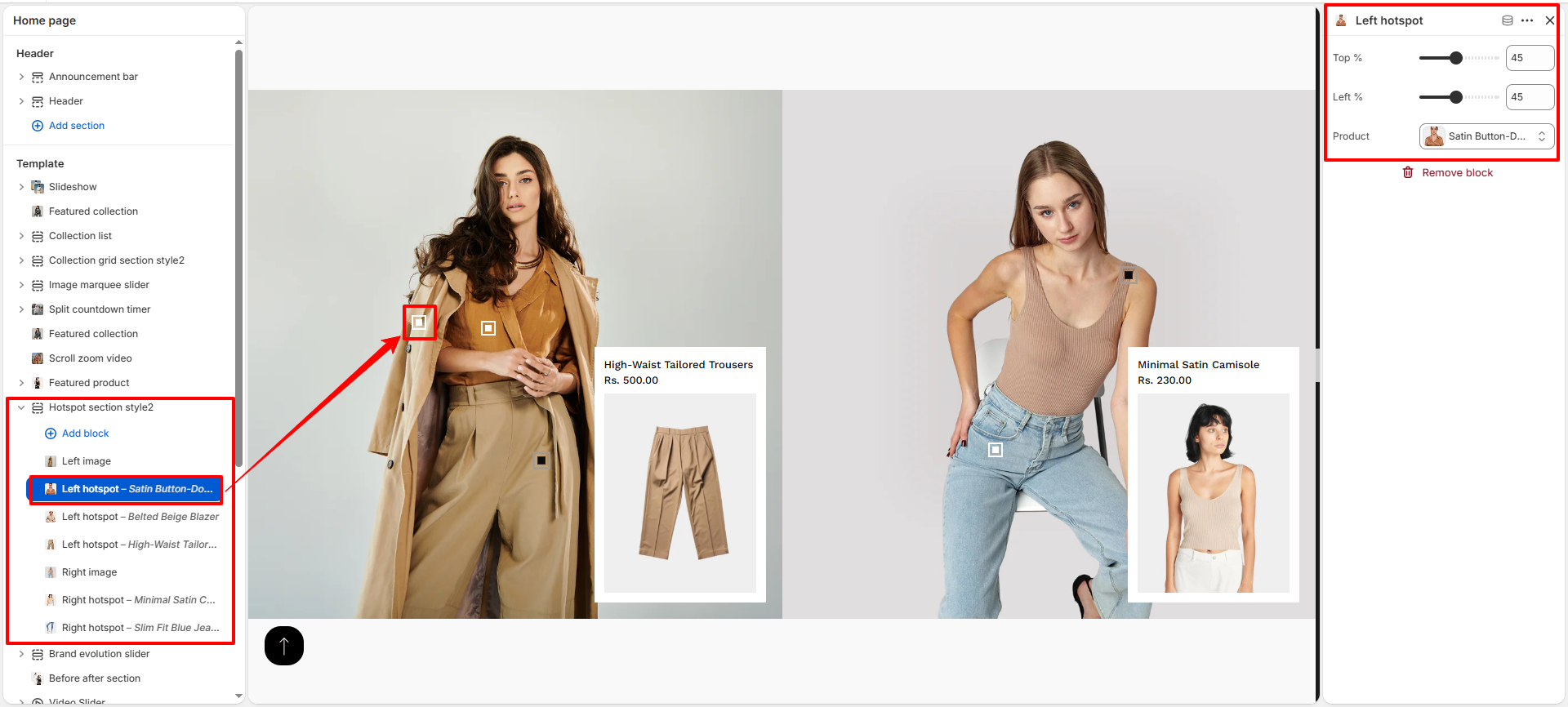
2. Hotspot Blocks (Left Hotspot / Right Hotspot)
- Top %: Adjust the vertical position of the hotspot on the image.
- Left %: Adjust the horizontal position of the hotspot.
- Product: Select a product to link with the hotspot. The product details will be displayed when users interact with it.
- Remove Block: Click Remove block to delete the hotspot.
Tips for Best Usage
- Place hotspots on clearly visible product areas for better interaction.
- Avoid overlapping hotspots to maintain clarity.
- Use high-quality images for a better visual experience.
- Adjust Top and Left percentage values carefully for accurate positioning.