
Product Recommend Filter
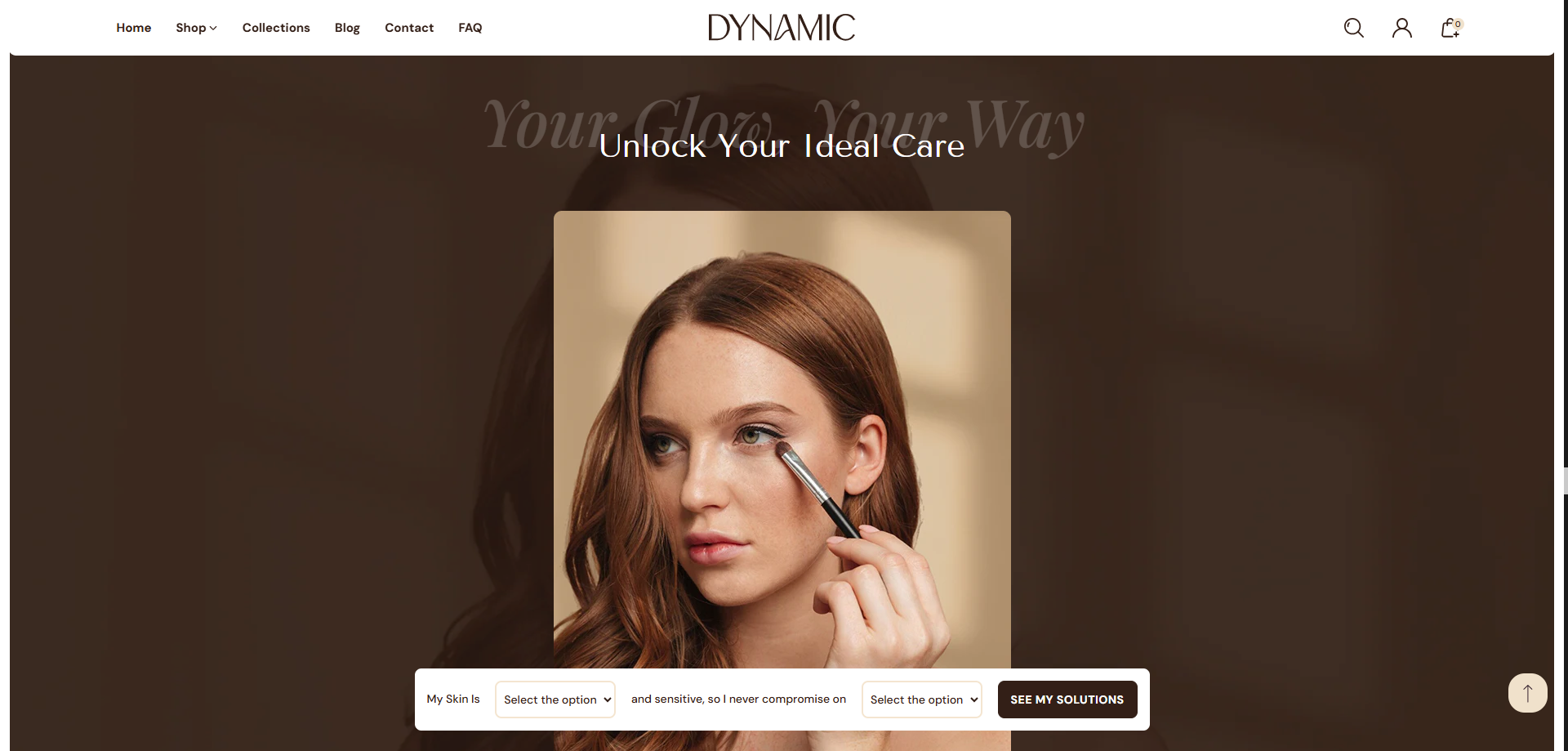
The Product Recommend Filter section in the Dynamic theme helps customers quickly find the most suitable products based on their needs. This section displays two dropdown filters where customers can select their preferences (for example, skin type and skin concern). Based on the selected options, the theme recommends products that contain matching tags.
This feature helps customers quickly discover products that match their preferences. By using product tags along with dropdown filter options, the theme automatically recommends relevant products based on the selections made by the user, improving navigation and product discovery across your store.
Section Configuration
The section settings allow you to control the visual appearance, background, and spacing of the Product Recommend Filter section.
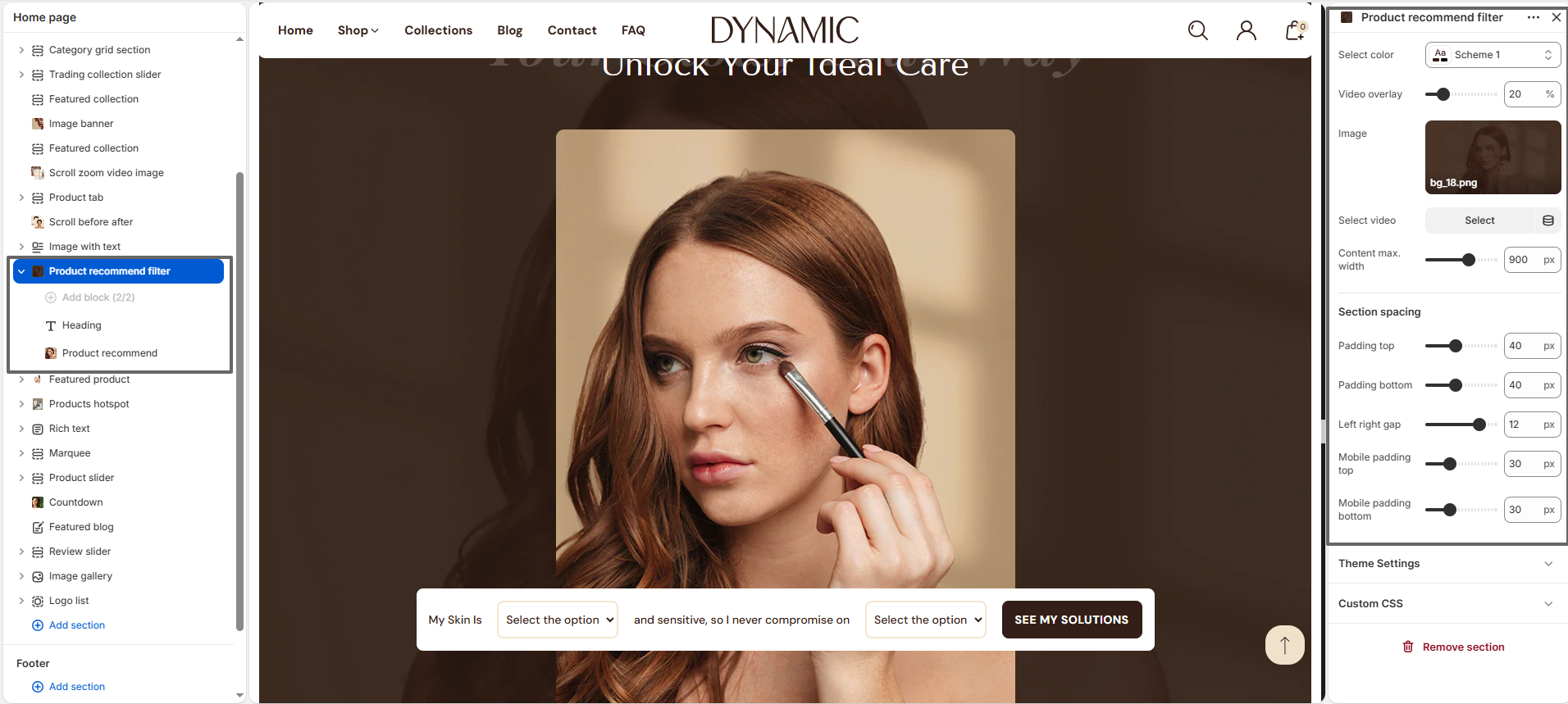
- Select Color: Choose the color scheme used for the section including text, buttons, and background styling.
- Video Overlay: Adjust the overlay opacity applied to the background video to improve text visibility.
- Image: Upload a background image that will appear behind the filter content.
- Select Video: Optionally add a background video to enhance the visual appearance of the section.
- Content Max Width: Control the maximum width of the content area so the dropdown filters and button remain properly aligned.
How To Add the Product Recommend Filter Section
- Login to your Shopify Admin panel.
- Navigate to Online Store ? Themes.
- Click the Customize button on the Dynamic theme.
- Inside the theme editor, click Add Section.
- Search for and select Product Recommend Filter.
- The section will now be added to your page and can be configured from the settings panel.
Product Recommend Filter Section Available Blocks
The Product Recommend Filter section includes the following blocks that allow you to customize the section content and functionality.
- Heading Block
- Product Recommend Block
How To Configure the Heading Block
The Heading Block allows you to add a title and supporting text above the Product Recommend Filter section.
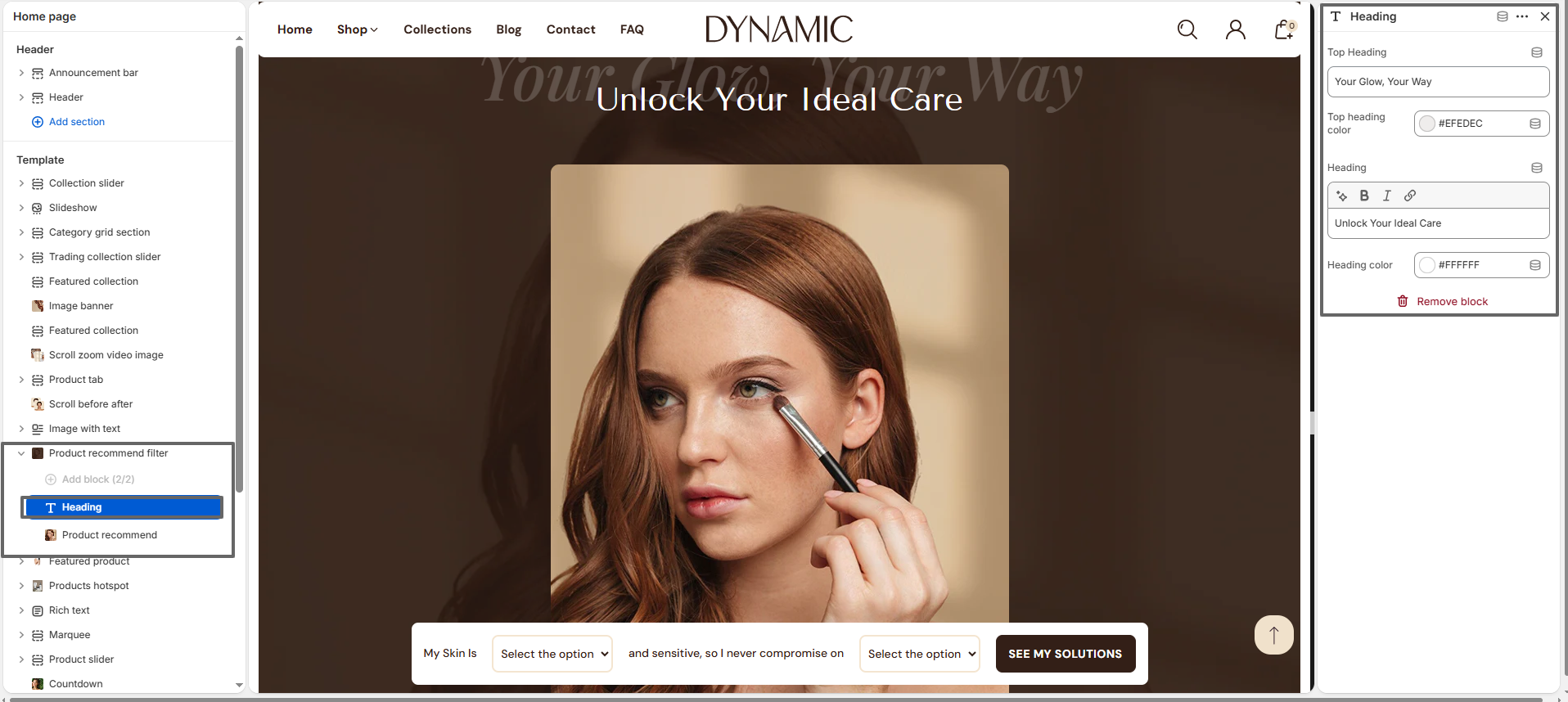
- Top Heading: Displays a small heading above the main title.
- Top Heading Color: Sets the color of the top heading text.
- Heading: Main title displayed for the section.
- Heading Color: Sets the color of the main heading text.
How To Configure the Product Recommend Block
The block provides several settings that allow you to control the dropdown filters and recommendation behavior.
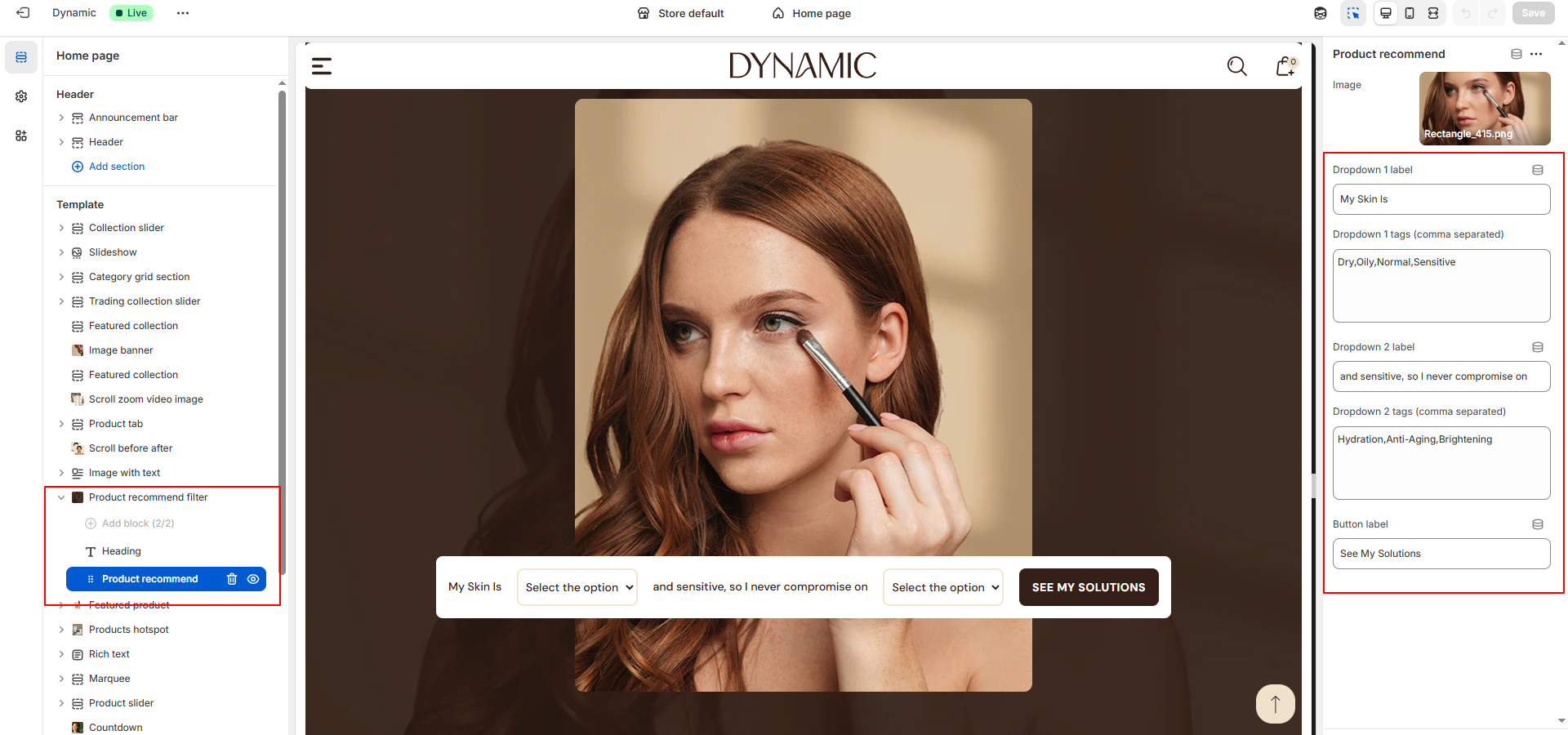
- Image: Upload or select an image that will appear as the background for the Product Recommend Filter section.
- Dropdown 1 Label: Enter the text that appears before the first dropdown. Example: My Skin Is.
- Dropdown 1 Tags: Enter the filter options for the first dropdown using a comma-separated format. Example: Dry, Oily, Normal, Sensitive.
- Dropdown 2 Label: Enter the label text that describes the second dropdown. Example: and sensitive, so I never compromise on.
- Dropdown 2 Tags: Add comma-separated tags that represent the second filter options. Example: Hydration, Anti-Aging, Brightening.
- Button Label: Customize the button text displayed in the section. Example: See My Solutions.
How Product Recommendations Filter Section Work
The Product Recommend Filter section works using product tags. When a customer selects options from the dropdown filters, the theme searches for products that contain matching tags and displays them as recommended results.
Step-by-Step Tag Configuration
-
Add Tags to Your Products
Go to your Shopify Admin ? Products and open the product you want to include in the recommendations. -
Assign Two Relevant Tags
Add any two tags to the product that match the filter options. For example: Dry and Hydration. -
Save the Product
After adding the tags, click Save to update the product. -
Add the Same Tags in the Filter Settings
Enter those same tags inside the dropdown settings in the Product Recommend Filter section using a comma-separated format. -
Repeat for Other Products
Add appropriate tag combinations to other products that you want to appear as recommendations.
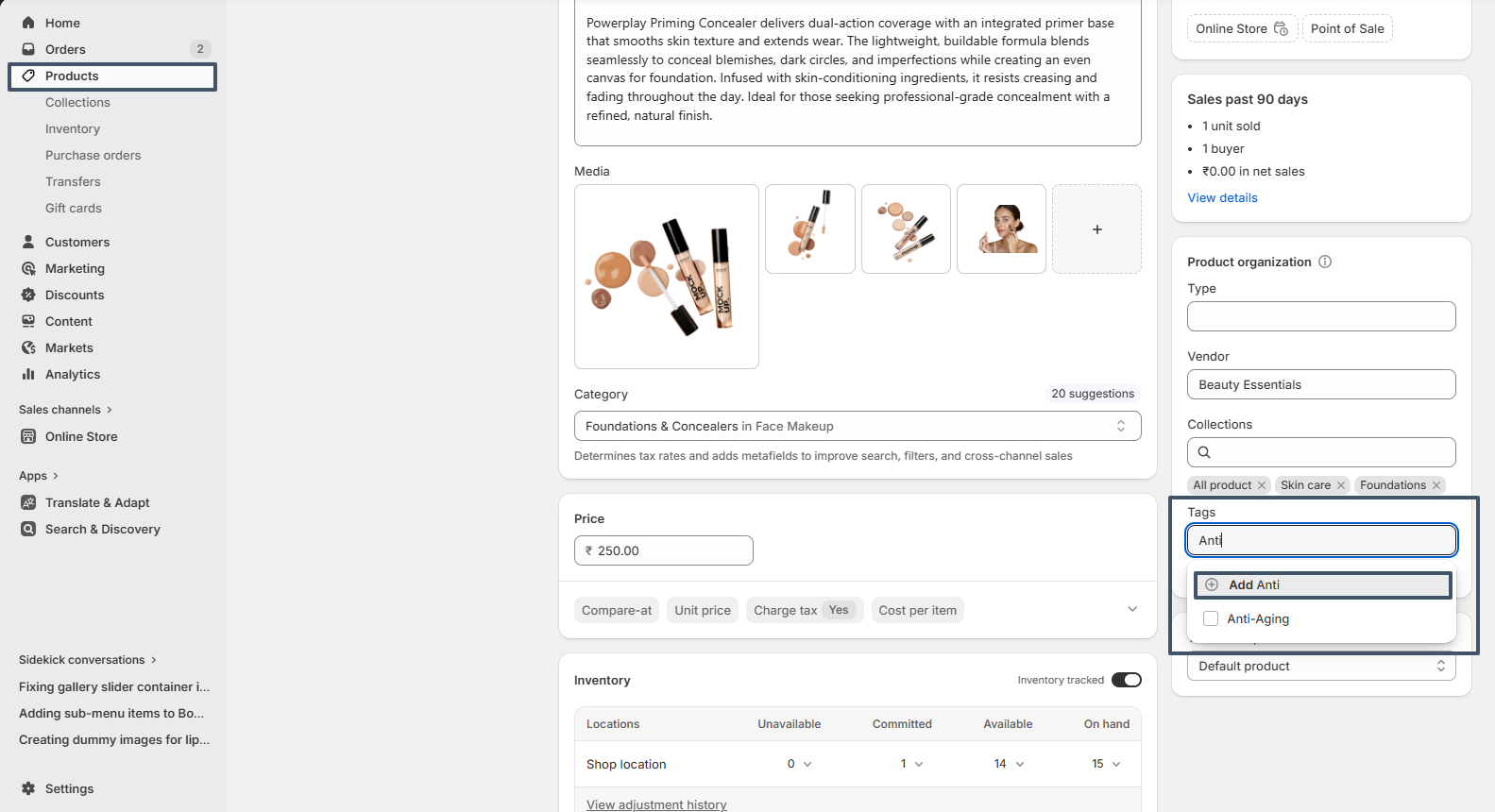
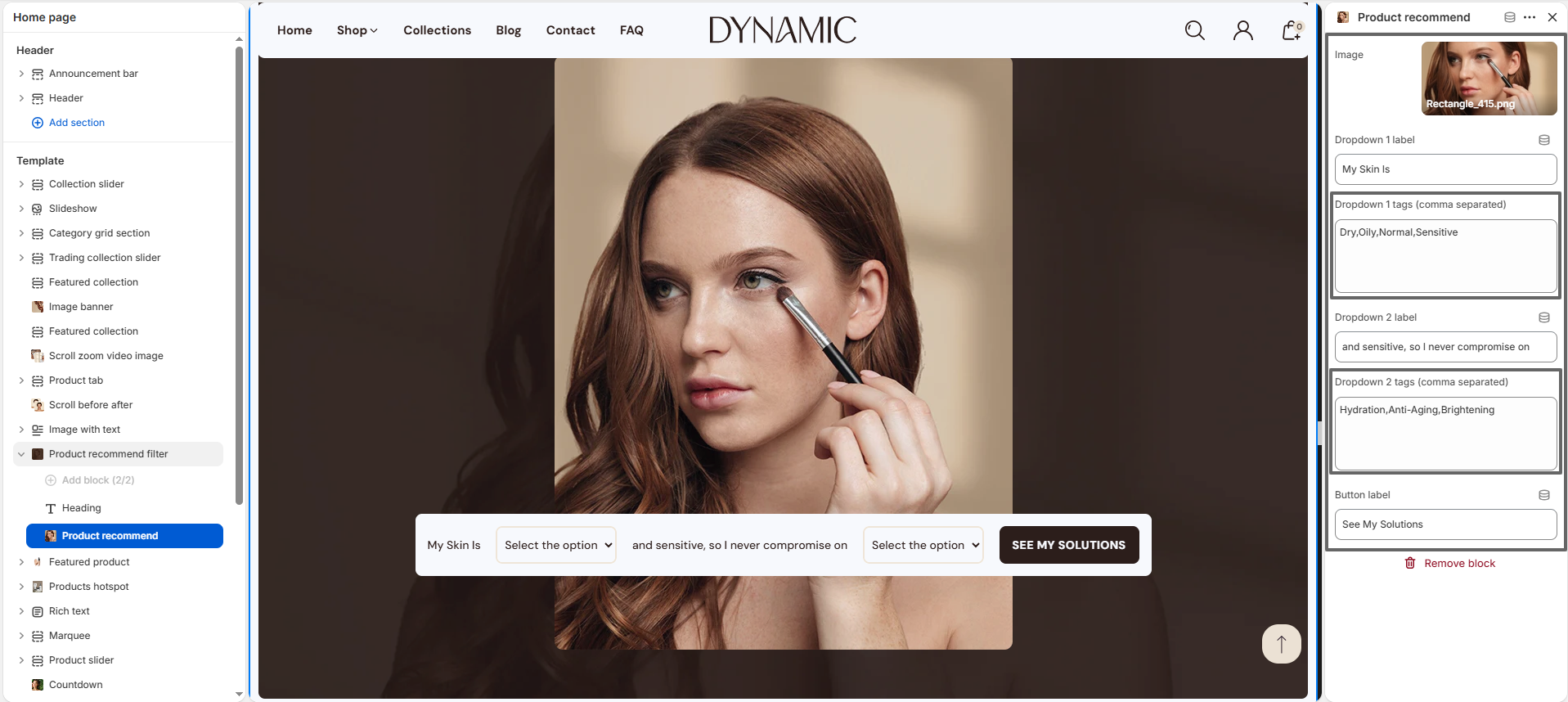
Example
If a product has the tags Dry and Hydration, it will appear in the recommended results when a customer selects:
- My Skin Is: Dry
- Concern: Hydration
This allows customers to easily find products that match their specific needs without manually searching through the entire store.