
Image Marquee
The Image Marquee section creates a visually engaging horizontal scrolling effect that combines images and text. This section is ideal for showcasing brand highlights, promotional messages, or key selling points in a continuous loop. You can add multiple scrolling text items, each paired with an icon and images, to create a dynamic and modern storefront experience.

Adding the Image Marquee Section
- From your Shopify admin, go to Online Store ? Themes.
- Click Customize on the Dynamic theme.
- In the Theme Editor, select the page where you want to add the section.
- Click Add Section and choose Image Marquee.
- Click Save to apply your changes.
How to Edit the Image Marquee Section
Follow these steps to customize the scrolling marquee section:
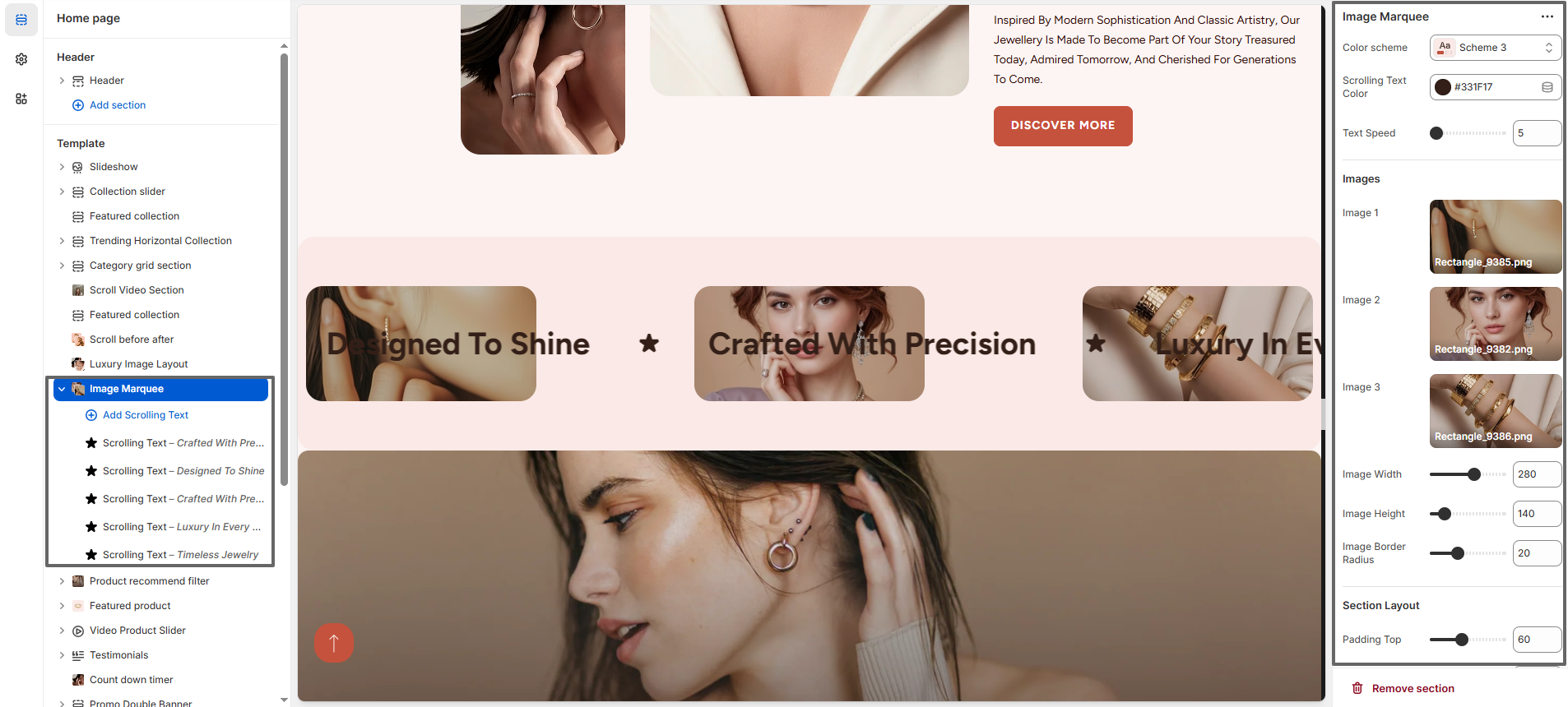
- Color Scheme: Select a color scheme (e.g., Scheme 3) to control the overall appearance of the section including background and text colors.
- Scrolling Text Color: Choose the color of the scrolling text to ensure visibility and match your brand design.
- Text Speed: Adjust the scrolling speed of the marquee text. Lower values create a slower, smoother movement, while higher values increase speed.
- Image 1, Image 2, Image 3: Upload images that will appear alongside the scrolling text.
- Image Width: Set the width of each image (e.g., 280px).
- Image Height: Adjust the height of images (e.g., 140px).
- Image Border Radius: Control the roundness of image corners for a softer design (e.g., 20px).
- Padding Top: Adjust the spacing above the section to maintain proper layout alignment.
- Padding Bottom: Adjust the spacing below the section to maintain proper layout alignment.
- Section Border Radius: Adjust the overall corner roundness of the Image Marquee section. Increasing the value creates a softer, more modern curved layout, while lower values keep the section edges sharp and clean.
Image Marquee Blocks
You can add multiple scrolling text items to create a continuous marquee effect. Each block represents one text item in the loop.
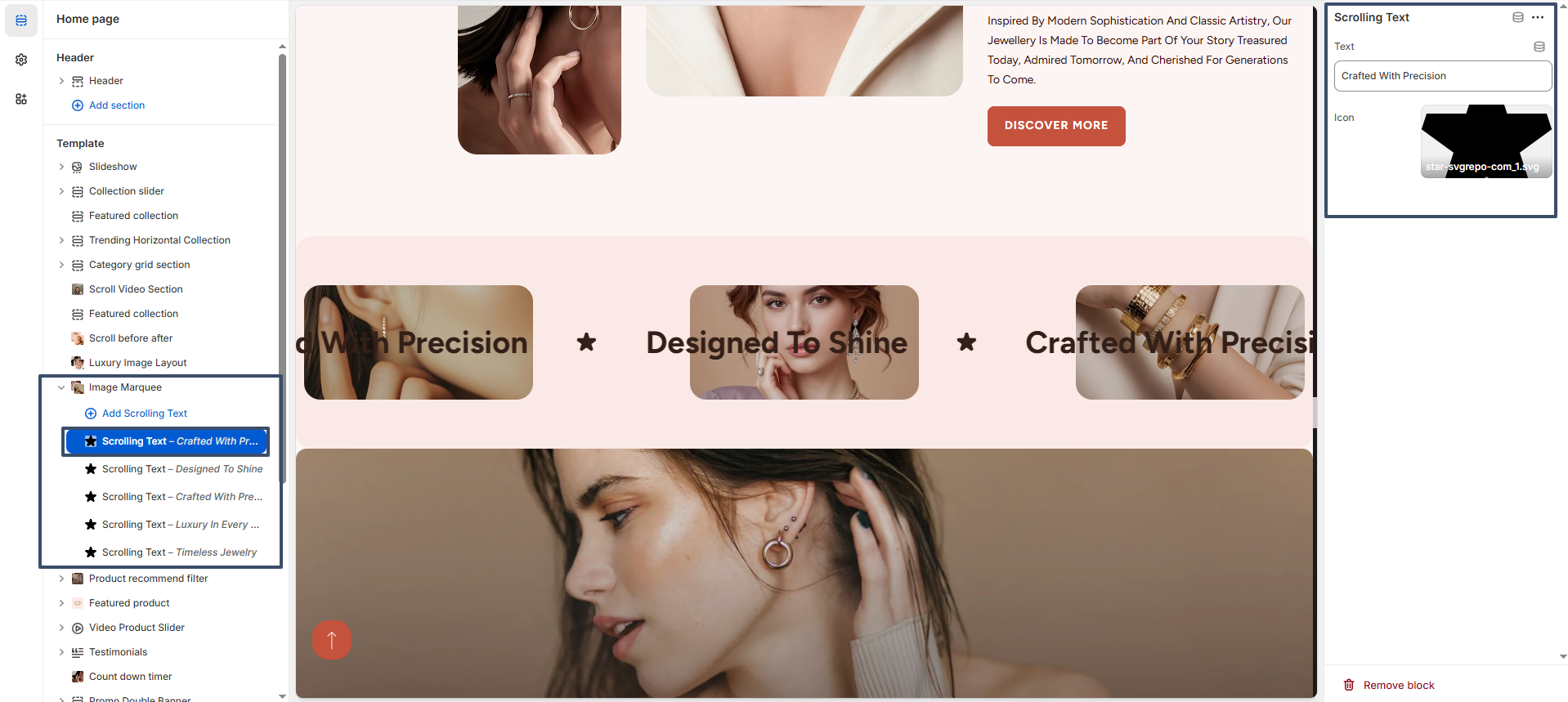
- Text: Enter the scrolling message (e.g., “Crafted With Precision”, “Designed To Shine”).
- Icon: Upload or select an icon (e.g., star icon) to display between text items for visual separation.
By combining multiple scrolling text blocks with images and icons, you can create a seamless, eye-catching marquee that enhances user engagement and highlights your brand messaging effectively.