
Image Info
The Image Info section allows you to create a premium visual layout by combining multiple images with structured content on both left and right sides. This section is ideal for showcasing product highlights, storytelling, and creating an elegant brand presentation.
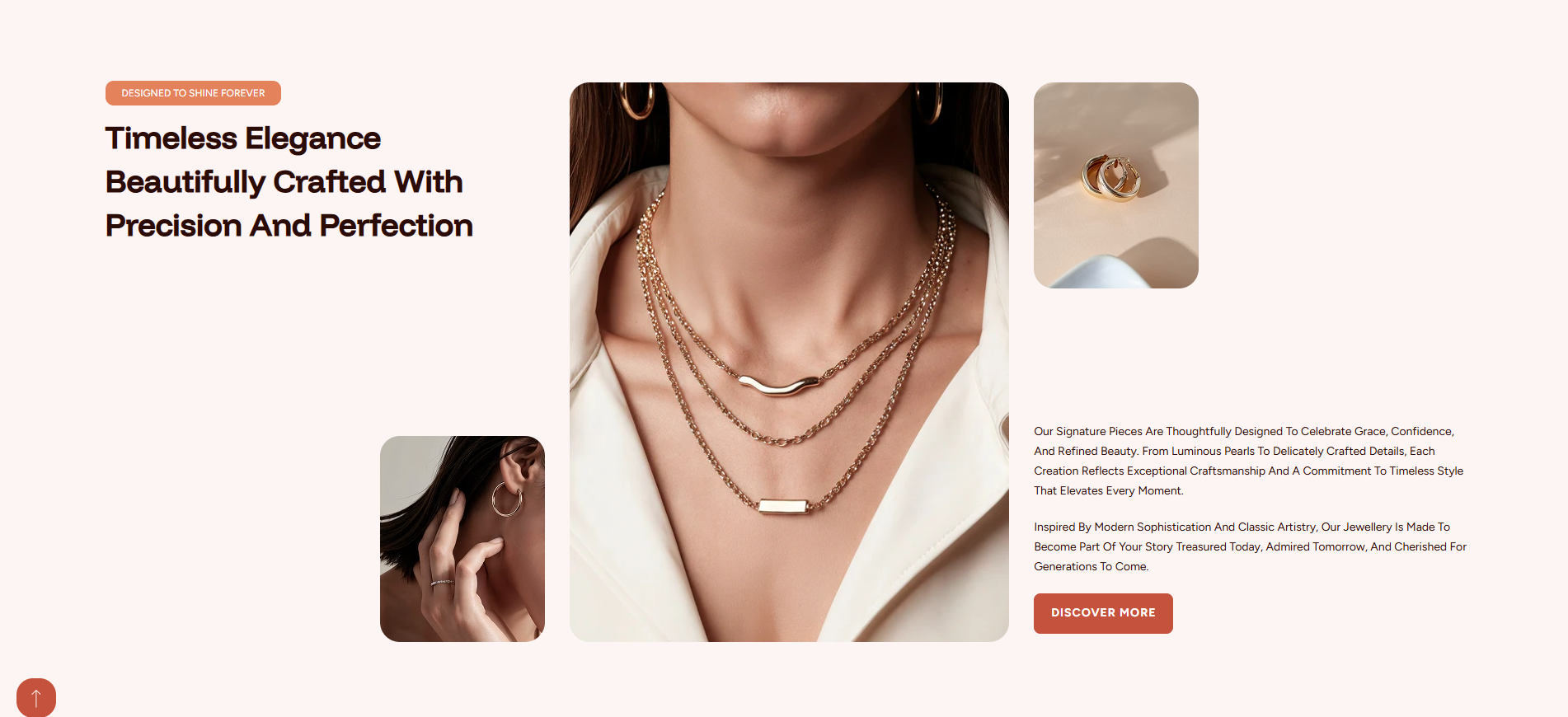
Adding the Image Info Section
- Go to Online Store ? Themes in Shopify admin.
- Click Customize on the Dynamic theme.
- Click Add Section.
- Select Image Info.
- Click Save.
How to edit the Image Info section
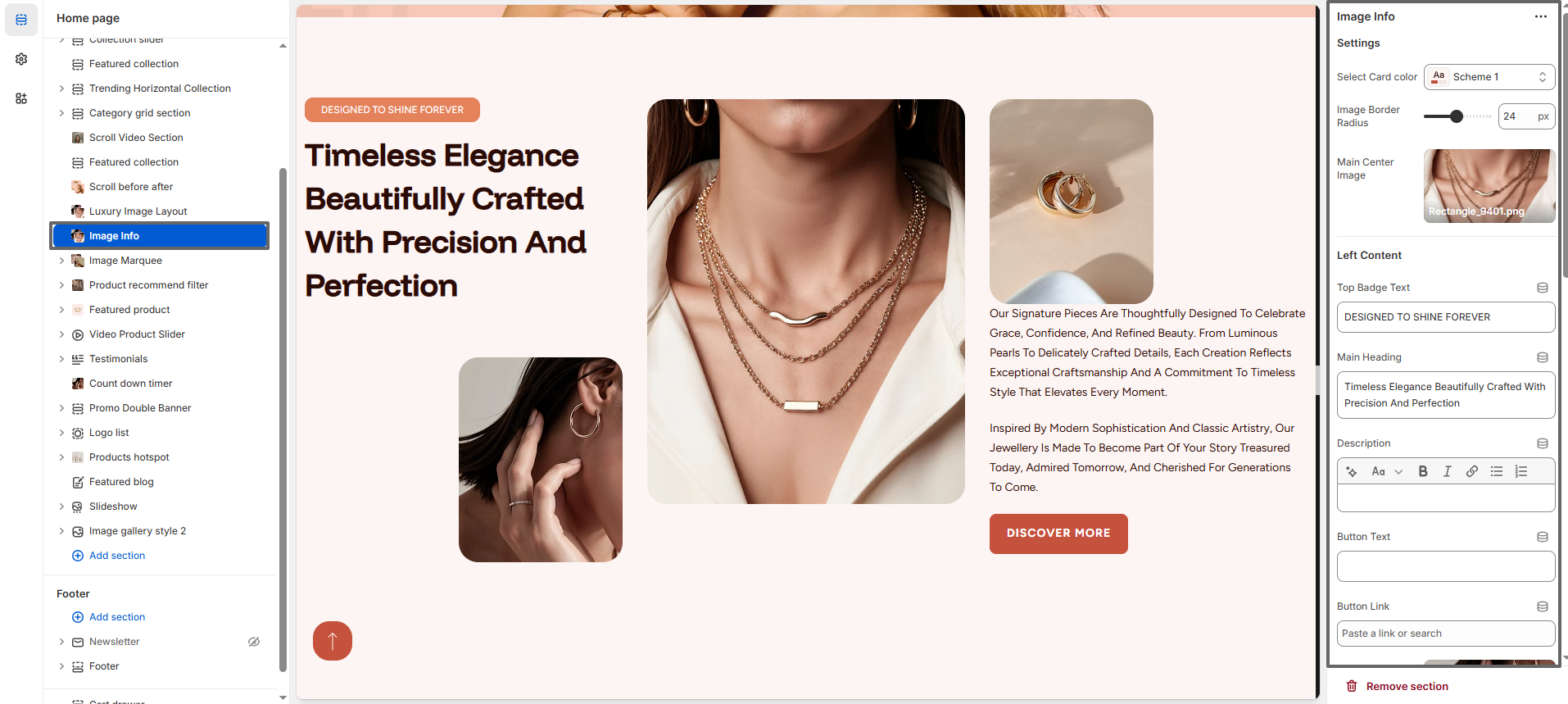
- Select Card Color: Choose a color scheme (e.g., Scheme 1) to control the section style.
- Image Border Radius: Adjust image corner roundness.
- Main Center Image: Upload the primary featured image displayed in the center.
- Small Left Image: Upload a supporting image displayed on the left side.
- Left Content – Top Badge Text: Add a small label (e.g., “DESIGNED TO SHINE FOREVER”).
- Left Content – Main Heading: Add the main heading text for the left side.
- Left Content – Description: Add description content.
- Left Content – Button Text: Add button label.
- Left Content – Button Link: Add link for the button.
- Right Content – Top Badge Text: Add badge text.
- Right Content – Main Heading: Add heading text.
- Right Content – Description: Add detailed description content.
- Right Content – Button Text: Add button text (e.g., “DISCOVER MORE”).
- Right Content – Button Link: Add button link.
- Right Content – Small Right Image: Upload an additional image displayed near the right content.
- Section Padding Top: Adjust top spacing.
- Section Padding Bottom: Adjust bottom spacing.